
Slack provides hree types of Gmail integration out-of-the-box:
- the official Slack for Gmail add-on
- a dedicated email address you can create for any channel or DM
- a personal forwarding address that delivers email to your DM with Slackbot
All three move the content of an email into Slack, where the team can read and discuss it without anyone pasting screenshots of their inbox.
This post goes through the native options first, with the setup steps for each, and then a second kind of connection: applying a label in Gmail and having a tracked task appear in Slack automatically, with an owner and a due date.
The Slack for Gmail add-on
The Slack for Gmail add-on installs from the Google Workspace Marketplace and adds a Slack icon to the right-hand sidebar of your Gmail inbox: open an email, click the icon, pick a channel or person, and the email is posted there - you can include a note of your own and the attachments.
It works on every Slack plan, and it's the right tool for the occasional email worth sharing: a customer question the team should see, or a thread that's outgrown email and needs a quicker back-and-forth.
An email address for a channel or DM
On paid plans, any channel or DM can have its own email address. Open the conversation, click the channel name, go to the Integrations tab, and choose Send emails to this channel. Anything sent to that address gets posted in the conversation.
The usual setup is an automatic forwarding rule: point invoices@yourcompany.com at the address for #finance, or a Gmail filter at the address for #support, and matching email flows in on its own.
A forwarding address for Slackbot
Under Preferences, in Messages & media, Slack will generate a personal forwarding address that delivers email to your DM with Slackbot. It's private to you, available on all plans, and useful as a personal "deal with this later" lane: forward an email from your phone and it's waiting in Slack when you're back at your desk.
Gmail to Slack at the task level: label an email, get a task
The more durable setup treats the emails that require action: instead of forwarding content into a channel, you connect Gmail to Slack so that applying a label to an email creates a task in Slack, with an owner and a due date.
The wiring is straightforward with Zapier. Gmail's Zapier integration has a "New Labeled Email" trigger that fires whenever a label you choose is applied to an email. On the other end, Chaser task manager runs inside Slack and creates a task in Slack as a message: the email subject as the task name, a link back to the thread in the description, an assignee, and a due date.
How you wire it is up to you, and teams vary it in a few ways:
- One label or several. A single "Action" label feeding one channel is the simplest version. Separate labels per team — "AP" to #finance, "Follow up" to #sales — let each kind of email land where its owners are.
- Who gets assigned. The Zap can assign every task from a label to a fixed person (the AP owner, say), or to whoever manages that channel's work, who then reassigns in Slack.
- The due date. A default like "three business days from creation" works for most labels; date-sensitive ones, like invoices, can get a tighter default.
Once it's running, the day-to-day habit is one click in Gmail. Teams that route other sources into Slack the same way — pitches and briefs for a content production workflow, or events from a code repository as in this guide to the GitHub Slack integration — end up with one task list regardless of where the work originated.
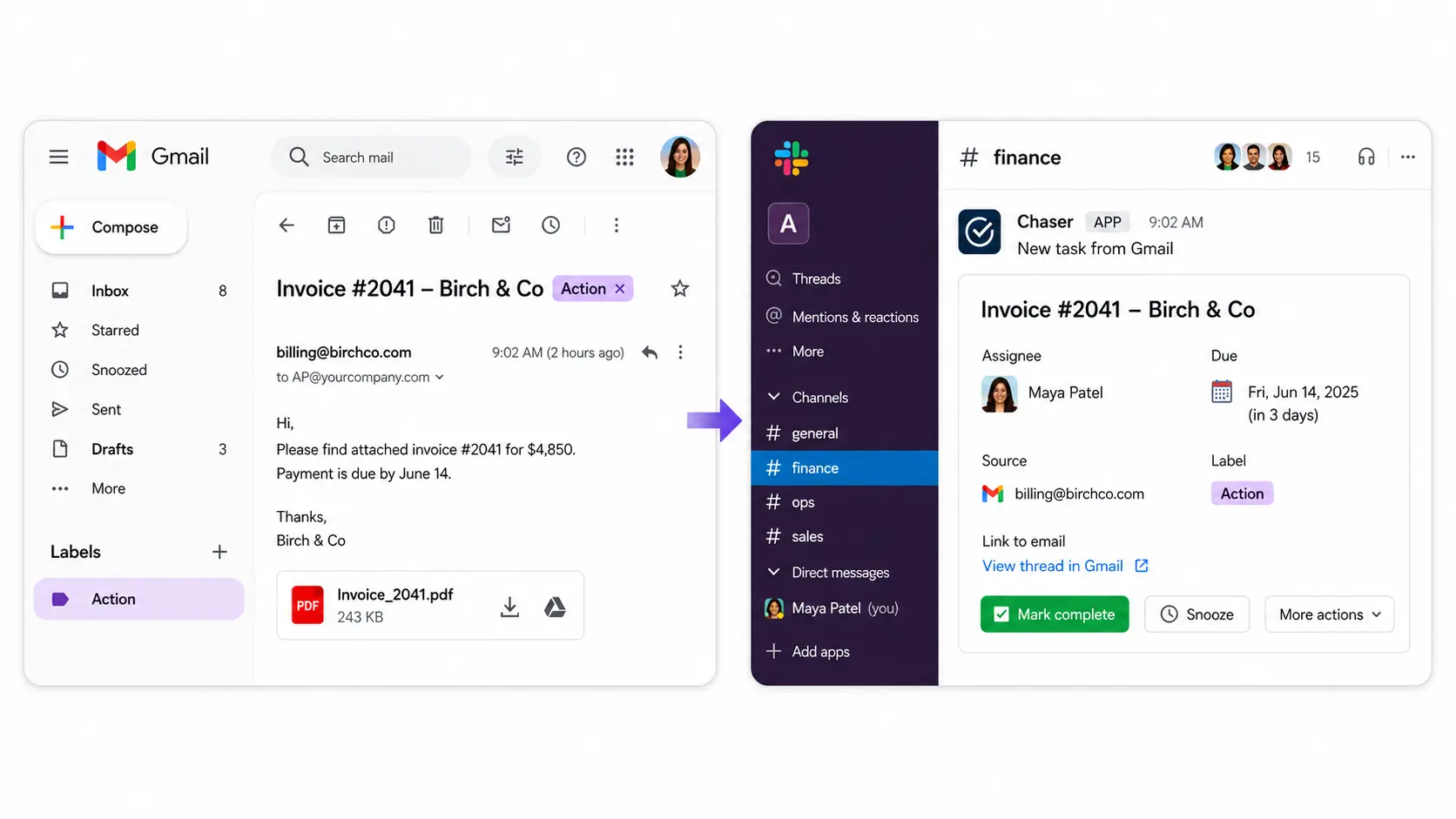
Three examples from a normal week:
An invoice finance needs to pay
A vendor sends an invoice to the shared inbox. Whoever triages mail that morning labels it "AP", and a task lands in #finance assigned to Maya with a due date ahead of the payment terms. Chaser reminds her before it's due and keeps reminding after if it's still open, and the channel's status report lists it until it's marked done. When the auditor asks in March whether the Birch & Co invoice was paid on time, the task record answers without anyone searching their inbox.
A customer reply sales needs to follow up on
A prospect replies "let's talk in two weeks." That email is easy to archive and forget. Labeled "Follow up", it becomes a task assigned to the account owner, due in twelve days, and Chaser reminds them as the date approaches and keeps reminding if it passes. Tasks with due dates can also appear next to meetings in a calendar, covered in this guide to the Google Calendar Slack integration.
A vendor contract that needs review
A renewal contract arrives with a signature deadline. Labeled "Review", it becomes a task in #ops with the deadline as the due date. The reviewer attaches the marked-up version in the task's thread, so the document and the discussion sit with the task rather than in a separate email chain. If review work like this is a big share of your team's load, this guide to task management in Slack goes deeper on running it all from Slack.
Choosing a Slack Gmail integration
The four approaches solve different problems, and most teams end up using two of them together — typically the add-on for ad-hoc sharing plus one automated route.
| Method | What it does | Best for |
|---|---|---|
| Slack for Gmail add-on | Manually sends one email to a channel or DM, with attachments and a note | Occasional emails worth discussing as a team |
| Channel email address | Posts everything sent or forwarded to a dedicated address into one conversation (paid plans) | Shared inboxes the whole team should see as mail arrives |
| Slackbot forwarding address | Delivers forwarded email to your private DM with Slackbot | A personal "handle later" lane, invisible to the team |
| Label-to-task automation | Creates an assigned, due-dated task in Slack when a Gmail label is applied (via Zapier or a webhook) | Emails that require action someone has to complete and track |
Final thoughts
Slack's native email features are good at what they're built for, and they're worth setting up: the add-on for sharing, a channel address for any shared inbox the team watches. The piece worth adding on top is a route for the emails that carry work in them. A label in Gmail that turns into an assigned task in Slack costs one click per email, and it gives each of those emails an owner, a due date, and a reminder that runs on its own.
You can try Chaser for free and see how it fits the way your team already works in Slack. Get started and add Chaser to Slack, for free.