

Monday.com connects to Slack in three ways: board activity posted into a channel you choose, new board items created from Slack messages, and your personal Monday.com notifications delivered as Slack DMs.
Supported features
Post board activity to a Slack channel
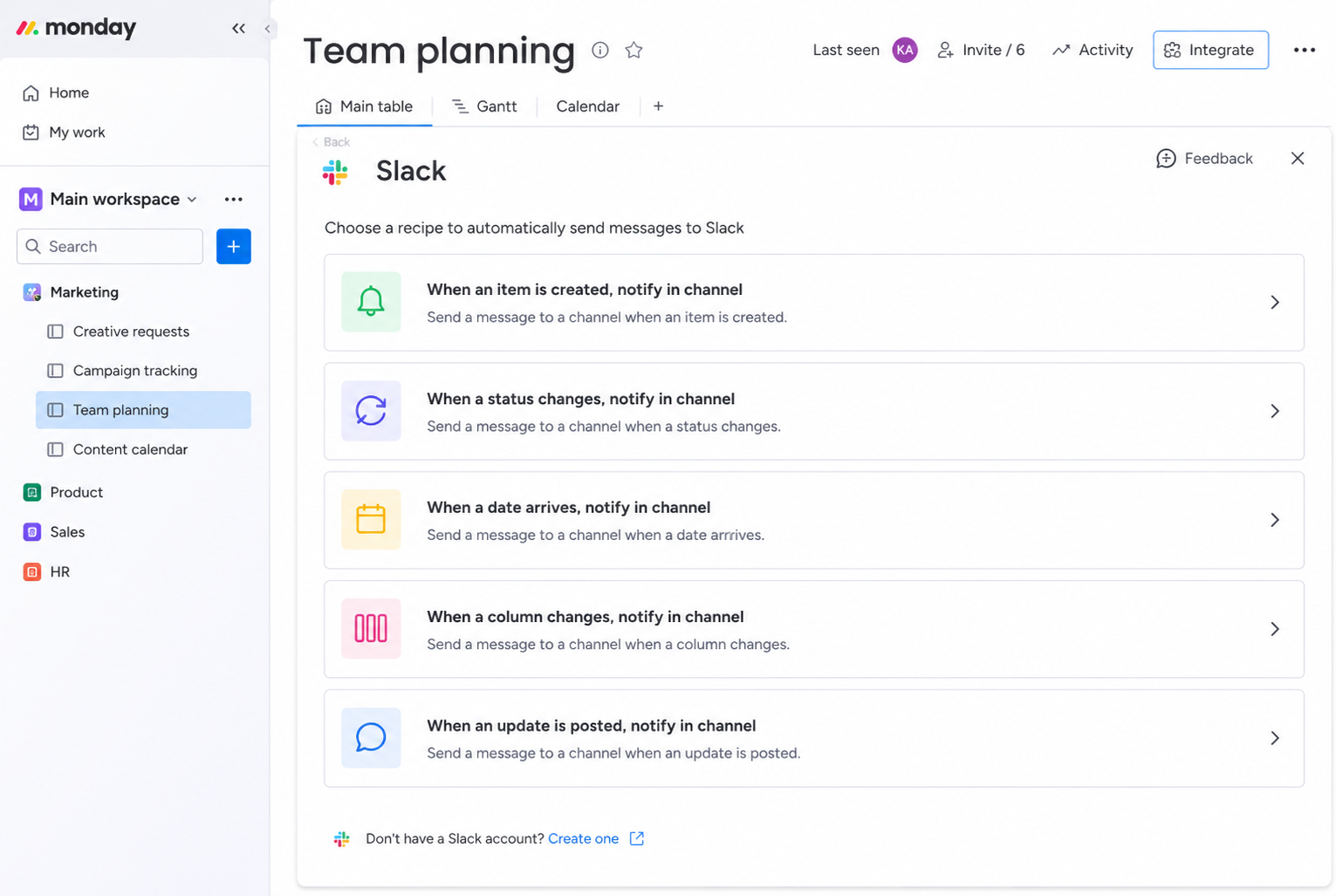
This is the main use. On any board, you add an integration recipe that watches the board and posts to Slack when something happens. The recipes cover the events teams usually care about:
- a status changes (an item moves to Done, or to Stuck)
- a new item is created on the board
- a date arrives, like a deadline hitting today
- a column changes, such as priority or owner
- someone writes an update on an item
Each recipe posts to the channel or person you pick, so the design board can report into #design while the sprint board reports into #dev. Most tools follow this same pattern for Slack: the GitHub Slack integration does the equivalent with pull requests and issues.
Create Monday.com items from Slack
The monday.com app for Slack works in the other direction. Once it's installed in your workspace, you can create a new item on a board straight from a Slack conversation, or add an update to an existing item, without opening Monday.com. It's useful for the moment a request lands in a channel and belongs on a board: you file it from the message instead of retyping it.
Get notifications as Slack DMs
If Slack is where your team actually reads notifications, this saves keeping a second inbox open.
How to set it up
Notification recipes are configured per board, from Monday.com's side:
- Open the board and click Integrate in the top-right corner.
- Pick Slack from the list of apps.
- Choose a recipe, such as "When a status changes, notify a channel."
- Sign in to Slack when prompted, authorize the connection, and pick the channel the recipe should post to.
To create items from Slack, install the app from its Slack Marketplace listing linked above. If a recipe should post into a private channel, add the app to that channel first: open the channel's settings, then Integrations, then Add apps.
One requirement to know before you start: the integration is available on Monday.com's paid plans, Standard and above. The step-by-step detail, with screenshots, is in Monday.com's support article on the Slack integration.
Limits of Monday.com Slack integration
Traffic mostly flows one way, out of Monday.com. From Slack you can create an item or add an update, and that's about the limit — changing a status, reassigning an item, or marking it done still means opening Monday.com. The messages in your channel are pointers back to the board.
The other thing to watch is volume: a recipe on a busy board can post every time any item moves, and the channel turns into a feed people mute. Recipes tied to one specific event ("when Status changes to Stuck, notify #escalations") hold up much better over time.
Turning Slack messages into tasks
Many teams use Chaser, a task manager that runs directly inside Slack. Any Slack message can be turned into a task with an owner and a due date, and Chaser reminds the assignee automatically until it's done. Every open task shows up on a dashboard inside Slack, so there's no separate tool for anyone to log into. This guide to task management in Slack shows the full setup.
Chaser works on its own, with no board behind it. If your team runs Monday.com too, the two connect through Zapier or Chaser's API: a new item on a Monday.com board can automatically become a tracked task in the right Slack channel.

Final thoughts
If your team uses both tools, the Monday.com Slack integration is worth the ten minutes. Start with one or two recipes on the boards people actually watch, add the Slack app if requests often arrive in channels, and turn on DM notifications if the bell icon goes unchecked. For the requests that only ever exist as Slack threads, a tracker like Chaser turns them into tasks straight from the message.
You can try Chaser for free and see how it fits the way your team already works in Slack. Get started and add Chaser to Slack, for free.