Close icon used for modal or UI dismissal

Task Management in Slack: The Complete Guide for Teams

Purple date icon for blog post
December 3, 2025
Josh Martow

Slack has become the digital office for millions. But as conversations flow and channels multiply, it becomes a real organizational challenge to properly keep track of action items and deadlines. 

Important tasks can get lost in the stream of messages. This is where effective task management in Slack becomes not just helpful, but essential.

This guide is designed for teams looking to bring structure to their work within Slack. We’ll explore several methods for manually tracking tasks in Slack, as well as a more powerful Slack Task Management software that will help you manage projects, tasks, and keep everyone accountable.

By the end, you'll have a clear roadmap to transform your Slack workspace into a productivity machine.

Table of Contents

Task Management vs. Project Management

Before we dive in, it’s important to clarify the difference between task management and project management. While related, they are not the same.

Task management focuses on individual action items. It involves creating, assigning, tracking, and completing specific tasks that contribute to a larger goal. It’s basically your daily to-do list and could include things like, writing a report, following up with a client, or reviewing a design.

Project management is the big-picture discipline of planning and overseeing a project from start to finish. 

A project is made up of many individual tasks. Effective project management requires solid task management, but a task management tool isn't necessarily a full-blown project management solution. 

This distinction is key to understanding how to best leverage Slack for your team's needs. 

Example with Chaser

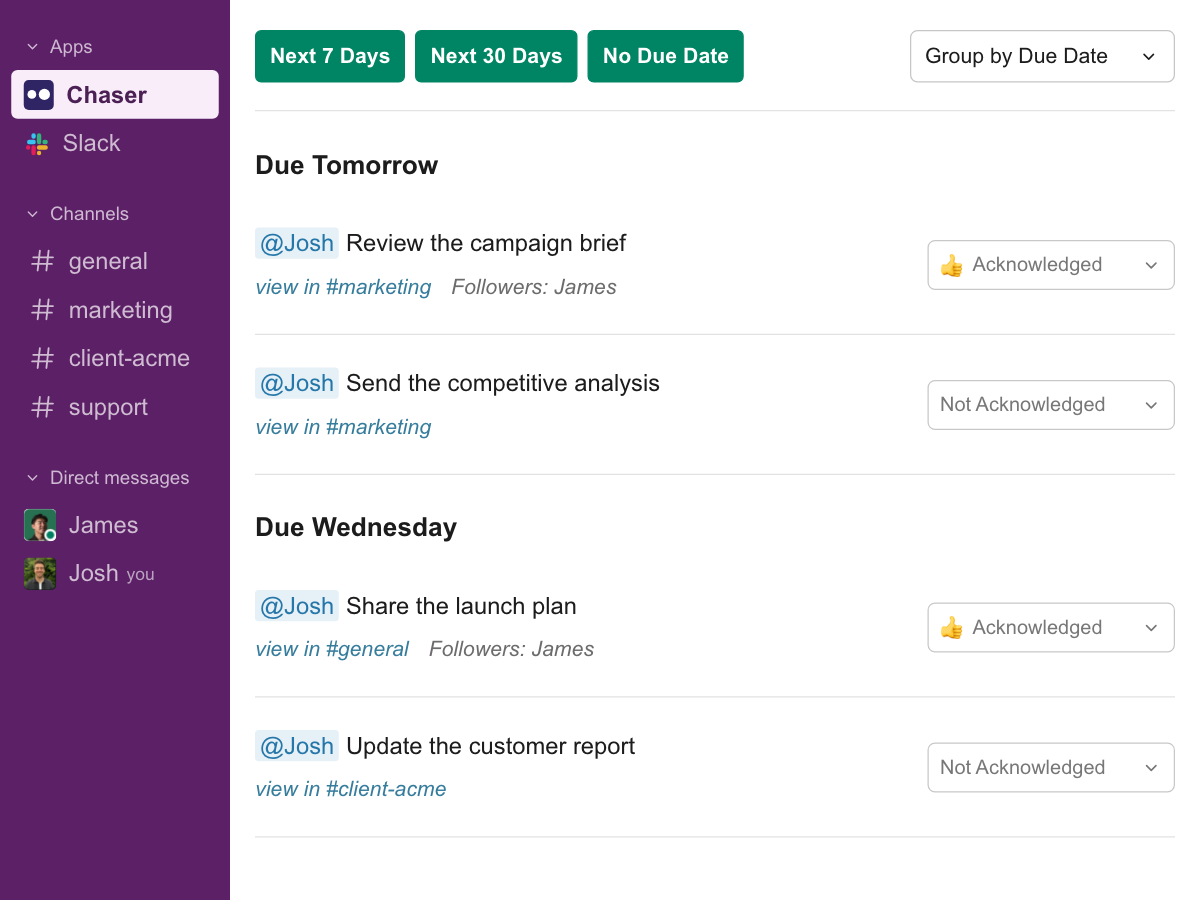
Chaser strikes a perfect balance between task management and project management, offering flexibility and focus depending on your team’s needs. The dashboard provides a comprehensive view ideal for managing projects as a whole because it allows teams to oversee workflows, identify bottlenecks, and stay aligned with overarching goals. However, for creating intricate project roadmaps involving detailed interdependencies or complex timelines, you'll want a complementary tool, like Google Sheets.

Can Slack Be Used for Task Management?

In short, yes, Slack can be used for task management. 

While at its foundation, Slack is a team communications tool, this setup makes it a natural environment for managing tasks. Since teams are already discussing work, sharing files, and making decisions within Slack, creating and tracking tasks within the same platform is a logical next step. 

Hint: That’s where Chaser comes in, but more on that later.

The real advantage of using Slack for task management is that it meets your team where they are already working. This integration into the daily workflow makes it more likely that tasks will be seen, acknowledged, and completed on time.

Now, let's explore the practical steps for setting up your own Slack task management system.

How to Use Slack for Task Management: Step by Step

You can get started with task management in Slack using its built-in features. While these manual methods require more discipline, they can be a good starting point for smaller teams or simpler projects. Here are a few ways to do it.

(Skip all these manual routes and see how to automate task management in Slack)

Tracking with Canvas + Template

Slack's Canvas feature is a digital surface that lives within a channel or DM. You can use it to create a persistent document for tracking tasks.

Step #1: Create a Canvas

To get started, open any channel or DM where you want to manage tasks. Click the channel name (or the DM name) at the top, then select the "Canvas" tab. This will open a blank canvas where you can start building your task management system.

Step #2: Build a Task Template

Next, create a simple and effective task list template. Use headings to organize work into categories like "To Do," "In Progress," and "Done." 

Then, under each heading, add checkboxes for individual tasks. For example:

  • To Do: [ ] Write project proposal.
  • In Progress: [ ] Design mockups.
  • Done: [x] Finalize presentation slides.
Step #3: Assign Tasks and Add Details

Make tasks actionable by assigning them to team members. Use @mentions to tag the person responsible for each task, and include relevant due dates or notes. 

Step 4: Manual Follow-Ups and Reminders

The important part for this manual route is to search each channel to ensure tasks are complete for follow-up, which will require some administrative time each day or week. 

Ultimately, this method provides a centralized view of all tasks in a channel, but it requires everyone to remember to manually update the Canvas. You’ll need to manage this very closely.

Tracking with Lists

While a Canvas can work, there is also the Slack Lists tool that can work for some task tracking. Here’s how. 

Step 1: Start a List

In the relevant channel, create a new message. Then, use Slack's formatting toolbar to start a bulleted or numbered list.

Step 2: Assign Tasks and Add Context

Next, list out all the tasks. Use @mentions to clearly assign each item to a team member, which will notify them directly. You can also add deadlines using bold text or emojis (e.g., 🗓️ Due: EOD Friday). 
Tip: Make sure you add a note in your calendar app to follow-up with these tasks, as you cannot assign due dates and trackings directly in Slack (unless you use Chaser). 

Step 3: Pin the Message

Once the list is posted, pin it to the channel. This makes it easily accessible to everyone in the channel, preventing it from getting lost in the conversation stream. Anyone can find it by clicking the pushpin icon at the top of the channel. 

If you use this manual route with lists, also make sure each of your team members know how to use this functionality and can easily access this. 

Step 4: Use Threads for Updates

To keep the main channel clean, direct all communication about the list to a thread. Team members can reply in the thread under the main message to provide status updates, ask questions, or confirm completion of their assigned tasks.

Step 5: Clean House

After a few months, these threads on the main lists can get convoluted with communications. If there are sub-tasks involved, this gets even messier and sometimes these lists should be started from scratch again. 

Manual Messaging + Edits

This is the most informal method and relies heavily on individual memory. It's prone to error, as tasks can easily be forgotten or lost in a busy conversation stream.

While these manual methods work, they all share common weaknesses, they require significant manual effort, lack automated follow-ups, and make it difficult to get a high-level view across the company.

The Simple & Automated Way to Manage Tasks in Slack

For teams that’re serious about productivity and accountability, a dedicated Slack integration like Chaser is a game-changer. 

This Slack App is designed to make task management in Slack seamless and automated, so you and your team can finally move beyond the limitations of manual tracking.

Here’s how to easily manage Slack tasks in 3 steps and without all that manual hassle.

Step 1: Create a Task

Instead of relying on easily lost messages, create a task directly in any Slack channel or direct message. 





Just use the /chaser command, mention the person responsible, describe the task, and set a deadline. This ensures every action item is captured and assigned immediately.

Example:

/chaser @John Smith Please review the Q3 marketing report by Friday.

Step 2: Acknowledge and Track

Once the task is created, Chaser sends a notification to the assignee. 


They can acknowledge the task with a single click, confirming they’ve seen it and will work on it. This simple action updates the task's status in real-time for better transparency for the entire team.

Step 3: Get Automatic Follow-Ups

Finally, automate all this with follow-ups that you don’t need to manually do. Chaser takes over the tedious job of reminding people about deadlines.

 The tool automatically sends follow-ups to assignees as the due date approaches, ensuring tasks stay on track without you having to send a single reminder message. This powerful workflow ensures accountability and keeps everyone on the same page.

Easily Collaborate With Outside Partners

If you’re like many other teams using Slack, there are times you’ll collaborate with external partners or vendors in Slack Connect channels, but getting everyone on the same project management tool can be a real pain. That’s where Chaser steps in. You can simplify your task management across other organizations in Slack, too. 

No more going back and forth between multiple softwares for different organizations, when trying to manage a task or project in Slack.  

Here’s How it Works

In your shared Slack Connect channel, you can use Chaser to assign a task, like "Create initial design concepts by Friday," directly to the designer at the agency. 

The designer doesn’t need to sign up for Chaser or even know it exists, they’ll receive the task directly within Slack. Once they’ve completed it, they can mark it as done right in the Slack thread. Everything stays organized and is transparent for both teams.

Example of multi-company project collaboration with Chaser

Avoid Tool Bloat

One of the biggest drags on productivity is constantly switching between different apps. When your team has to leave Slack to update a task in another tool, it breaks their focus and slows them down.

Chaser keeps everything inside Slack. Tasks are created, updated, and completed right where the conversations are happening. Team members don't need to open another tab or log into a separate dashboard. This reduces friction and makes it far more likely that tasks will be managed more easily. 

Automate Follow-Ups

The truth is, manually following up on tasks is tedious and can create awkward conversations. Chaser automates this entire process.

When you create a task, Chaser sets up automatic reminders for the assignee before the due date. If a task isn't acknowledged or becomes overdue, Chaser sends a notification. 

This "set it and forget it" system allows you to mentally hand off the task while building accountability and without the need for micro-management. A manager’s dream.

Track Important Task Details for Maximum Operational Efficiency

Just like any business, projects can get complex. Which is why Chaser can simply manage your complex workflows. 

Tags

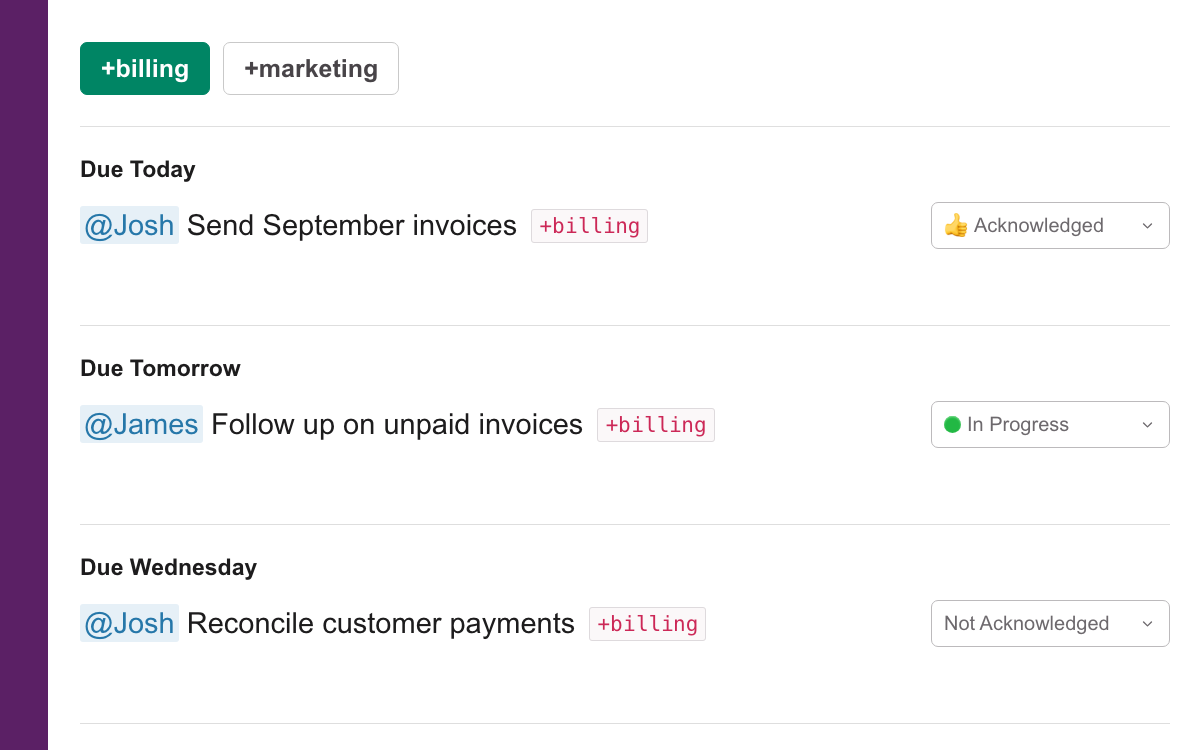
Then, you can easily organize tasks with custom tags like ‘priority’, ‘sales’, or ‘bug’. You and your team can easily filter and view related tasks across different channels.

Chaser Tag Features for Organization

Checklists

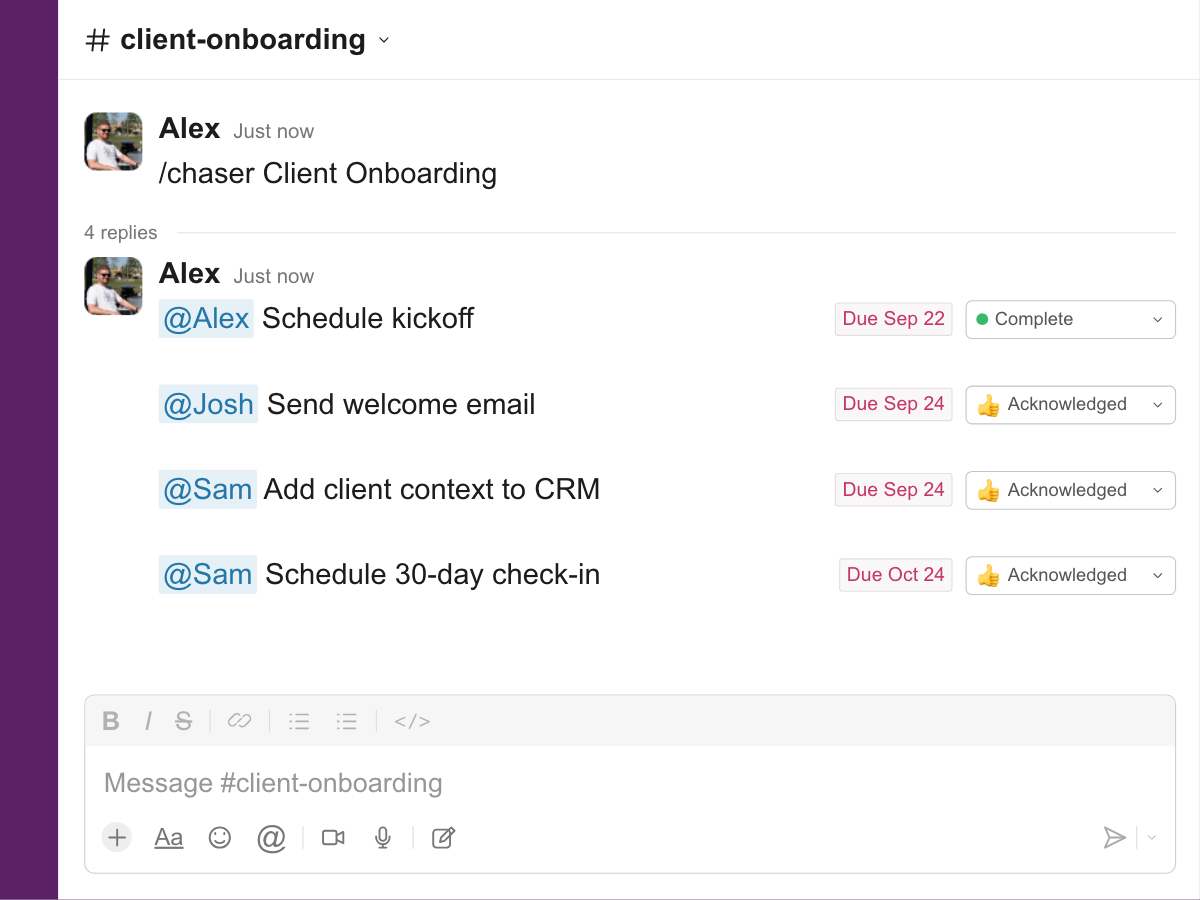
Begin by creating reusable templates for multi-step processes like new customer onboarding or product launches. 

For example, your ‘New Customer Onboarding’ checklist can automatically generate tasks like "Send welcome email," "Schedule kickoff call," and "Set up user account," assigning each to the right team member, all in a couple clicks.

Combine the Chaser Checklists with the automated follow-ups and you’ll be well on your way to automating task management in Slack within minutes.

Time Tracking

Finally, when completing a task, you can easily log the time spent on each task directly in Slack. This is invaluable for agencies, product teams, or any team dynamic that needs to track resource allocations.

These features provide the depth needed to manage complex operations while maintaining the simplicity of working within Slack.

Visibility for the Whole Team

For a higher-level view, the Chaser dashboard provides a bird's-eye perspective of everything happening across your workspace. 

You can filter by project, person, or status. And any overdue tasks are highlighted in red, immediately drawing your attention to potential roadblocks. 

This combination of channel-level reports and a centralized dashboard keeps visibility top of mind, so everyone can stay on track and accountable.

Final Thoughts

By implementing a structured approach, you can definitely manage tasks in Slack without adding another window outside of your regular communication to assign and track.

And while manual methods can provide a starting point, they ultimately fall short as your teams and projects grow. That’s where tools like Chaser are built to solve these on-going complexities, by integrating seamlessly into your team's existing workflow. 

Stop letting tasks slip through the cracks. Try Chaser for free and see how simple Slack task management can be. Get started and add Chaser to Slack, for free.

Share