Why connect Slack with Google Calendar?
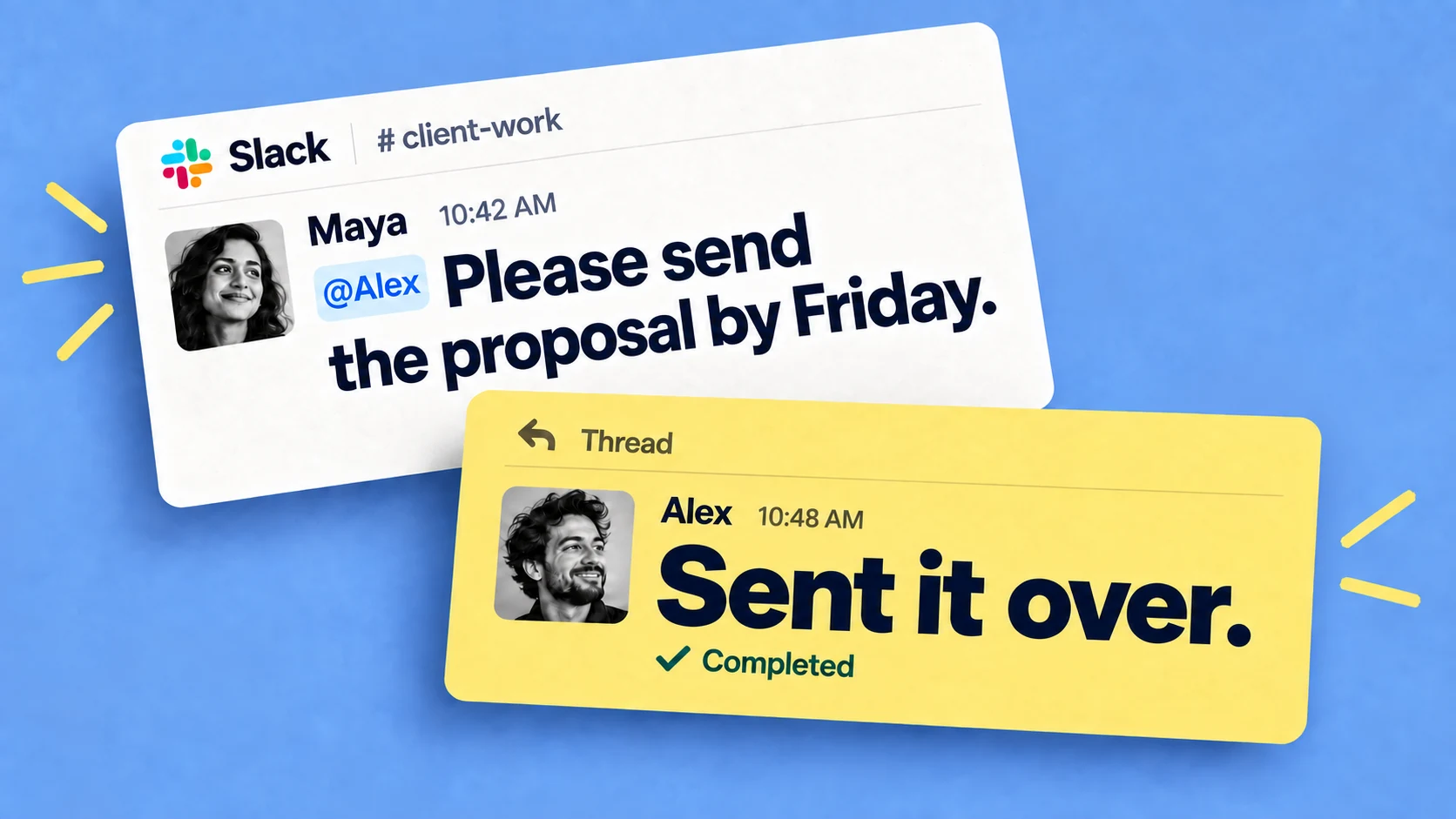
Say someone asks you on Monday to send a revised proposal by Thursday. As a Slack message, that request competes with every other message you'll get this week, and it only resurfaces if you remember it or someone asks again.
The same task sitting on Thursday in your calendar behaves differently: you see it while planning, you notice there's a free hour Wednesday afternoon, and you schedule the work before the deadline arrives.
Calendars are where most people already do that kind of planning. Putting tasks there doesn't ask anyone to adopt a new habit - they show up in the place people already check every morning.
Step one: turn the message into a task
The work that should end up on your calendar mostly arrives as a message: "can you review this," "send this by Friday," "follow up with the client," "finish the launch checklist this week." With Chaser, you turn any of those messages into a task without leaving Slack. You assign it to someone and give it a due date in plain language, like "due next Friday." Chaser then reminds the assignee on its own, so the follow-up doesn't depend on you remembering to ask. If you're new to working this way, our guide to task management in Slack covers the basics.
Step two: connect Chaser to Google Calendar
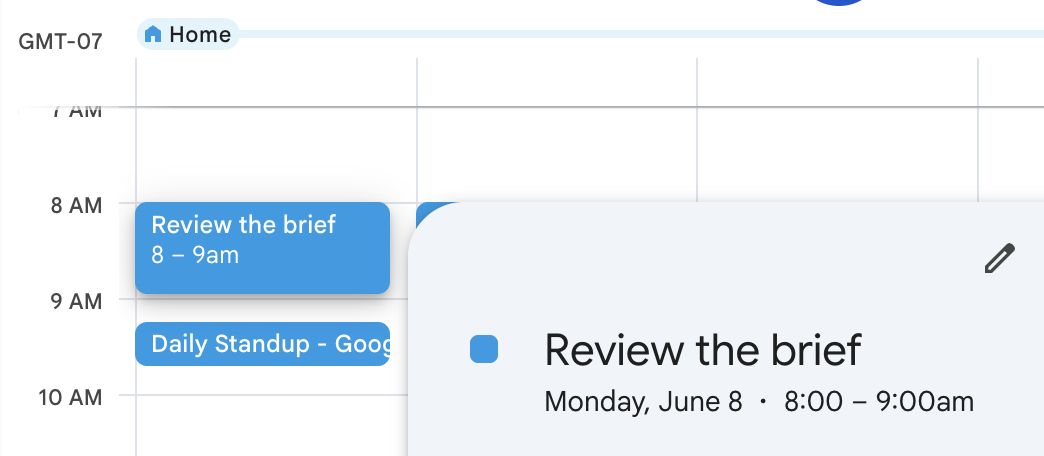
Chaser's calendar view syncs with Google Calendar. You connect your Google account once, in Chaser's calendar settings, and from then on tasks with due dates appear in Google Calendar alongside your meetings — nothing gets re-entered by hand. The setup details can shift as the feature updates, so follow the prompts in the app; the product tour shows it in action if you'd like to see it first.
After that, the same task exists in three places that stay in sync: the Slack conversation where it was created, the Chaser dashboard, and your Google Calendar. Marking it done in one updates the others.
Chaser's own calendar view
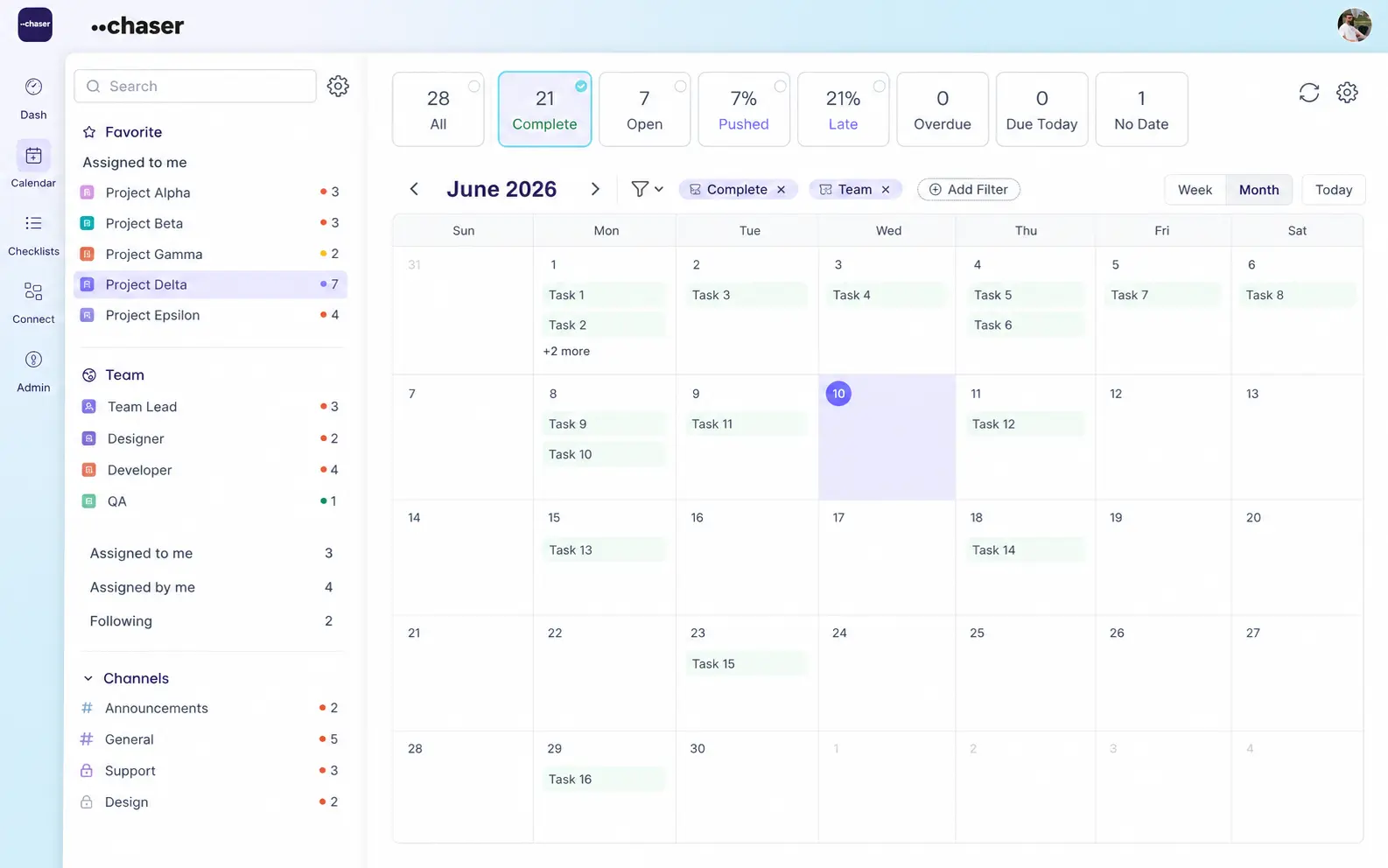
Chaser's dashboard also has a calendar view of its own, with your Slack tasks laid out by week or month. It's useful for a quick read on the week ahead without opening Google Calendar, and because it's tied directly to the tasks, anything you complete in Slack updates here immediately.
You can filter it the way you filter the rest of the dashboard: by owner, by status, and by the channel or project a task came from. Slack channels usually map to something real — a client, a project, a team — so filtering to one channel shows you what's due for that client this week and hides the rest. There's more on running several channels this way in how to use Slack for project management.
A few situations where seeing Slack tasks on a calendar makes a noticeable difference:
- Managers planning the week. A calendar of due dates across the team shows what's landing when. If Thursday is carrying six deadlines, you can see it on Monday and move a couple while there's still room.
- Client follow-ups. "Check in with the client before the renewal" is far more likely to happen when it sits on the calendar two days before the date than when it's a message from three weeks ago.
- Recurring work. A weekly report or a monthly close set to repeat in Chaser shows up on the calendar each cycle, so nobody has to keep the schedule in their head.
- Reviews and approvals with deadlines. When a review has to happen by a date, sitting next to your meetings is what gets it scheduled rather than postponed.
Final thoughts
Most of the work that fills a week starts as a request in Slack, and the planning for that week happens in a calendar. With Chaser connecting the two, a Slack message becomes a task with a due date, and that task shows up where you plan — in Google Calendar, in Chaser's own calendar view, or both. Nothing about how you work has to change; the tasks appear where you were already looking.
You can try Chaser for free and see how it fits the way your team already works in Slack. Get started and add Chaser to Slack, for free.

Alex Steshenko is the co-founder and CTO of Chaser. Drawing on his experience building products and leading teams, he writes about task management, workflow automation, and helping growing businesses get more out of Slack. His focus is practical: making ownership clear, reducing manual follow-ups, and helping teams turn everyday conversations into completed work. More articles by Alex Steshenko
Send this article to someone who’d like it.