

A lot of the repetitive work that used to fill a workday is being automated or handed to AI. Slack's own research found desk workers spend about 41% of their time on tasks they call low-value or repetitive — and that's the kind of work software is starting to absorb.
What's left is harder to hand off: answering questions and coordinating who's doing what. For a lot of teams that all happens in Slack, and people spend a big part of the day there. As requests stack up across channels, DMs, and threads, it gets hard to see what actually needs you. Managing your workload in Slack is mostly about handling that flow without losing the few things that matter.
This post is built around one habit that does most of the work: go through your incoming Slack messages quickly and sort each one. Everything else here supports that.
Treat Slack as one incoming queue
Stephane Kasriel, who was CEO of Upwork, wrote about running his whole day off a single task list. He used his email inbox for it, based on the Getting Things Done method. His reasoning was plain: "you need to have one single task list, otherwise you have difficulty prioritizing (or finding) items between the multiple lists."
That holds whatever the inbox happens to be. If most of your requests arrive in Slack, then Slack is that queue, and the job is to process it rather than let it sit. Kasriel kept his down to around 50 conversations, "all of them items that I need to take care of."
The trap is the opposite: half-tracking work in your head, a few starred messages, a couple of mental notes, and three browser tabs.
Go through your messages and sort each one
Once a day or a few times a day, do a single pass through everything unread. For each message, choose between a handful of outcomes:
- Deal with it now. Kasriel's rule is a good one here: if you can handle it in two minutes or less, just do it and move on. A quick yes, a link, a one-line answer.
- Let it go. Plenty of what lands in Slack is informational or not really for you. Read it, react if it's polite to, and clear it. Not everything needs a response.
- Defer it. It needs you, but not this minute. Set it aside in a way you'll actually come back to, rather than leaving it unread and hoping you remember.
- Track it. It's a real piece of work with an owner and probably a deadline. Capture it as a task so it's recorded somewhere other than the thread it arrived in.
Most messages are one of the first two, and they're quick. The two that take judgment are deferring and tracking, so they each get a section below.
Deferring the task
For something you'll get to later the same day, Slack's built-in reminders are the simplest tool. Hover over a message, open the three-dot menu, and pick "Remind me about this" — Slack will DM you the message back at the time you choose, so it leaves your queue now and returns when you're ready. Slack's guide to reminders covers the timing options and the /remind command if you'd rather type it.
This is worth getting into the habit of, because it's the difference between "I'll deal with it later" as a vague intention and as something Slack will actually surface again. There's a fuller walkthrough in this guide to setting up Slack reminders that stick.
The limit is that a reminder fires once, as a DM to you, and then it's gone. It doesn't track whether the work got done, it won't chase anyone else, and nobody but you can see it. That's fine for "reply to this after lunch." It's not enough for work that genuinely has to happen.
Capture the things you can't afford to drop
Some messages are the start of real work e.g. "can you get the pricing section redone by Thursday". For those, a reminder to yourself isn't enough. They need an owner, a due date, and a record that someone can check, so the request becomes a tracked item instead of a line in a thread that everyone reads and nobody picks up.
Chaser handles this inside Slack. You turn a message into a task without leaving the conversation: open the message menu, assign it to a person, set a due date. From there it follows up on its own — it reminds the assignee as the deadline approaches and after it passes, so chasing people isn't a thing you have to do by hand. Open tasks show up on a dashboard in Slack, and it can post a short status report to a channel so the team sees what's done, in progress, or blocked.
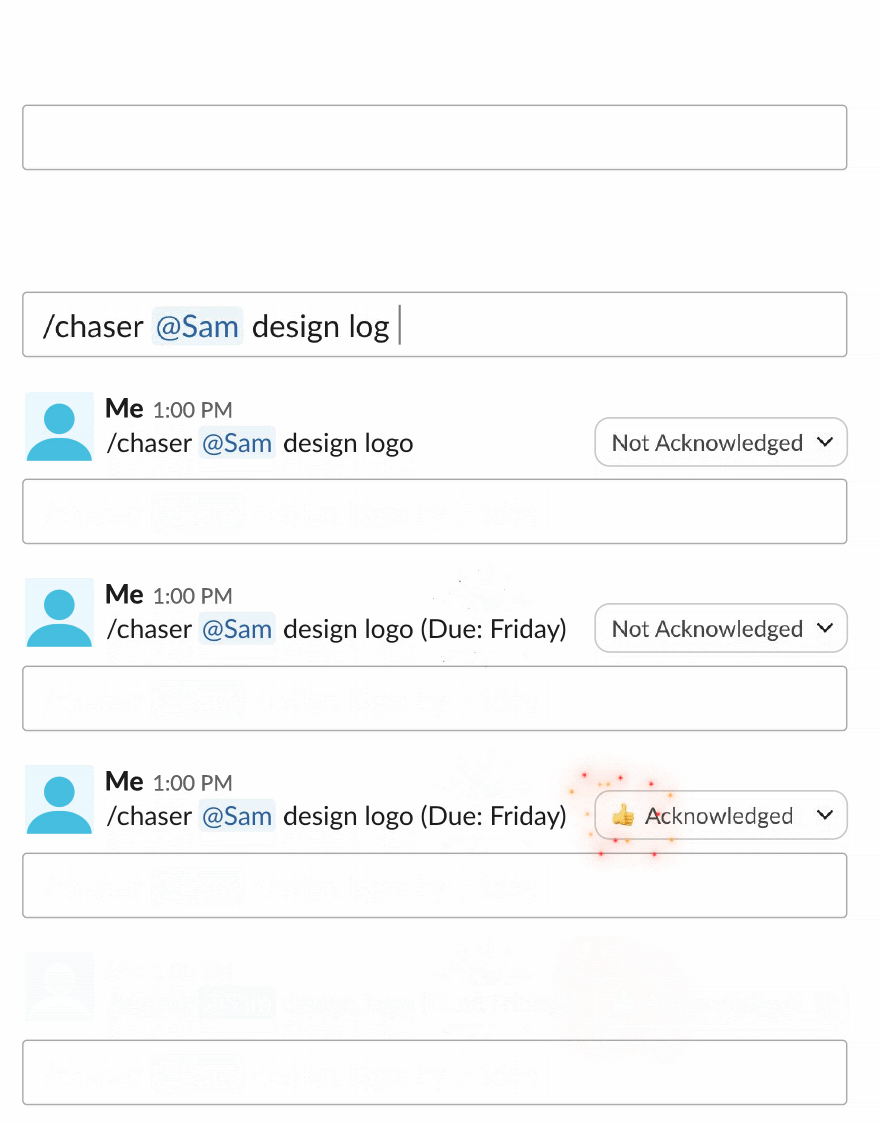
That's the part native Slack can't do on its own, and it's why a single pass works: anything that survives the "now / let go / defer" sort and is too important to lose becomes a task in one step, then you trust the queue again. For the wider picture of running work this way, there's a complete guide to task management in Slack.
Make the pass a habit, not a constant
The pass works because you do it deliberately, not because you watch Slack all day. Jumping to every notification the second it arrives is its own drain — the cost of constantly switching contexts is covered in this piece on how context switching drains productivity. Two or three focused passes a day beats reacting to every ping.
A couple of habits keep the queue manageable between passes. Mute the channels you only need to skim, so the unreads that remain are mostly things worth reading. And when you do a pass, finish it — sort every message rather than leaving a few "I'll decide later," because those are the ones that quietly become the backlog. For more along these lines, there's a roundup of Slack productivity tips worth a read.
Managing your workload in Slack doesn't take a complicated system. One queue you trust, a quick pass to sort it, and a clear split between what you handle now, what you defer, and what you capture as a tracked task. The first three you can do with Slack alone; the last one is the only piece worth adding a tool for.
You can try Chaser for free and see how it fits the way your team already works in Slack. Get started and add Chaser to Slack, for free.