

It's easy to miss tasks in Slack when you’re busy building a growing company. The platform is great for communication, but it’s not set up in the beginning to provide reminders that stick. This guide will show you how to use Slack's native reminder features and other ways to streamline reminders with Slack task management software. Ultimately, to help you automate important task follow-ups, get better reminders, and save time every week on tracking, so nothing gets missed. Let’s jump in!
What are Slack Reminders?
In short, Slack reminders are a feature that’s built into Slack and designed to remind you about specific threads, messages, or custom information you set.
The reminders work by basically sending you a direct message at a specific time. This message will pop up in your "Later" view or your direct message history with Slackbot.
The great thing about this feature is that it’s native to the platform, so you don’t need to do external connections to use the basic reminders. Another important thing to consider is that they’re personal to you, so if you set a reminder on a public message in a busy channel, only you will see the notification when the time comes.
Using Slack Reminders
To begin setting up Slack reminders, there are two methods to create them that we’ll break down.
1. The Slash Command
The easiest way to set a reminder is to use the /remind command in the channel or direct message you want to the reminder in.
The syntax usually follows this structure: /remind [who] [what] [when].
Here are a few examples of how you can use this:
- For yourself: /remind me to submit the expense report in 2 hours
- For a channel: /remind #marketing to review the Ford Pitch slide deck on Monday at 9 am
- For a specific teammate: /remind @Mohammad to check the operations report on Friday
There are also different types of reminders, including:
- Personal reminders
- Message or file reminders
- List redminers
- Canvas reminders
- Channel reminders
2. The Context Menu
The next way to set Slack reminders is to set up a reminder using the context menu selection. That way, you don’t need to type out the full command.
- Hover over the message you want to be reminded about.
- Click the three dots (more actions) icon on the right side of the message toolbar.
- Hover over "Remind me about this."
- Select a timeframe from the list (e.g., "In 1 hour," "Tomorrow," "Next week") or choose "Custom" to pick a specific date and time.
This method is often the fastest way to set reminders when it’s based on a message from someone else, in a few clicks. Otherwise, option #1 is better if you’re proactively setting reminders when there’s no message to reference.
3. Managing Your List
To see a list of all your upcoming and past reminders, you can simply type /remind list into any message box. You’ll receive a private list of your current and active reminders. From the list, it’s easy to manage each reminder and adjust accordingly.
Recommended Resource: Using Slack Lists & Checklists: How To Use & Powerful Alternatives in Slack
Challenges and Problems with Slack Reminders
The /remind feature in Slack is useful for quick personal notes; however, it falls short for follow-ups, task tracking, and projects related to ongoing work. So, if you end up relying solely on these reminders, you’re bound to miss important messages and discussions. Here’s why.
The Notifications Are Easy To Miss
The biggest problem with native Slack reminders is how you receive them.
When a reminder comes due, the Slackbot sends you a direct message. And if you’re a manager involved in several channels and have tons of messages, your DM list is already cluttered.
From there, it’s easy to ignore Slackbot altogether. For example, if you’re in a meeting, you might glance at the notification and dismiss it. Then, forget to check back.
Task Management Falls Through The Cracks
If you’re using the reminders functionality to track tasks or keep tabs on a project, these reminders only exist in a silo. There is no central dashboard that lets you see all the reminders associated with a specific tag or project.
For example, if you set five different reminders regarding a product launch, they will appear as five disjointed messages from Slackbot. You cannot group them or prioritize them without manually pulling a list and sorting through it yourself.
This lack of organization makes it incredibly difficult to see the big picture, especially when you have a lot going on within Slack.
Additional Follow-Ups Become Problems
Native Slack reminders are "fire and forget" in the worst way. Let’s say you use the command /remind @Dave to send the report tomorrow. Slack will ping Dave tomorrow.
But what if Dave ignores it?
Slack will not notify you that Dave missed the deadline. It will not ping Dave a second time. It will not escalate the issue. To ensure the task gets done, you have to set a reminder for yourself to check if Dave did his reminder. Now you are managing two reminders for one task. This manual nagging creates friction between teammates and doubles your mental workload.
Poor Visibility for Teams
Reminders in Slack are largely private. If you set a reminder for yourself to complete a task, your manager cannot see that. They don't know if you have blocked out time for it or if it is on your radar at all.
This lack of visibility creates anxiety. Managers end up micromanaging, asking "Did you see that task?" or "Is this on your list?" because the system doesn't provide transparency. Furthermore, if a team member is out sick, no one else knows what reminders they have pending, meaning critical tasks can stall completely until they return.
Helps to Enable “Set It and Forget It” Behaviour
Because setting a Slack reminder gives you a dopamine hit of being organized, it often leads to a false sense of finalization. You type /remind me, and your brain marks the problem as "solved."
However, because the retrieval system is so weak and easy to snooze, "Set It and Forget It" literally becomes "Forget It." You aren't building a workflow; you’re just delaying the panic of an unfinished task. Without a proper tool to track completion status, recurring deadlines, and time spent, native reminders are little more than a digital snooze button.
Recommended Resource: Slack Ticketing & Issues Tracking: Guide for Teams
Managing Reminders, Tasks & Projects Easily in Slack With Chaser
Ready for a better way to manage reminders?
If your team is serious about getting work done without leaving Slack, you need a tool that turns chat into actionable workflows. This is where Chaser comes in as Slack Task Management software to bridge that gap between simple reminders and projects. The best part is that it’s all within Slack. Here’s how to set it up.
Setting Up & Using Chaser
Easily get started with Chaser by submitting your email on our get started page. Once Chaser is added to Slack, instead of /remind, you simply type /chaser. For example, you can type /chaser @Lucas create a report due June 11th.
You can do this anywhere, in a private DM, a group chat, or a public channel.
If you use Slack Connect channels to work with clients or vendors, it gets even easier as you can use Chaser to assign tasks to them, too. And the best part is that they don’t need to sign up for Chaser or pay for a seat. You assign the task, Chaser follows up, and the workflow remains consistent.
Automate Your Task Reminders
This is the part that truly makes Chaser more efficient than native native Slack reminders. Once a task is assigned, the assignee receives a notification to acknowledge it.
Then, the automated chasing begins. By default, Chaser reminds the assignee:
- Two days before the task is due.
- On the day the task is due.
- Every day after the deadline, if the task is still outstanding.
And as the assigner, you’re kept in the loop. If team members haven’t acknowledged the task after two days, you get a notification from Chaser to keep you in the loop.
Track Time Without Manual Spreadsheets
For agencies, contractors, or lean B2B teams, you can also easily track how long a task takes the assignee. This is perfect for understanding utilization, tracking billable hours, and understanding common task times. You don't need to open a separate timer app or fill out a spreadsheet at the end of the week. A night and day difference when you compare it to native Slack reminders.
There are three intuitive ways to log time on a Chaser task:
- Dropdown Menu: Click "Log Time" on the task card and enter hours and minutes.
- Editing: Adjust the total time logged by editing the task details.
- Completion: When you mark a task as complete, Chaser prompts you to log the final time spent.
Dashboards That Provide Insightful Visibility
While native reminders hide in your private DMs, Chaser provides radical visibility through Dashboards and Status Reports.
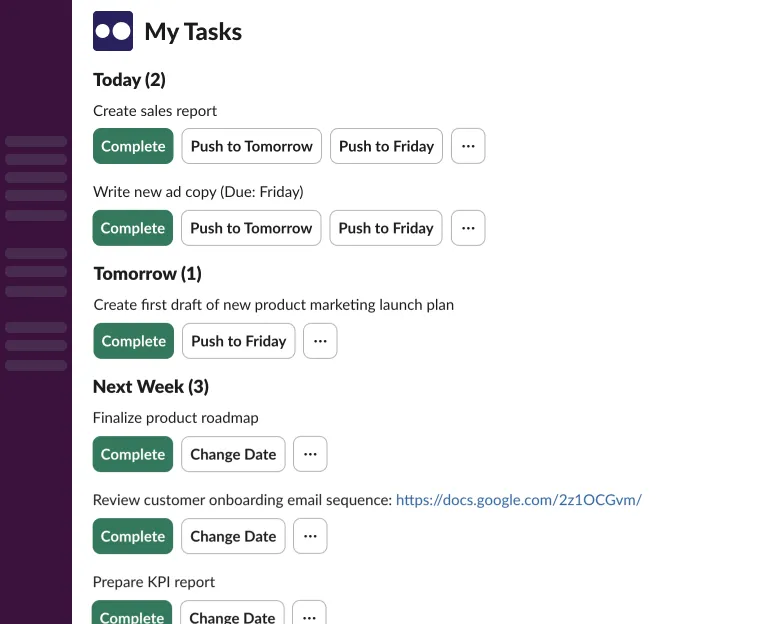
Individual Task Board
In any channel, each team member can get full visibility to see a visual representation of all tasks. You can view what is pending, what’s in progress, and what’s completed.
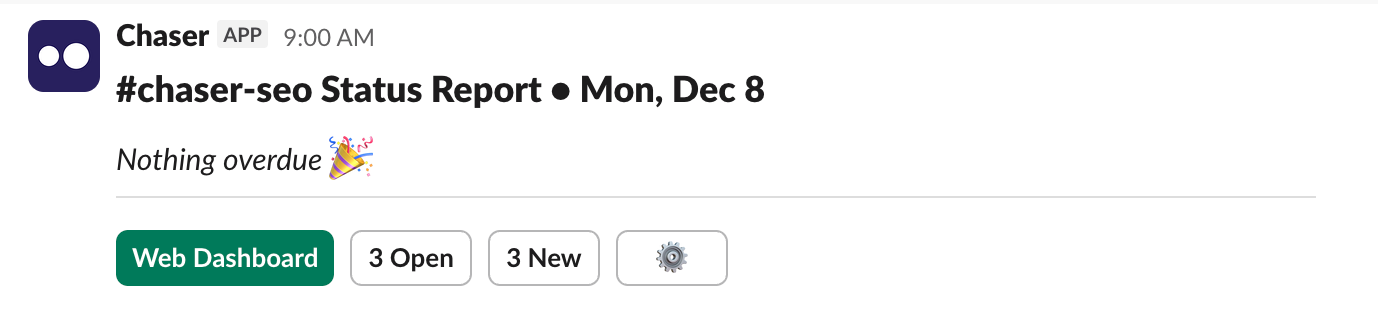
Automated Status Reports
Chaser automatically posts progress updates to your channels. Most teams set this for Monday mornings at 9:00 a.m. This report lists "Action Needed" items—tasks that are unacknowledged or overdue.
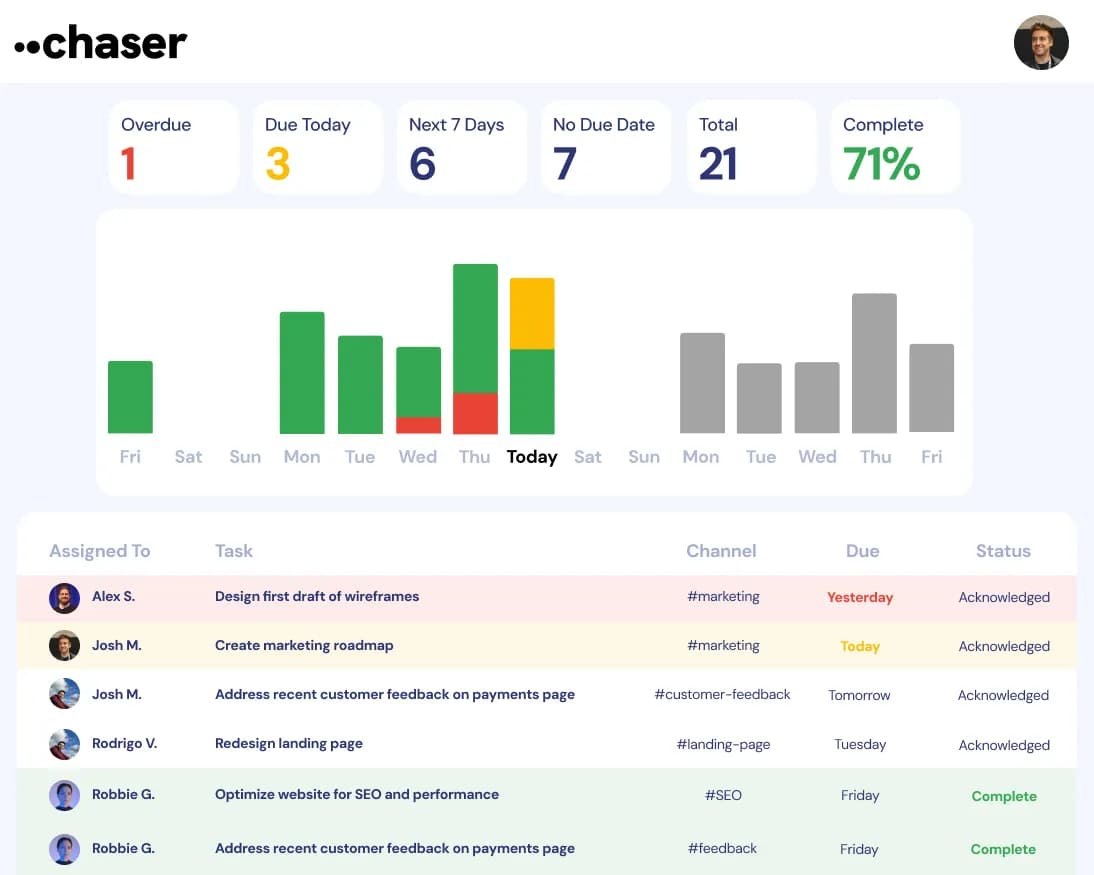
The Bird’s-Eye Dashboard
For managers, you can easily get a comprehensive dashboard overview of all the tasks in a company, broken down by channel, every coworker, and other segments. These insights help save you from missing the big picture when you’ve got so many other smaller details to handle. Ultimately, allowing you to focus your energy on empowering your team to do their best work.
Final Thoughts
Slack reminders are a convenient way to leave quick, personal notes. However, for agile teams trying to build products, fulfill client obligations, and hit ambitious deadlines, native reminders simply don’t cut it. By upgrading to a Slack tool like Chaser, you transform your Slack from a simple communications platform into a task and project management support system for easily managing Slack projects.
You can try Chaser for free and see how it transforms your team's project and task management. Get started and add Chaser to Slack, for free.


