Your team spends nearly 8 to 9 hours a day connected to the Slack platform. If you’re not using these Slack tips and tricks, it’s time to uplevel your team’s productivity.
This guide will show you how to power up your workspace with actionable tips and tricks. Learn how to silence distractions, streamline communication, and manage projects effectively—all within Slack.
The Best Slack Tips & Tricks for Maximum Team Productivity
Here are 17 tips to transform how your team operates within Slack to maximize everyone’s time. Let’s dive in.
1. Put Slack Task & Project Management on Easy Mode
The biggest productivity killer in Slack is context switching, which is where you discuss a project in a channel, then switch to a separate software to create the task, and then switch back to Slack to confirm you did it. It breaks your flow state and wastes time.
The best way to handle this is to bring the project and task management directly into your conversation. This scenario is where Chaser comes in!
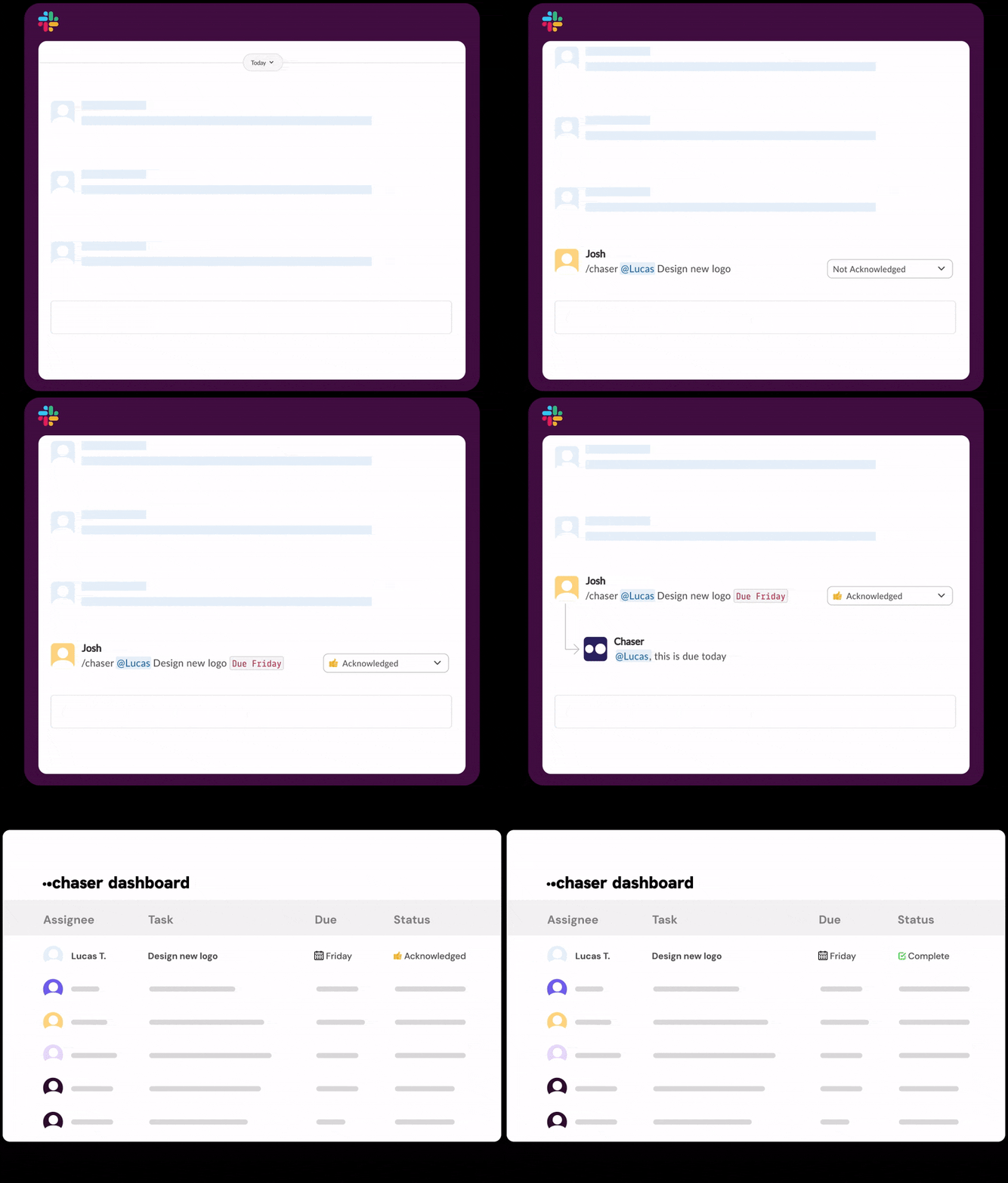
Instead of action items getting lost in the back-and-forth of long conversations, Chaser lets you create, assign, and track tasks right where the conversation is happening.
Within a single message, you can assign a teammate, provide the necessary context, and set a clear deadline. /chaser
Once the task is created, automated reminders and status updates help keep everything moving forward, without that manual intervention or context switching that may currently be happening.
2. Structure Channels for Proper Company Communication
A disorganized channel structure leads to disjointed communication. If your channels are a mix of random topics, no one will know where to look for information. And when new employees or contractors join the team, it can be hard to know what the proper corporate communications structure is.
To fix this, we recommend organizing channels by function, team, or project. At a high level, identify the main departments in your business and create the primary channels for each, adding the necessary staff. Next, consider the sub-channels that should be created to improve communication within each department.
For B2B SaaS Companies
Use prefixes like #team- for internal department chats (i.e, #team-sales, #team-dev) and #proj- for specific initiatives (e.g., #proj-website-redesign).
For Marketing Agencies
Organize by client. Use a prefix like #client- followed by the client name (i.e, #client-chaser-social, #client-chaser-seo).
With a proper structure in place, you’ll avoid the graveyard of dead channels, missed notifications, and poor communications visibility.
3. Set Up The Right Third-Party Apps
While Slack is powerful just on its own, you can unlock some serious productivity by adding the right Slack apps for your team.
Here are some of the major ones to consider adding right now:
Google Drive or OneDrive: Receive notifications when someone comments on a document or share access settings directly from the chat window.
Zoom or Google Meet: Start a video call instantly with a simple slash command like /zoom.
Chaser: As mentioned, this expands Slack from a chat app into a robust project management solution, handling everything from time tracking to recurring checklists.
The daily stand-up meeting is used across teams around the world, and for good reason! It’s a great way to share results, provide important updates, and remove blockers. But they are notorious for wasting time. For example, listening to 10 people list off what they did yesterday breaks focus for everyone involved.
A huge time hack is to turn these meetings into async updates in Slack. Create a channel named #weekly-updates-leadership / #weekly-updates-devs and have your team post their updates by a certain time (i.e, 12:00 PM EST). Then, other staff can read updates at their own pace and reach out to individuals for follow-up as needed.
5. Help Your Team Provide Deep Context in Messages
There is a bad habit in Slack known as the "blank hello." There is even a website dedicated to this issue.
The blank hello looks like this: a colleague messages you "Hi," and then waits for you to reply before asking you their actual question or request. If you’ve experienced this, then you know it forces you to stop what you are doing, reply, and then wait for them to type out their request. Stop that!
To maximize team productivity in Slack, encourage everyone to provide deep context for any request or response that warrants strong communication.
Bad: "Hey, got time?"
Good: "Hey, I'm working on the Q3 report, and I can't find the updated sales figures. Could you link me to the latest spreadsheet when you have a moment? Or can we jump on a 5-minute call to clarify where this information is?"
Context is king for remote productivity.
6. Automate Follow-ups & Task Reminders
You ask a colleague to do something, and they confirm they’ll begin working on it. From there, the request is often forgotten, to no fault of their own. People get busy, tasks get lost in messages, and next thing you know, it’s already Friday. Finally, two days later, when the task is supposed to be ready, you realize it wasn't done.
Pro Tip: Use a Slack app like Chaser to automate manual follow-ups on tasks. When you assign a task in Chaser, you can set it and forget it. It automatically sends reminders to the assignee.
7. Audit Channels to Avoid Overwhelm
When your teams first begin to grow, this isn’t a problem. But over time, channels that were once used every day become graveyards. From there, things get cluttered, making it harder to find the channels and important communication areas.
To combat this, review your channel list and archive any channels that haven’t had activity in the last 3 months. Why archive? Well, it’s better than deleting because it preserves the message history if you ever need to search for it later, but it removes it from the sidebar.
Pro Tip: For channels you use daily, use the "Star" feature to pin them to the top of your sidebar. This star method keeps your high-priority workspaces separated from the noise of #random or #general.
8. Use Slack Commands and Save on Admin Work
Slack commands, starting with ‘/’ are shortcuts that can be a total time-saving hack for certain channels and messages. Here are a few examples that could save some major admin time:
While native commands like /remind are helpful, integrating Chaser commands takes admin efficiency to a new level.
For example, type /chaser @Lucas Create weekly report to assign a task instantly. Or, assign a task to the entire channel by using /chaser @channel.
9. Status Updates
Keeping a team aligned often requires a project manager to follow up with everyone for updates. "Is the website done?" "Did we finish the graphics?" This manual polling is tedious.
Set Up a Dedicated Channel
One way to streamline this is with a dedicated channel for Slack updates and encourage your team to use a simple format that they update daily or weekly. To keep it basic, cover items like:
✅ Completed yesterday
🔄 Working on today
🚧 Blockers
Use Threaded Updates
If you prefer to keep updates where the conversations are following, use a threaded update each day or week. The thread can be a status update post that each team member can then comment on.
Automate It All
You can also automate this with Chaser’s scheduled status reports. Let’s say you have a project channel. Chaser can generate an automatic report that you’d receive on Mondays at 9:00 AM, though you can customize this.
10. Collaborate With Slack Canvas
Slack Canvas is a newer feature that acts as a persistent surface for information within a channel or a direct message. Think of it as a whiteboard that doesn't scroll away.
We recommend using Canvas to store information that needs to be referenced frequently. For example, in a project channel, the Canvas could contain the project roadmap, links to key design files, and a list of stakeholders. The idea here is that by moving static information to Canvas, you keep the chat stream focused on active discussion and Slack task management.
11. Cut Out The Spreadsheets and Track Time Within Slack
For agencies and contractors, tracking time is essential for billing, but it is often a friction-filled process involving external timers or spreadsheets.
The Simple Way To Track Time
A practical way to track time within Slack is to set up and use a slash command to trigger and stop the timer. Upon the stop timer trigger, require the individual to log the time.
Or, take an even more manual approach with a simple post in a #time-tracking channel, like:
The great thing about Slack is that you can connect apps like Chaser to track time directly on the task within Slack. There are three simple ways to do this:
Log Time Dropdown: Click "Log Time" on a task and enter hours and minutes (e.g., 1 hour).
Edit Task: Adjust the overall time logged on a task if you made a mistake or did more work.
Completion Log: When you mark a task as complete, Chaser prompts you to log the final time spent.
For the full setup — including the live Google Sheets report your logged hours flow into — see this guide to time tracking in Slack.
12. Make External Connections With Zapier
Sometimes the work happens outside of Slack and to maximize your productivity in these other spaces, Zapier is an amazing bridge that connects Slack to thousands of other apps.
For example:
Sales: When a deal is marked "Closed Won" in Hubspot, post a celebratory message in #sales.
Marketing: When a new lead fills out a contact form, post the details in #marketing-leads.
These automations ensure that your team can react to external events immediately without constantly refreshing other browser tabs.
13. Set Custom Keyword Notifications
If you are in a large organization, the noise can be deafening. You might mute channels to focus, but you worry about missing something important.
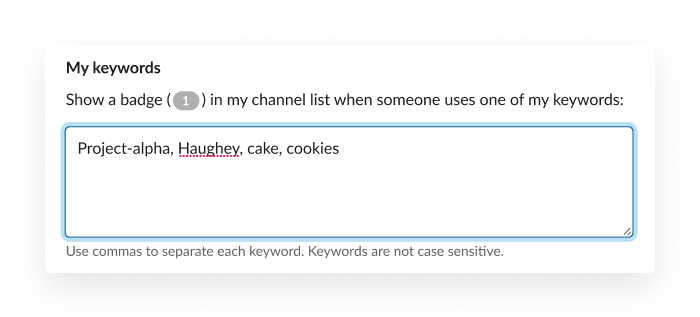
Slack's "My Keywords" feature is the solution. You can set up custom keywords that will trigger a notification even if a channel is muted. Good keywords to track include:
Your name.
Specific clients.
Competitor names.
Actions, like “launching today” or “urgent”.
14. Reply In Thread
This is perhaps the most important and unspoken rule for proper Slack etiquette. Always start a thread when you’re replying to someone rather than posting a new message in the main channel.
The ‘why’ behind this is that the thread keeps conversations contained, so other discussions going on in the channel don’t become a disjointed mess.
For a deeper dive into what real users think about Slack etiquette, check out this discussion: reddit.com/r/Slack
15. Share Advanced Search Modifiers With The Entire Team
Slack's search is incredibly powerful, but the catch is that you’ll need to know how to properly use modifiers. Teaching your team these can save hours of digging.
from:@user – Search for messages sent by a specific person.
in:#channel – Limit search to a specific channel.
during:month – Search within a specific timeframe.
has:link or has:file – Look only for messages containing media.
This is perfect for combining a few together to easily find a file from three months ago. For example: from:@sarah in:#design has:file during:january.
16. Build Checklists That Actually Work In Slack
Like any team, you probably have recurring processes you can easily automate. Recurring processes, such as onboarding a new hire or launching a product, usually follow a set list of steps. That’s where Chaser’s Checklists feature lets you templatize these processes and deploy them with a single command.
You can set up a checklist template with variables.
For example, a "Product Launch" checklist might include tasks for design, dev, and marketing. You can assign tasks to dynamic roles like "Product Owner" or "Date."
Once set up, you simply type /chaser product launch in Slack. Chaser will ask you:
What is the product name?
Who is the product owner?
What is the launch date?
Once you answer, Chaser instantly generates all the tasks, assigns them to the right people (e.g., assigning the tasks specifically to the person you identified as the Product Owner), and sets the due dates based on the launch date variable. It is a massive time-saver and team productivity hack.
Final Thoughts
Slack is your team's command center and communication tool. Like any other tool, there are ways you can maximize efficiency for the best output. By structuring your channels, enforcing threading etiquette, and easily using integrations like Chaser, you’ll turn Slack communication into your team's greatest strength.