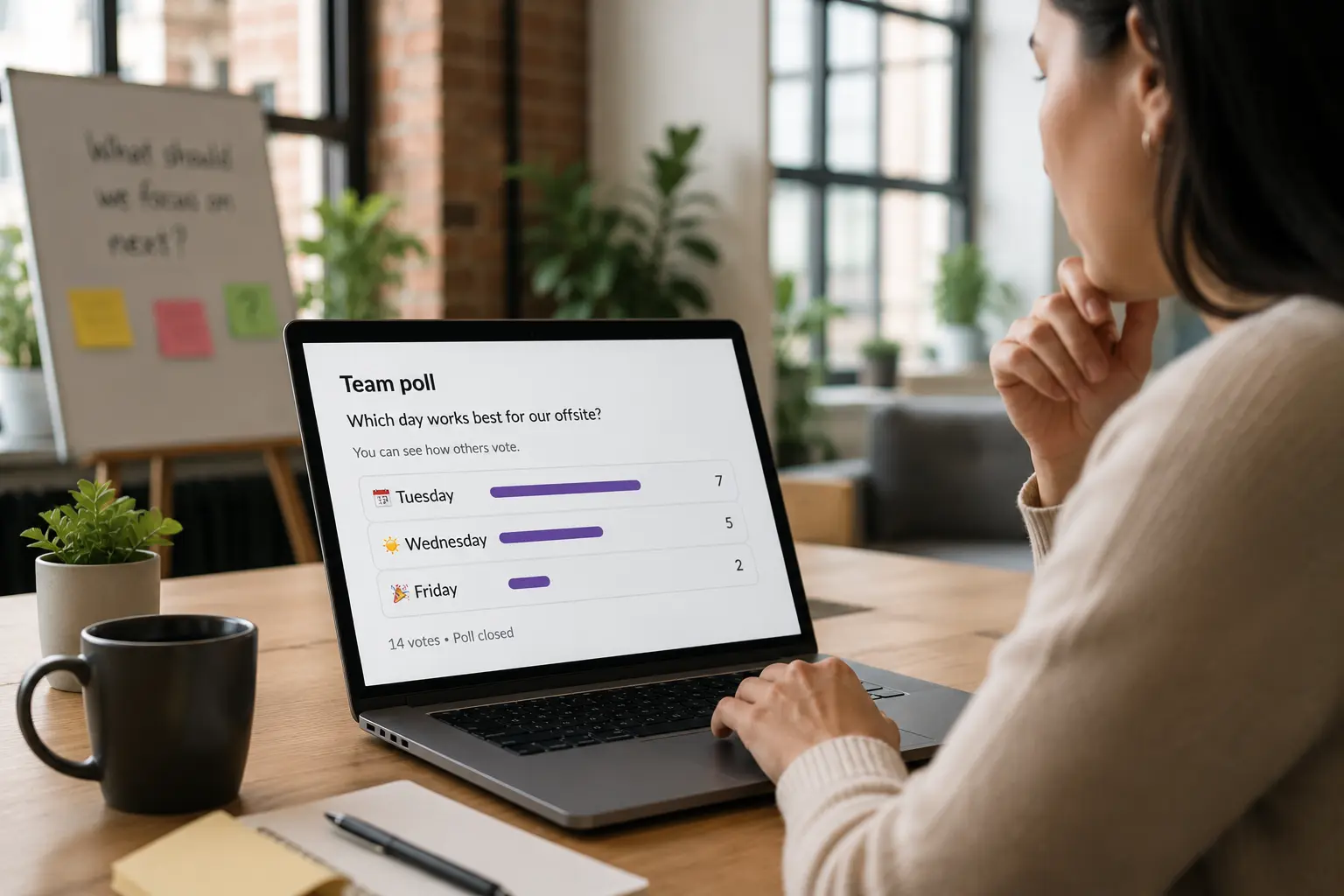

This post covers the three ways to "create a pool" in Slack that actually get used: emoji reactions (no app, no setup), dedicated poll apps like Simple Poll and Polly, and assigning it as a task when you need specific people to all respond. It also covers reading the results once they come in, which is the part that gets fiddly as soon as more than a handful of people reply.
The no-app Slack poll: emoji reactions
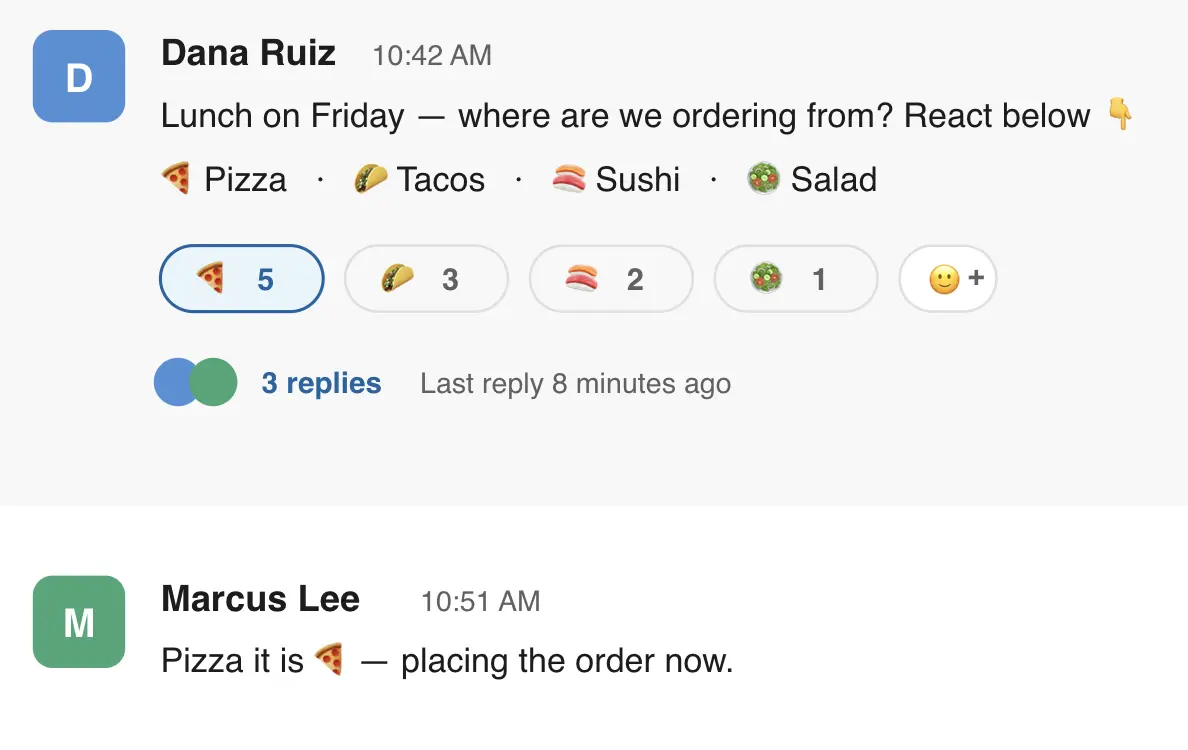
The fastest poll in Slack uses reactions: post your question, add one emoji per option as a reaction to your own message, and people click the emoji they're voting for. The number under each emoji is the running tally.
This is what Slack itself suggests for an informal vote. Its help page on polls points you to either reactions or an app from the Marketplace, because there's no native poll feature to fall back on. The reaction method works on every plan, including the free one.
It's good for low-stakes questions: where to eat, which of two dates works, etc. On the flip side, the votes aren't anonymous, so everyone can see who picked what, and nothing stops a person voting for every option or ignoring it. For a casual pulse check that's fine:
Dedicated poll apps: Simple Poll and Polly
Dedicated apps cover what emoji can't: anonymous voting, a results chart, or a poll that runs on a schedule. The two most common are Simple Poll and Polly, both of which sit among the most popular Slack apps for teams.
Simple Poll keeps it quick: type a question, list the options, and it posts an interactive poll people click to vote on. Polly does similar and leans into surveys and recurring polls, like weekly pulse checks or retro feedback, with anonymous responses and live charts.
The trade-off is the usual one with any add-on: it's another app to install, and another place your results live. For a team that polls a lot, like a big channel taking frequent surveys, that's worth it. For the occasional decision, it can be more setup than the job needs.
Run it as an assigned task
When a poll is a decision that needs a group of people to respond, the best approach is to assign the question as a task to the group. If your team already runs Chaser for work in Slack, you can do this with the tool you've already got.
Chaser lets you assign one task to several people and follows up with each person individually until everyone has done their part. You can assign to a whole channel, to a Slack user group, or to just the people you want in the poll. So "Which vendor should we go with — reply A or B" becomes a task assigned to the eight people whose input you need, and Chaser shows you who's responded and quietly chases who hasn't.
Say you're picking a date for a team offsite.
You assign the question to the #operations channel; six people reply in the thread and four don't. Rather than you re-pinging those four by hand, Chaser follows up with them directly until they answer, and the task closes once everyone's in. It's the same approach teams use to track any work as tasks in Slack, pointed at a question instead of a deliverable.
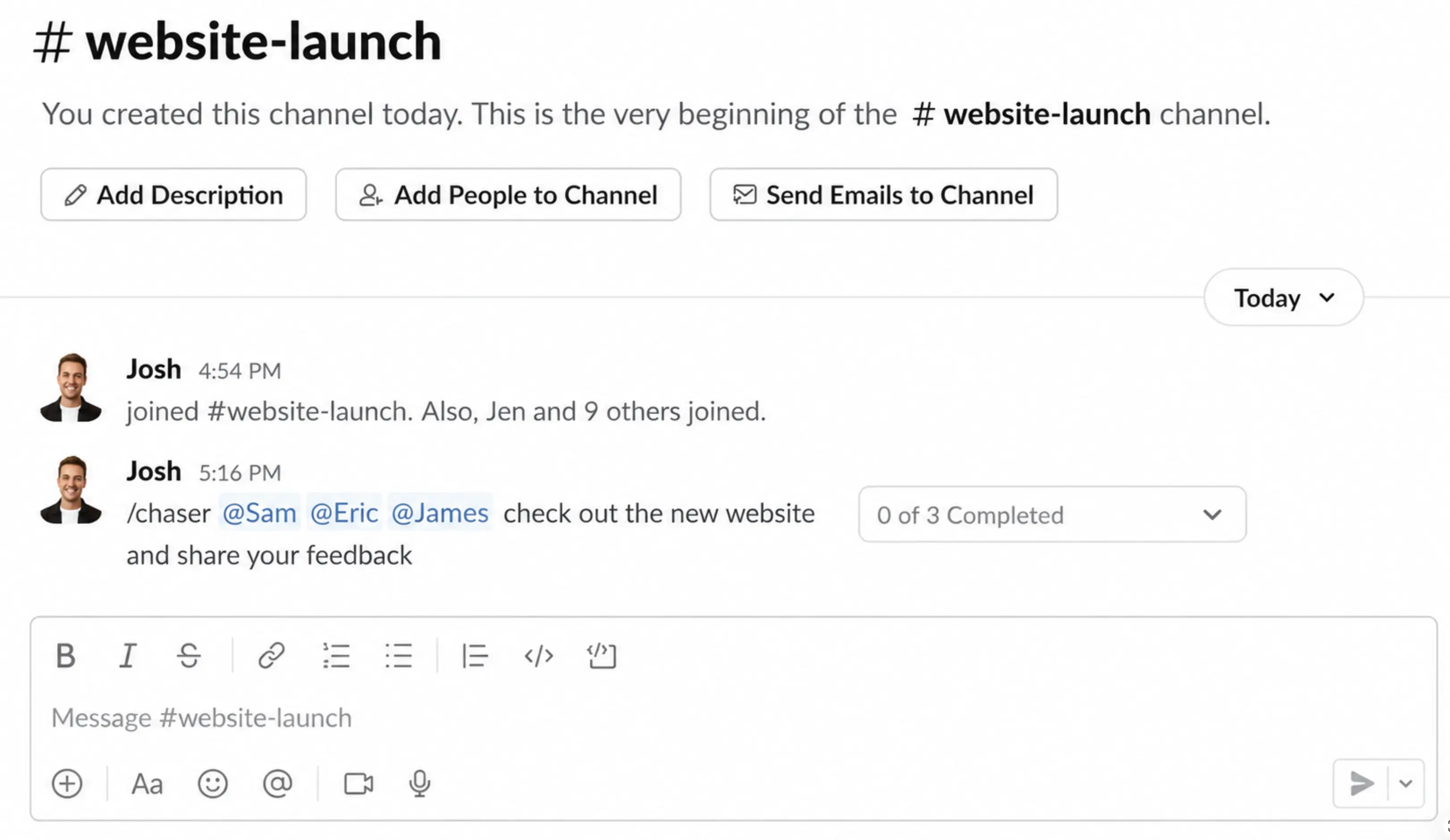
Chaser is especially useful when a known group needs to respond: assign the request, track each person's completion, and let automatic follow-ups bring in outstanding replies. Dedicated poll apps can add anonymous voting and bar-chart summaries, while Chaser keeps the response process owned and moving.
Reading the results
Once responses are in, how you read them depends on volume. For a handful of people, the thread is enough: scroll it and count. The emoji-reaction method tallies itself, so for a quick vote there's nothing more to do.
For anything bigger, like a long thread or free-text answers instead of a clean A/B, reading by hand gets tedious, and that's where AI does more for you than a poll app's dashboard. If your workspace has Slack's built-in AI, you can ask it to summarise the thread and it'll hand back the breakdown. Claude in Slack does the same from the other direction: @mention it in the thread and it reads the conversation and tells you who said what.
If you ran the poll as a Chaser task, you can connect an AI agent over MCP, like ChatGPT or Claude, and just ask for the results: who responded, what they chose, who's still outstanding. It's the same idea behind doing any kind of reporting on your Slack work by asking, rather than building a report by hand. Across all three, the point is the same: if you've already got AI that can read a Slack thread, you don't need a dedicated poll app's analytics on top of it.
Which method should you use?
A rough guide to the three:
| Method | Best for | Setup | Tracks who hasn't responded? |
|---|---|---|---|
| Emoji reactions | Quick, informal, low-stakes votes | None | No |
| Poll app (Simple Poll, Polly) | Anonymous voting, surveys, recurring pulse checks | Install an app | No |
| Assigned task (Chaser) | Decisions where specific people all need to respond | Uses Chaser, if you have it | Yes |
If you just want a read on opinion, reactions or a poll app will do, and the choice between them comes down to whether you need anonymity and charts. If the poll is a decision and you need particular people to actually respond, assign it. Getting the stragglers to answer is what you're really after, and it's often a call you'd otherwise spend a meeting making.
Most teams use more than one. A quick "lunch?" is a reaction. A quarterly engagement survey belongs in a poll app like Polly. And "everyone confirm your availability for the client call" is a task.
Chaser handles task assignment, group follow-ups and reporting inside Slack, so a poll that needs everyone's input is just another task. You can try Chaser for free and see how it fits the way your team already works in Slack. Get started and add Chaser to Slack, for free.


