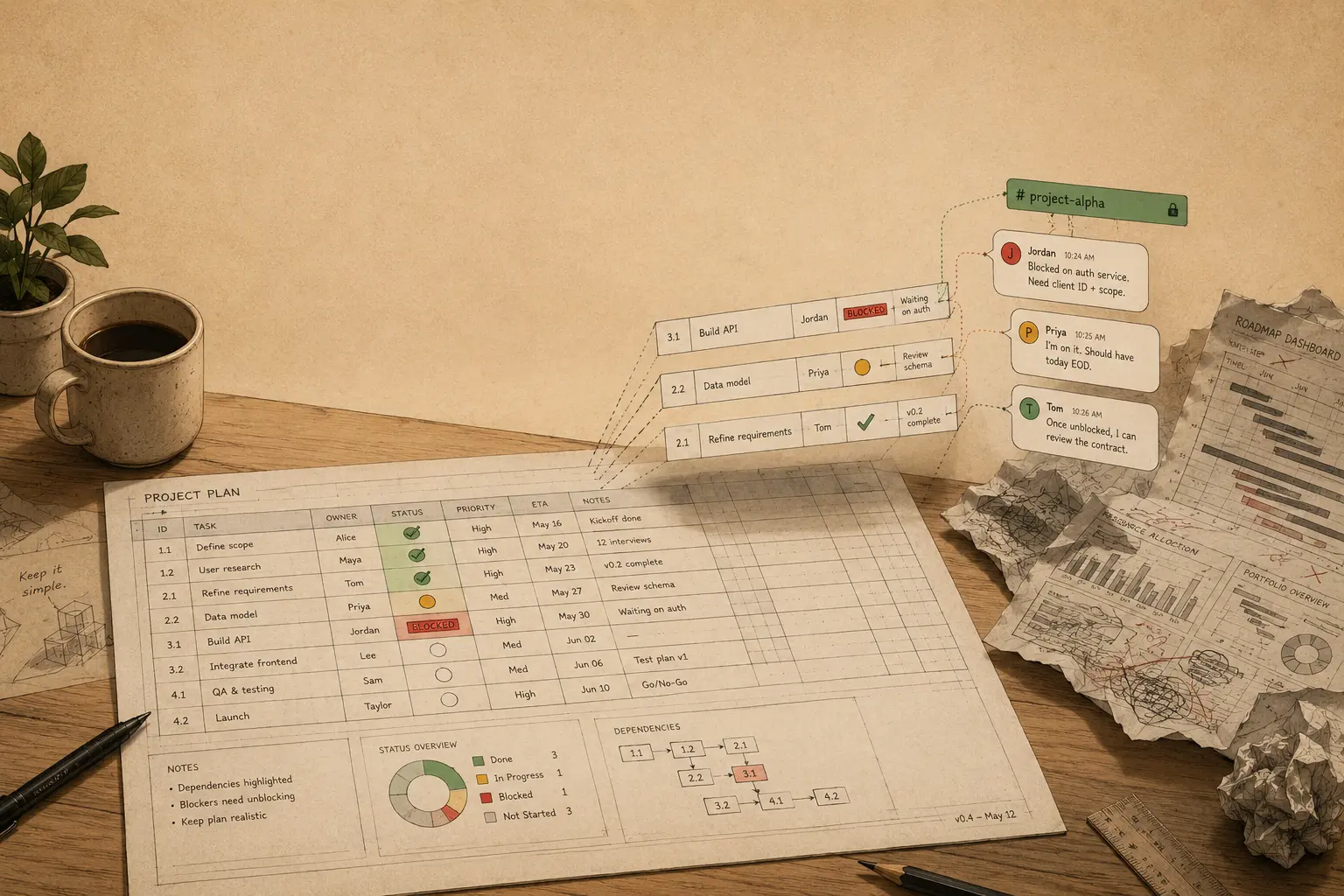

The most flexible way to run a project is a plain spreadsheet. A project plan template in a Google Sheet costs nothing, opens in seconds, and you can reshape it whenever the work changes — add a column, rename a stage, sort by owner — without fighting a tool that wants the project to look a certain way.
This post gives you a simple project plan template to download, then shows how to run the actual project from Slack without adding any other software. The template holds the plan; Slack holds the work and the conversations around it.
The download is a spreadsheet you can open in Google Sheets or Excel. Make a copy, put your project's name on it, and you're set up.
Why a spreadsheet instead of a project management tool
Heavier tools like Asana, Monday, or Notion are genuinely good at big, long-running programs with timelines and dependencies between tasks. For most projects, though, that power is overhead you pay for in setup and in nagging people to keep the board current.
A spreadsheet has the opposite trade-off. There's nothing to learn, everyone already has access, and the structure bends to your project rather than the other way round. The limit is real and worth saying plainly: a sheet won't draw you a Gantt chart or model task dependencies, and it won't chase anyone on its own. If you're still deciding which way to go, this guide to choosing a project management tool walks through when a heavier tool earns its keep and when it doesn't.
What's in the project plan template
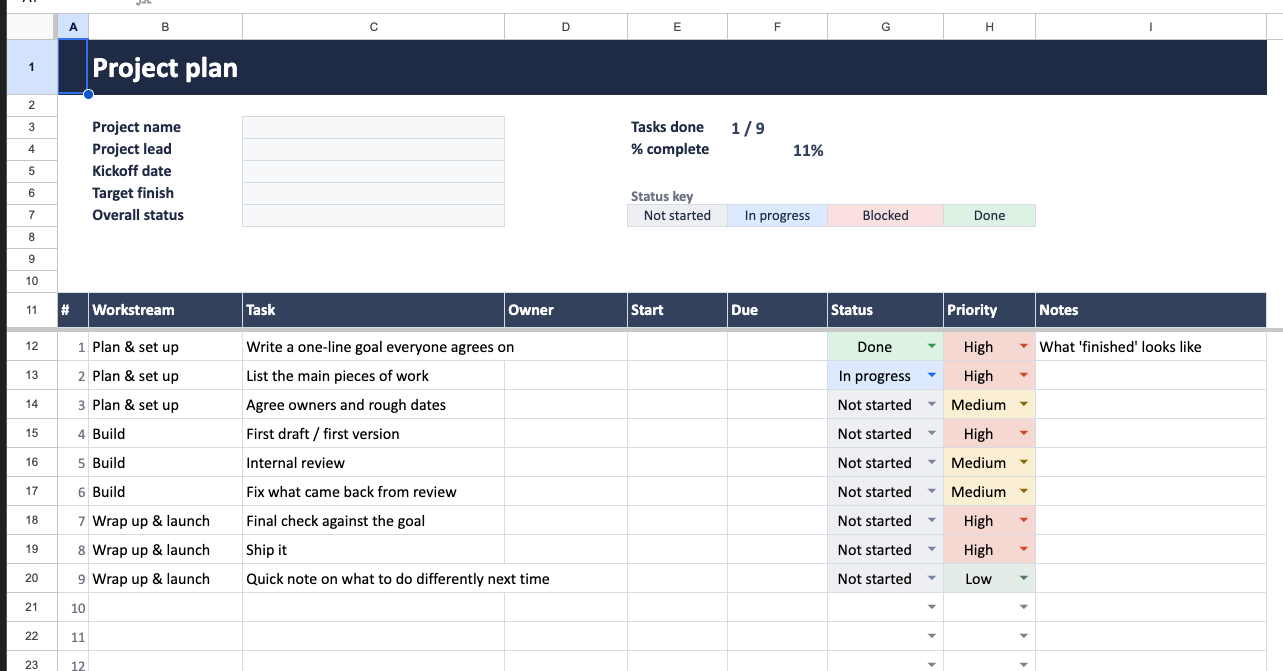
The template is deliberately small. At the top is a short overview block — project name, lead, kickoff date, target finish, and overall status — plus a count of how many tasks are done and a percentage that updates itself as you fill in statuses.
Below that is the task table, one row per task, with these columns
Keeping the status list to four options is on purpose. "Blocked" is the one people skip, so use it the moment something's actually stuck — that's the column a project lead should scan first.
DOWNLOAD: Download the project plan template (spreadsheet)
How to run the project in Slack
A plan is only as good as whether the work behind each row actually happens and you don't need a separate project management app for this. The sheet plus Slack covers it:
Start with one channel for the project, and keep the discussion there rather than scattered across DMs. That single channel is where decisions get made and where the answer to "what did we agree on the homepage copy?" lives. Slack's own save-for-later feature is handy for pinning the few messages you'll want to find again.
To connect messages to the spreadsheet as tasks, use Chaser the Slack App turns messages into tasks: you can assign them, and set a due date without leaving the conversation.
From there it follows up for you. Chaser reminds the assignee automatically as the due date approaches, and can post a short status report to the channel showing what's done, in progress, or blocked. This part a sheet can't do on its own. Native Slack reminders cover the simplest version of this; Slack's guide to reminders shows what they can and can't do.
If you're running several projects this way, one sheet per project and one channel per project keeps them from blurring together. This guide to managing multiple projects in Slack covers how to stay on top of more than one at once, and for the broader setup there's a full guide to using Slack for project management.
Final thoughts
You don't need much to run a project well. A clear plan in a spreadsheet, one channel for the conversation, and something to make sure tasks get picked up and finished. The template gives you the first part; Slack gives you the second; the third is the only piece worth adding a tool for.
You can try Chaser for free and see how it fits the way your team already works in Slack. Get started and add Chaser to Slack, for free.