
Chaser has released a new Chrome extension to create tasks from any web page and send them as Slack messages to anyone on your team.
The task follows the same Chaser workflow as one created in Slack: the assignee can acknowledge and complete it, and it stays visible on the Chaser dashboard.
Install the Chaser Chrome extension
Open the official Chaser Chrome extension listing, select Add to Chrome, and review the permissions Chrome shows before confirming. Google's guide to installing and managing Chrome extensions also explains how to pin an extension when its icon is hidden inside the Extensions menu.
Once it is installed - Pin it for convenience so the icon is always visible!
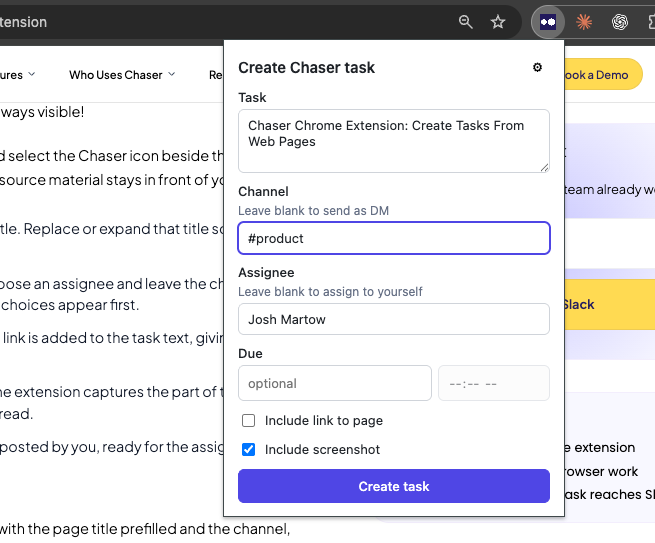
To test it out, pen the page you want to turn into a task and select the Chaser icon beside the address bar. The task form opens without navigating away, so the source material stays in front of you.
- Edit the task summary. Chaser fills it with the page title. Replace or expand that title so the assignee knows what to do.
- Choose the Slack destination. Pick a channel, or choose an assignee and leave the channel empty to send the task as a direct message. Recently used choices appear first.
- Include the page link when it's part of the work. The link is added to the task text, giving the assignee a direct route back to the source.
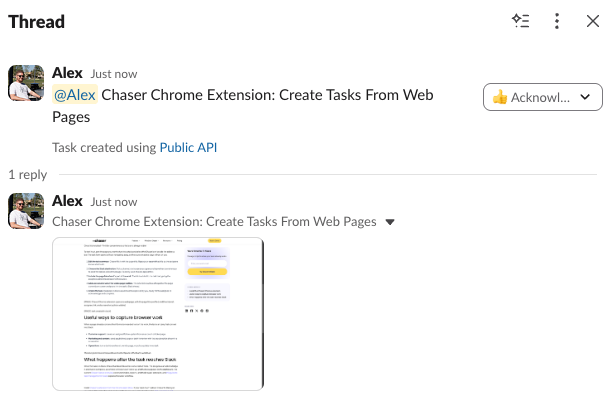
- Add a screenshot when the visible page matters. The extension captures the part of the page currently on screen and posts it in the task's Slack thread.
- Create the task. It appears in Slack as a Chaser task posted by you, ready for the assignee to acknowledge and complete.
Useful ways to capture browser work
When a page already contains the information needed to start the work, the task can carry that context into Slack:
- Customer support: create an assigned follow-up task from an account or ticket page.
- Marketing and content: send a published page or draft for review with the exact section shown in a screenshot.
- Operations: turn a dashboard result, vendor page, or policy update into a task
This also gives browser requests a consistent place in the team's workload.
What happens after the task reaches Slack
Once the task is in Slack, Chaser handles it like other work created there. The assignee can acknowledge it and mark it complete, automatic reminders can follow up, and the task appears on the dashboard. The current Chaser feature overview covers reminders, reports, and the browser extension, and this guide to task management in Slack explains the wider workflow.
Install Chaser's extension from the Chrome Web Store. If your team hasn't added Chaser to Slack yet, you can try Chaser for free and see how it fits the way your team already works. Get started and add Chaser to Slack, for free.

Alex Steshenko is the co-founder and CTO of Chaser. Drawing on his experience building products and leading teams, he writes about task management, workflow automation, and helping growing businesses get more out of Slack. His focus is practical: making ownership clear, reducing manual follow-ups, and helping teams turn everyday conversations into completed work. More articles by Alex Steshenko
Send this article to someone who’d like it.