You can add AI agents like Viktor and Claude to Slack and ask them to work on things. What makes Replicas different is that it can use your existing ChatGPT or Claude subscription to do the work. That can be cheaper than paying for API tokens, especially if you already have a subscription. Its usage limits still apply; Replicas charges separately for the cloud computers running the agent.
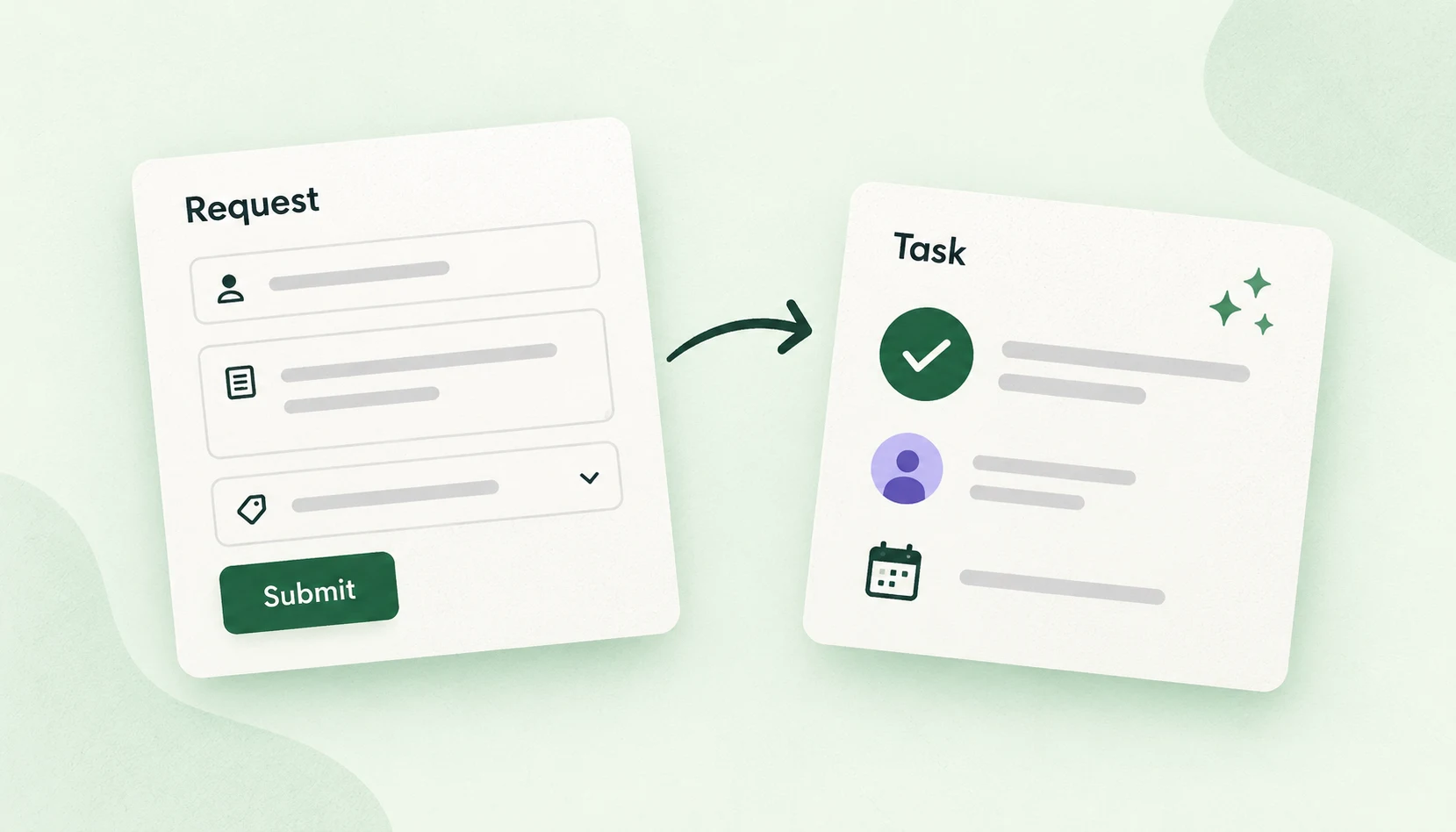
With Chaser, you can assign tasks to Replicas in Slack, track their status, and review the results alongside work assigned to people. You don't need another task tracker. Chaser connects through MCP, so there's no integration code to write.
Here's how to set it up, give the agent a workflow, and try it on a task.
1. Set up your Replicas account
Create an account at replicas.dev and follow the onboarding steps.
Replicas supports ChatGPT and Claude Code. See the Replicas setup guide for connection options.
Connect Slack, GitHub, and other tools
Open Organization → Integrations in Replicas to connect GitHub and Slack. Select the GitHub repositories the agent should access and the Slack workspace where you use Chaser, then invite @Replicas to your task channel.
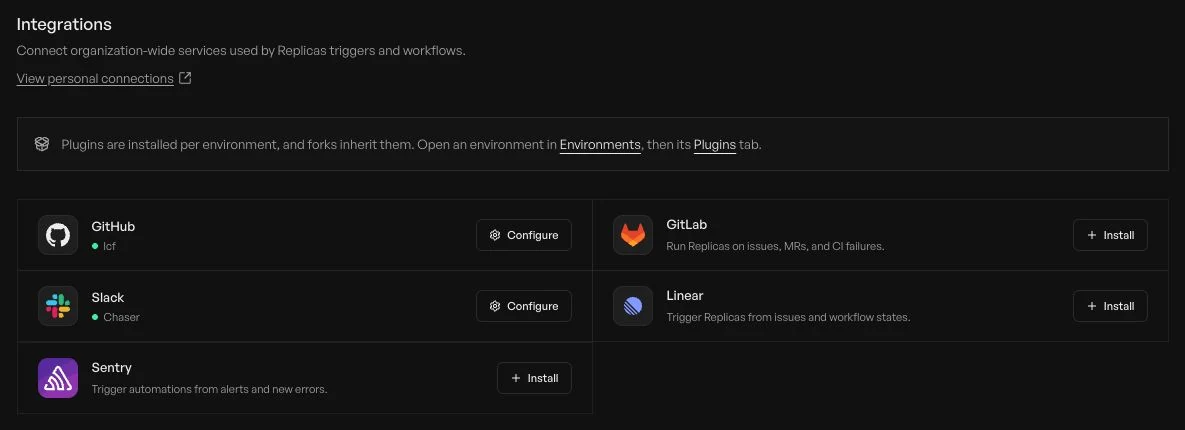
If you connected a personal subscription, link your Slack account under Personal → Connections so Replicas knows which subscription to use for your Slack requests. Under Slack → Configure in Replicas, select the matching coding agent: Codex or Claude Code.
Under Environments, you can connect other tools such as Google Drive and Figma, or add multiple GitHub repositories.
2. Connect Chaser to Replicas
Chaser's MCP connection lets Replicas read and update tasks.
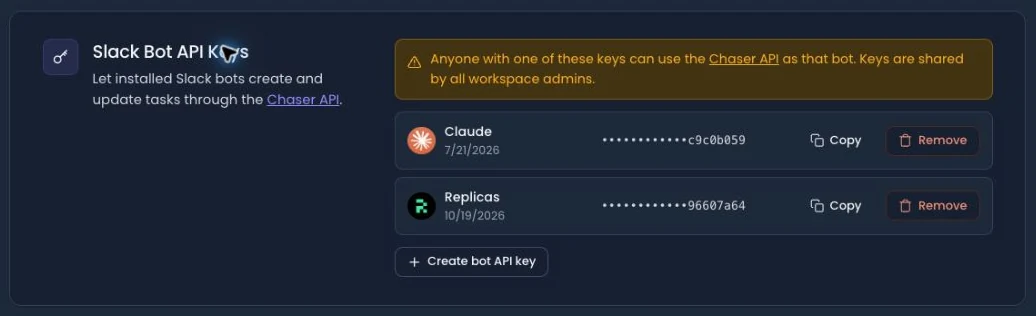
Create a Chaser bot API key
As a workspace admin, open Admin → Slack Bot API Keys in your Chaser dashboard.
- Click Create bot API key.
- Select Replicas.
- Click Create key, then Copy beside its entry.
Add Chaser as an MCP server
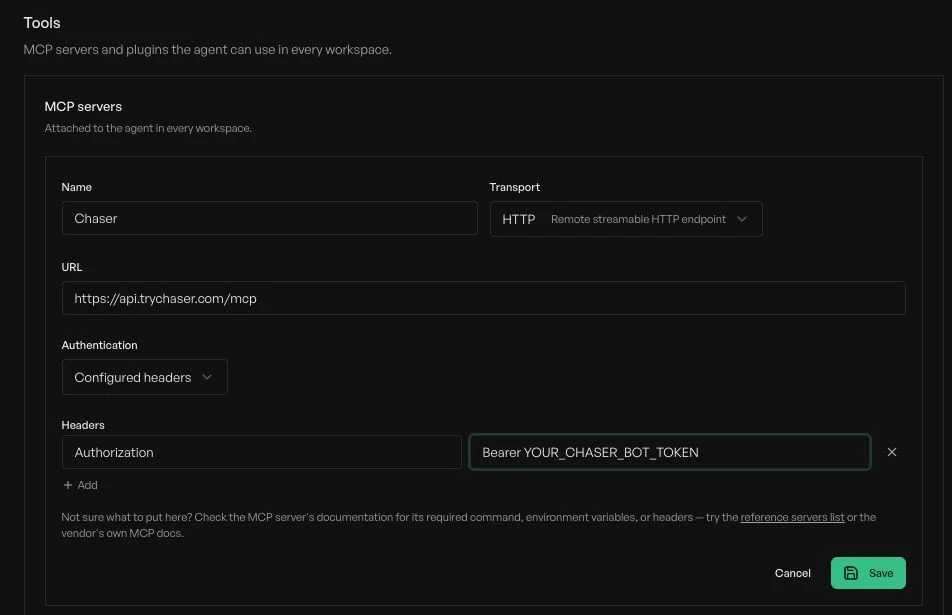
In your Replicas environment, open Tools → Add MCP and enter:
| Field | Value |
|---|---|
| Name | Chaser |
| Transport | HTTP — remote streamable HTTP endpoint |
| URL | https://api.trychaser.com/mcp |
| Authentication | Configured headers |
| Header name | Authorization |
| Header value | Bearer YOUR_CHASER_BOT_TOKEN |
Replace the placeholder with your key, keeping Bearer and a space before it, then click Save. Store the key here, not in Slack or the agent's prompt.
3. Describe your workflow
In the environment's General → Instructions, tell Replicas what to do when it receives a task. For example:
Note: Statuses on tasks, such as In Progress or Ready for Review, need to match statuses configured in Chaser.
You can define a different workflow: create separate tasks for individual deliverables, assign a design review, or ask another agent to write documentation. Specify who gets each task and when it should be created.
4. Assign a task in Slack
To test it, assign a task to @Replicas in Slack as you would to a teammate.
For our test, we asked it to change the headline on the Chaser homepage. Our Replicas environment had access to the website's GitHub repository.
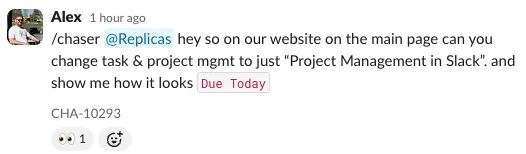
Replicas replied that it was updating the page and checking desktop and mobile. It also moved the Chaser task to In Progress.

Review the result
Replicas ran the site on its cloud computer, checked the change in a browser, and uploaded screenshots. We could review the page directly in Slack without checking out the code.
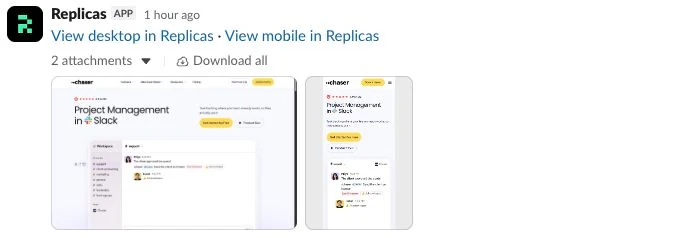
It then posted a pull request and preview link, described its checks, and moved the task into review. The change was left unpublished for us to approve.
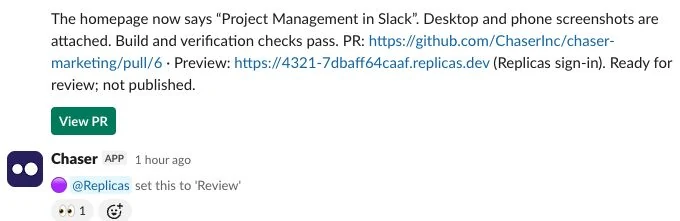
To request changes, reply in the same thread and mention @Replicas. The conversation stays attached to the task.
Adjust the workflow to your team
The same setup can handle small fixes, larger changes, or work split between people and agents. Change the instructions to fit your review process; Chaser keeps the assignments and statuses together in Slack.

Alex Steshenko is the co-founder and CTO of Chaser. Drawing on his experience building products and leading teams, he writes about task management, workflow automation, and helping growing businesses get more out of Slack. His focus is practical: making ownership clear, reducing manual follow-ups, and helping teams turn everyday conversations into completed work. More articles by Alex Steshenko
Send this article to someone who’d like it.