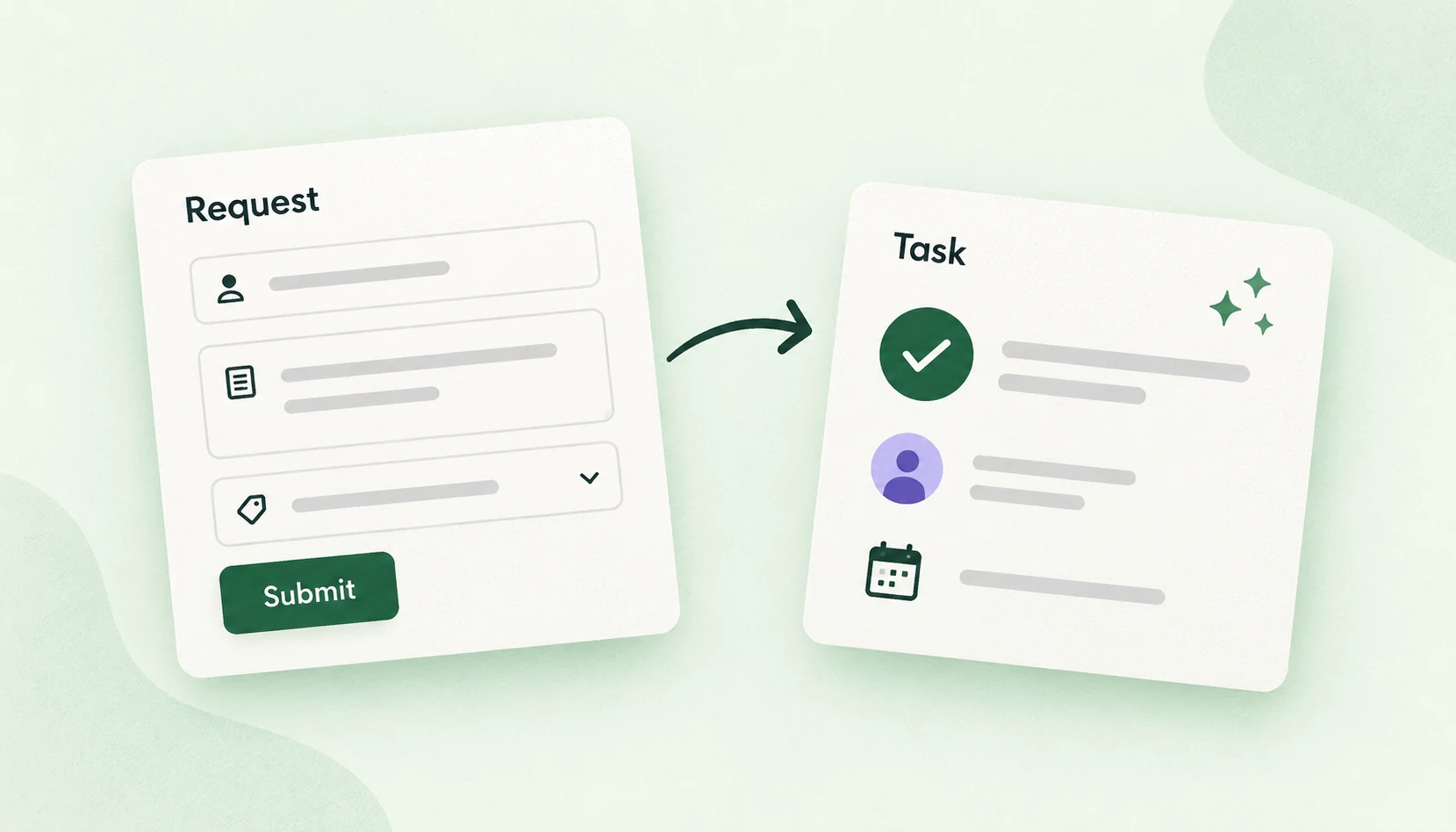

Chaser tasks already bring together a description, an owner, and a deadline. A Slack form adds structure to how you collect those details, guiding people through the same questions before a task is created.
We'll use a request for a launch graphic as the example. Teammates open a workflow link, fill out four questions, and submit. The workflow passes their answers to Chaser, including who should do the work and when it's due.
Before you start
To turn form responses into Chaser tasks, you'll first add a custom app to your Slack workspace. This app provides the Create a Chaser task step in Workflow Builder. We've prepared Chaser Form Tasks for this guide, with all the integration code included.
The workflow and custom app run entirely on Slack's infrastructure. Your computer doesn't need to stay on. However, uploading the app to Slack requires installing the Slack CLI and Deno on your computer and running a few commands. This one-time setup is somewhat technical: ask a developer for help, or share this guide with your AI assistant to work through it together.
Download the example app and unzip it. The folder contains the app's code, its Slack settings, and a README with setup instructions.
You'll need a paid Slack workspace with custom steps, Chaser connected to that workspace, and permission to install apps and build workflows.
The person whose Chaser API key you use should have created a Chaser task in Slack and be a member of the channel where requests will appear.
1. Install the setup tools
Install the Slack CLI, Slack's command-line tool, using its instructions for Mac or Linux or Windows. Then install Deno, which the Slack tools use to prepare this app.
Open Terminal, or PowerShell on Windows. If you unzipped the app in Downloads, enter:
cd ~/Downloads/chaser-slack-workflow-appIf you saved it elsewhere, replace the path with that folder's location. Run the remaining commands from this folder.
2. Add the app to Slack
First, sign in:
slack loginFollow the authorization prompts in Slack, choosing the workspace where you want the form. Return to the terminal and run:
slack deployChoose Install to a new workspace and select your workspace. Review and approve the installation when prompted. If your workspace requires an administrator's approval, complete that before continuing.
This command creates Chaser Form Tasks from the downloaded files and uploads it to Slack's hosting. Wait for deployment to finish. The app's Create a Chaser task step is then available to you in Workflow Builder.
3. Connect your Chaser account
Create a Chaser API key to let the app create tasks in your account. Use the Chaser account connected to the Slack workspace you selected.
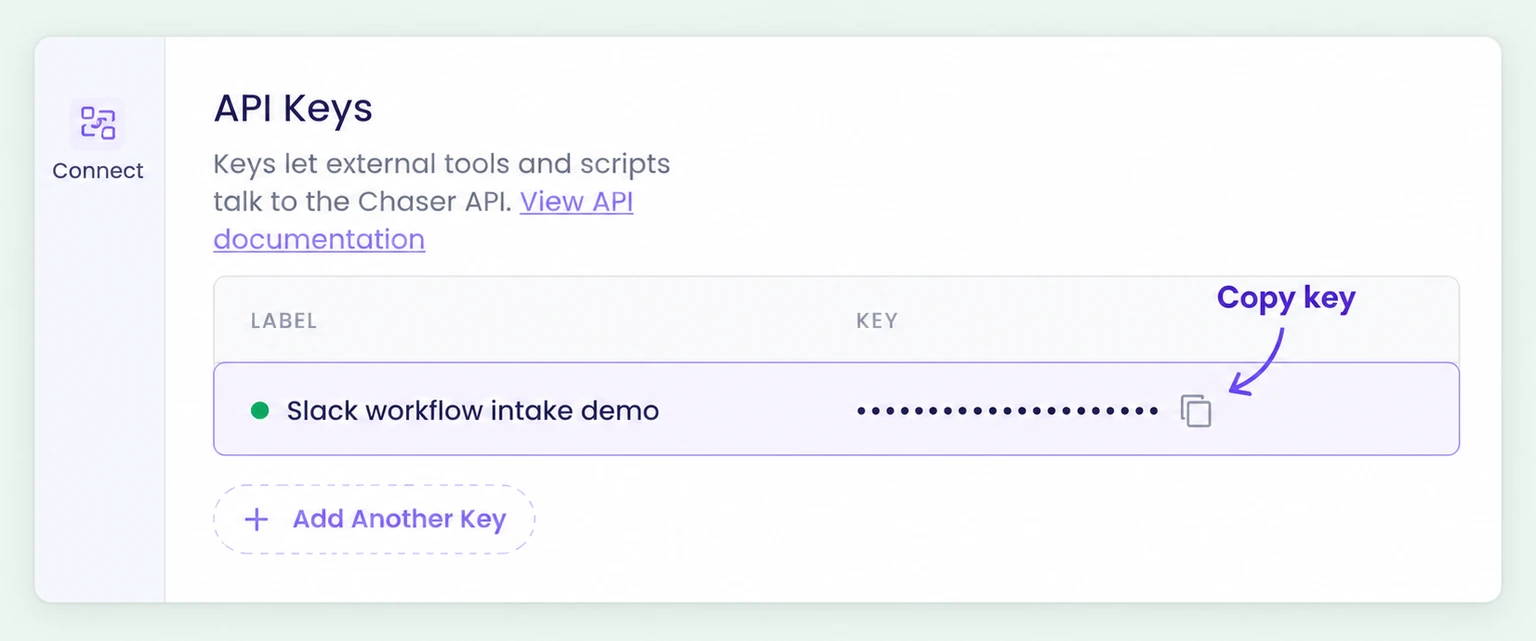
- Open Connect in your Chaser dashboard and scroll to API Keys.
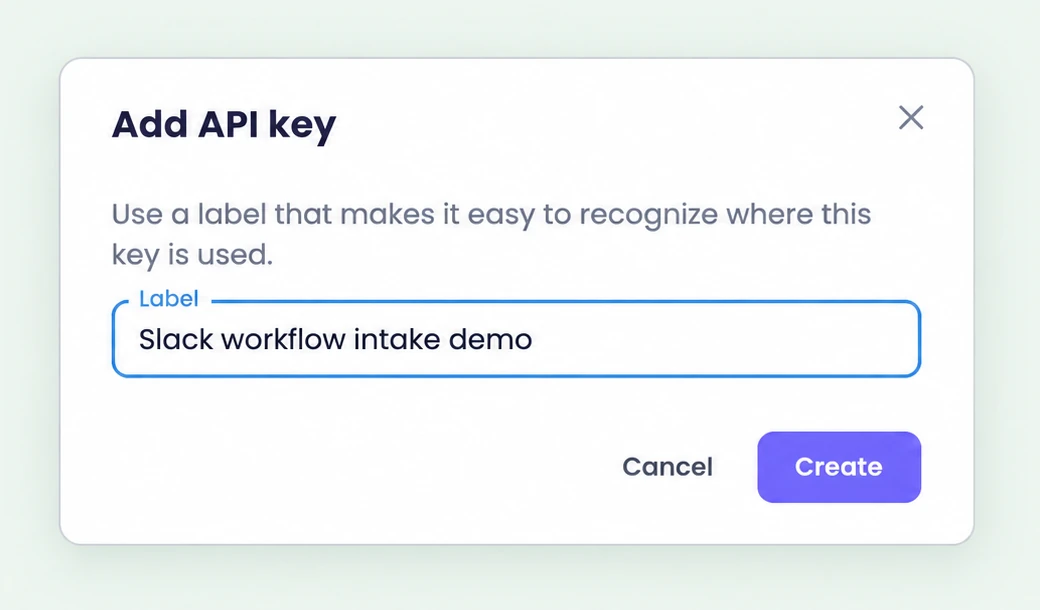
- Click Add Another Key. Enter Slack workflow intake demo as the label, then click Create.
Back in API Keys, click the copy icon beside the new key. The label is only a name; the copy icon gives you the key itself.
In the terminal, run:
slack env set CHASER_API_KEYSelect the deployed Chaser Form Tasks app if prompted. When asked for the value, paste the copied key. Slack stores it for this app; keep it private. The command prompts for the value, so the key doesn't need to appear in the command itself.
The connection is now configured. You can close the terminal and continue in Slack.
4. Build the form
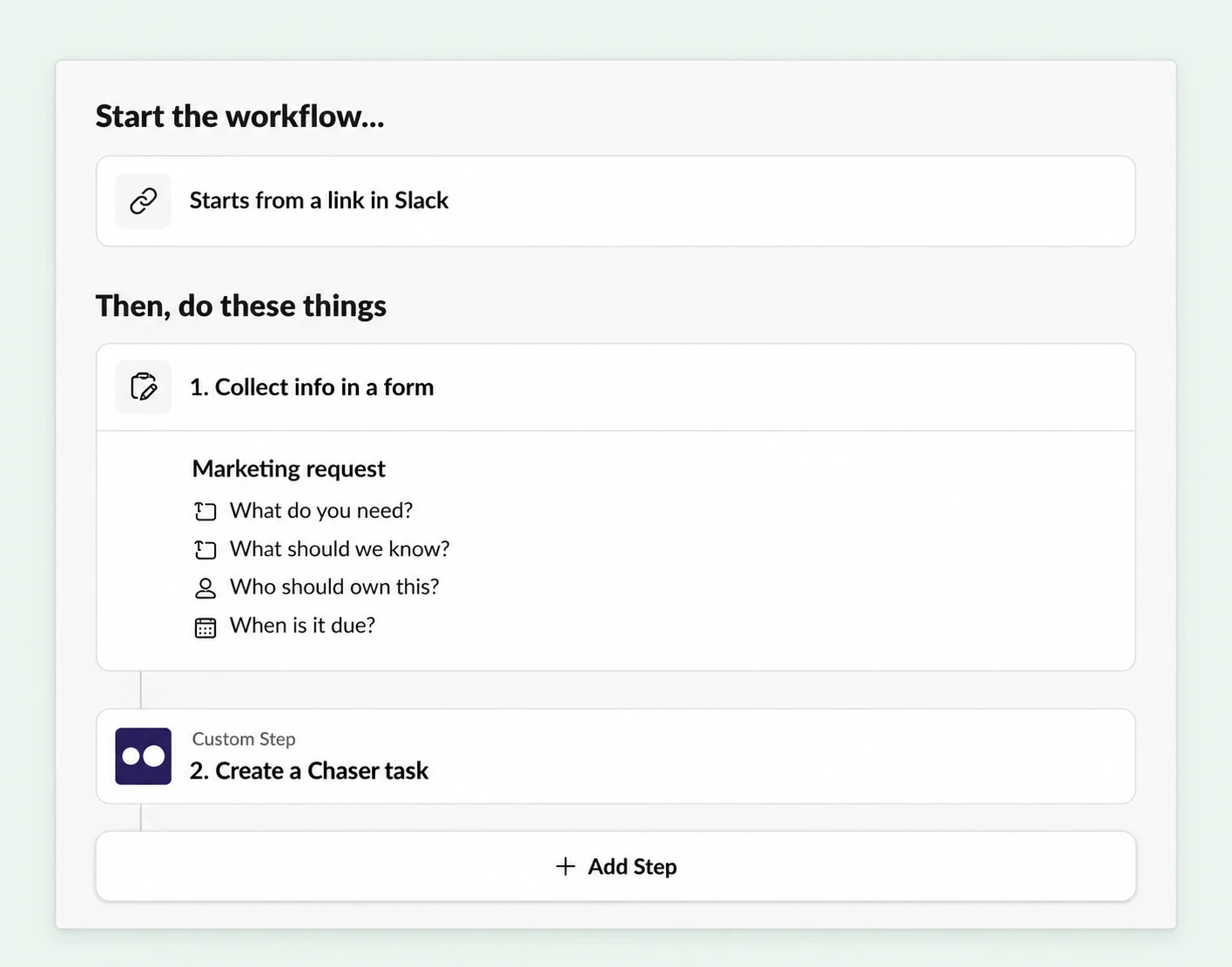
Open your Slack workspace menu, then Tools & settings → Workflow Builder. Choose New → New workflow, then Choose an event → From a link in Slack → Continue.
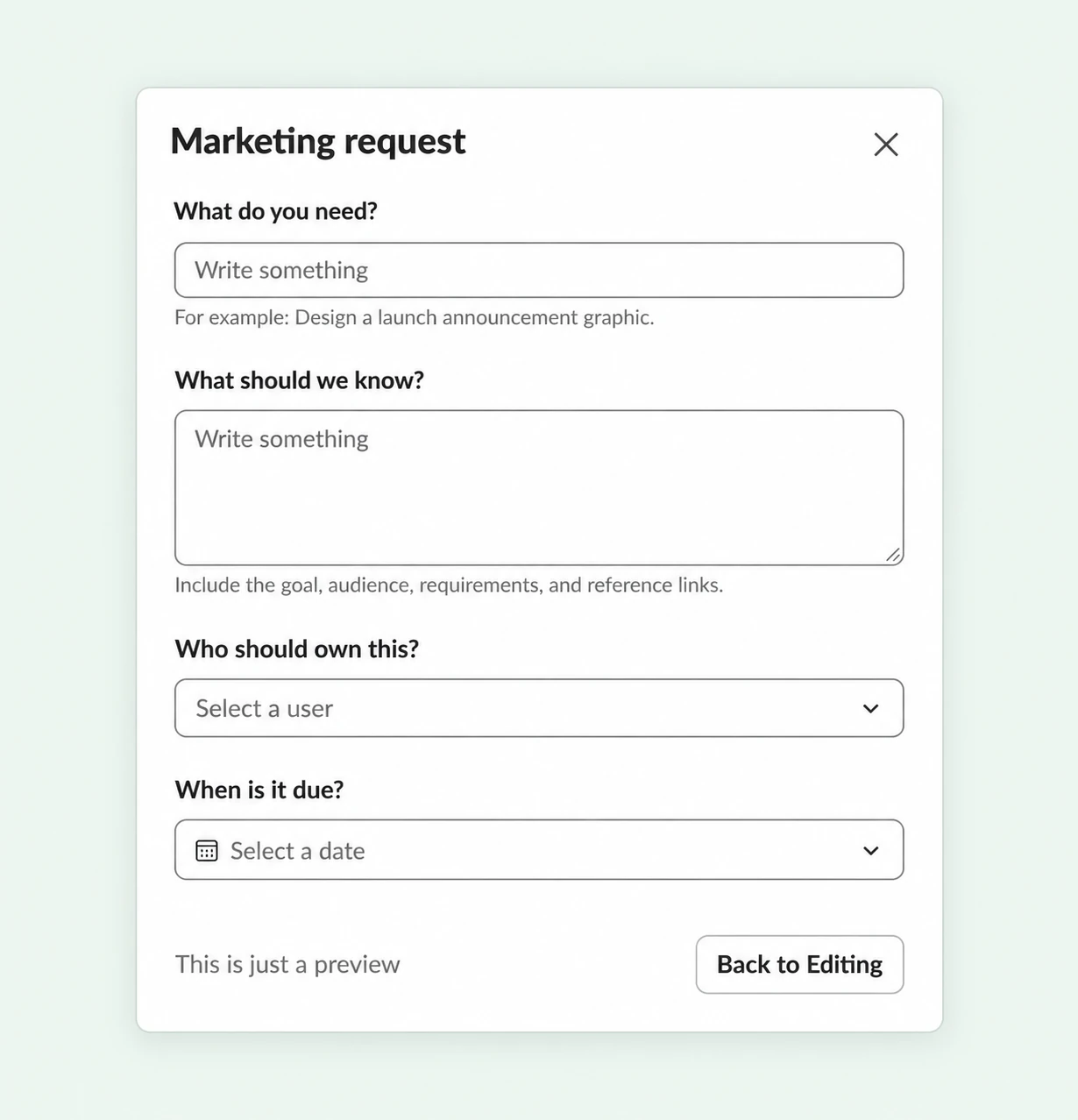
Add Collect info in a form → Build your own, and name the form Marketing request. Add these four required questions:
| Question | Answer type |
|---|---|
| What do you need? | Short answer |
| What should we know? | Paragraph |
| Who should own this? | Slack user |
| When is it due? | Date |
Use the paragraph field for the audience, requirements, and reference links the assignee needs.
5. Add the Chaser step
Click Add Step, search for Chaser Form Tasks, and select Create a Chaser task. Refresh Slack if the newly deployed app doesn't appear.
The step has six fields. Use the {} button or dropdown to select each form answer. Choose a destination channel, and set Requested by to Person who submitted the form:
| Chaser step field | Value |
|---|---|
| Deliverable | Answer to “What do you need?” |
| Brief | Answer to “What should we know?” |
| Task owner | Answer to “Who should own this?” |
| Due date | Answer to “When is it due?” |
| Task channel | A channel such as #marketing-team |
| Requested by | Person who submitted the form |
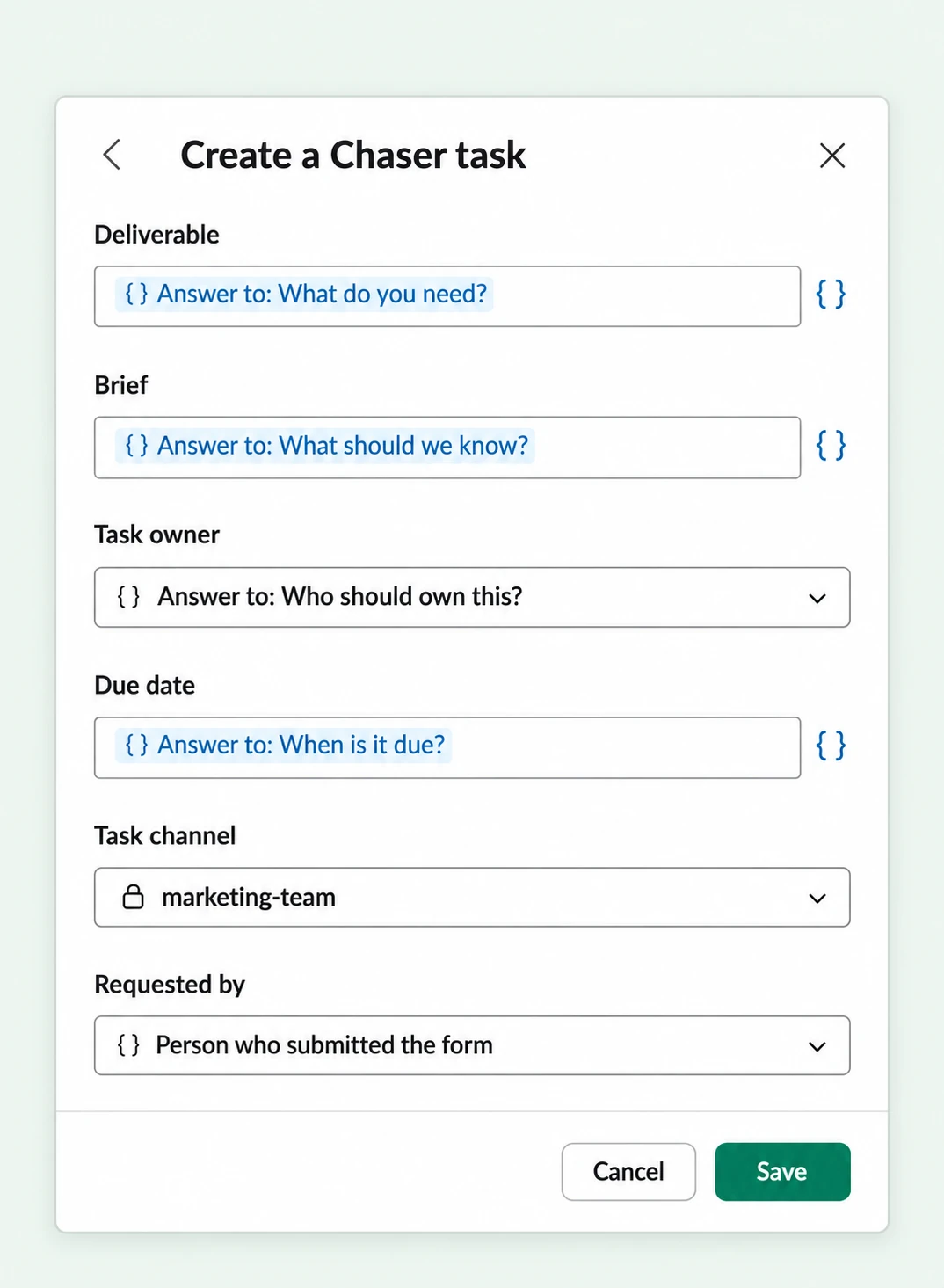
The app combines the deliverable and brief in the task body and adds a Requested by mention. Chaser creates the task under the API key owner's account; the mention identifies the form submitter.
6. Publish and test
Save the step and click Finish Up. Name the workflow Marketing Request to Chaser, choose Workflow managers only for the first test, and click Publish.
Paste its link into a test channel and click Start Workflow. Submit Design the autumn launch announcement, with a brief, owner, and due date.
Check that the task appears in the selected channel with those details. In Workflow Builder, open Workflow Actions → Activity log and select the run to confirm that both steps completed. If the run fails, read the error and check the channel before submitting again, since a task may have been created before an error was reported.
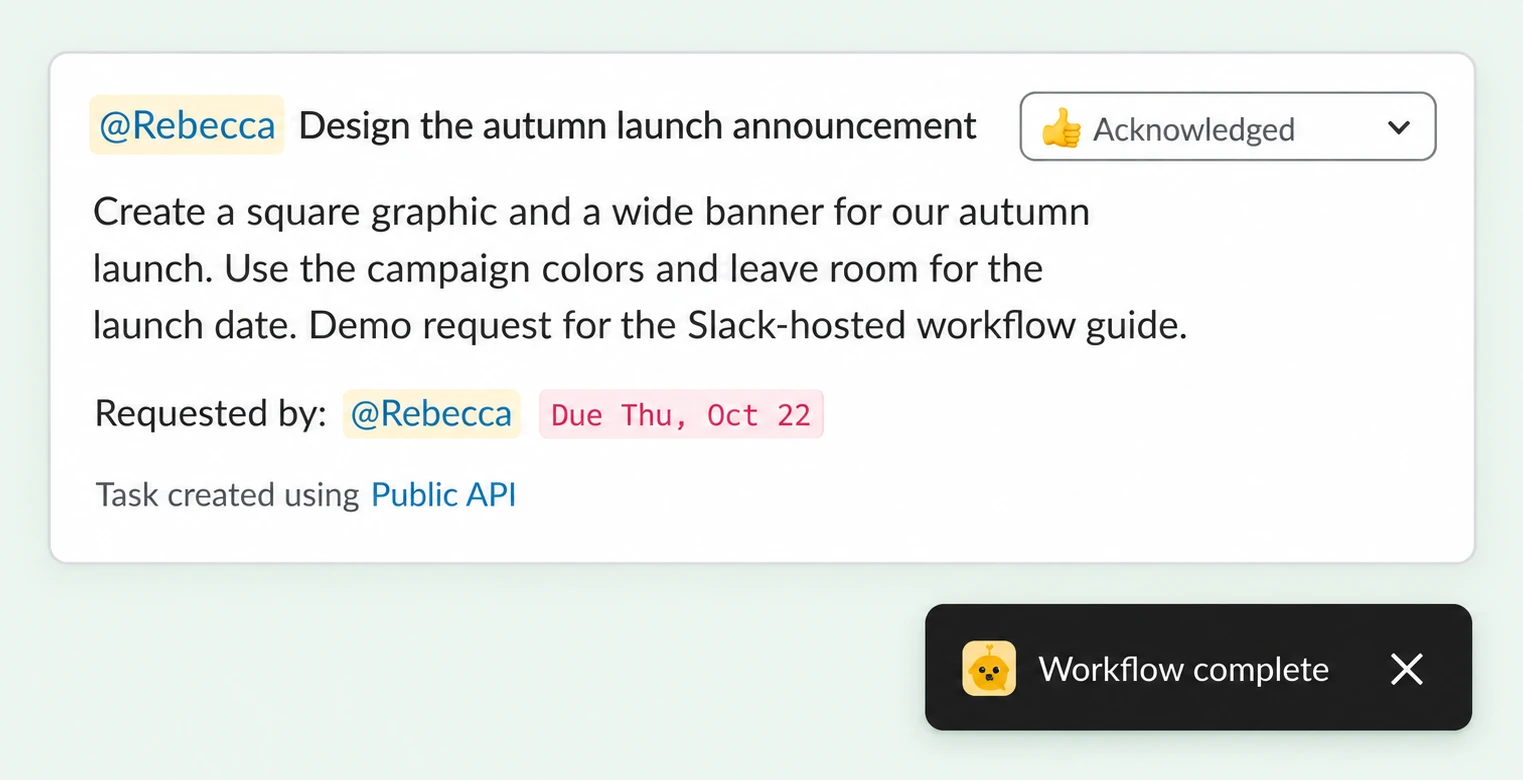
After testing, choose who can use the workflow and bookmark its link in your requests channel. Teammates can then submit structured requests while Slack runs the connection to Chaser.