

Slack gives a project a shared place for discussion, decisions, and follow-through. By combining Slack’s built-in capabilities with add-ons, it becomes a practical way to manage an entire project without moving the team’s day-to-day work somewhere else.
This guide shows how to set up a project, manage tasks, and monitor progress.
Set up the project in Slack
- Project channel
Use one main channel for a project, initiative, client, partner, or team workflow. - Canvas
Keep the project brief, key decisions, and useful links in a Canvas at the top of the main channel. - Manage tasks from Slack messages
Create tasks from Slack messages, then keep the discussion, files, and subtasks in each task’s thread.
Create a channel for the project
Create the project channel early: use it to discuss the goal and scope before the plan is final.
Channels can organize projects and initiatives, client or partner work, and a team’s day-to-day workflow.
Choose a name that makes the purpose clear, such as #campaign-launch, #client-northstar, #partner-integration, or #customer-onboarding.
Create additional channels for a major deliverable or an ad hoc discussion.
Make the channel public unless the work is sensitive, and use Slack Connect when clients or partners need access.
Add the project brief to Canvas
Once the project starts to take shape, create a Canvas tab in the project channel. Include the goal, scope, project lead, milestones, decision-makers and key links.
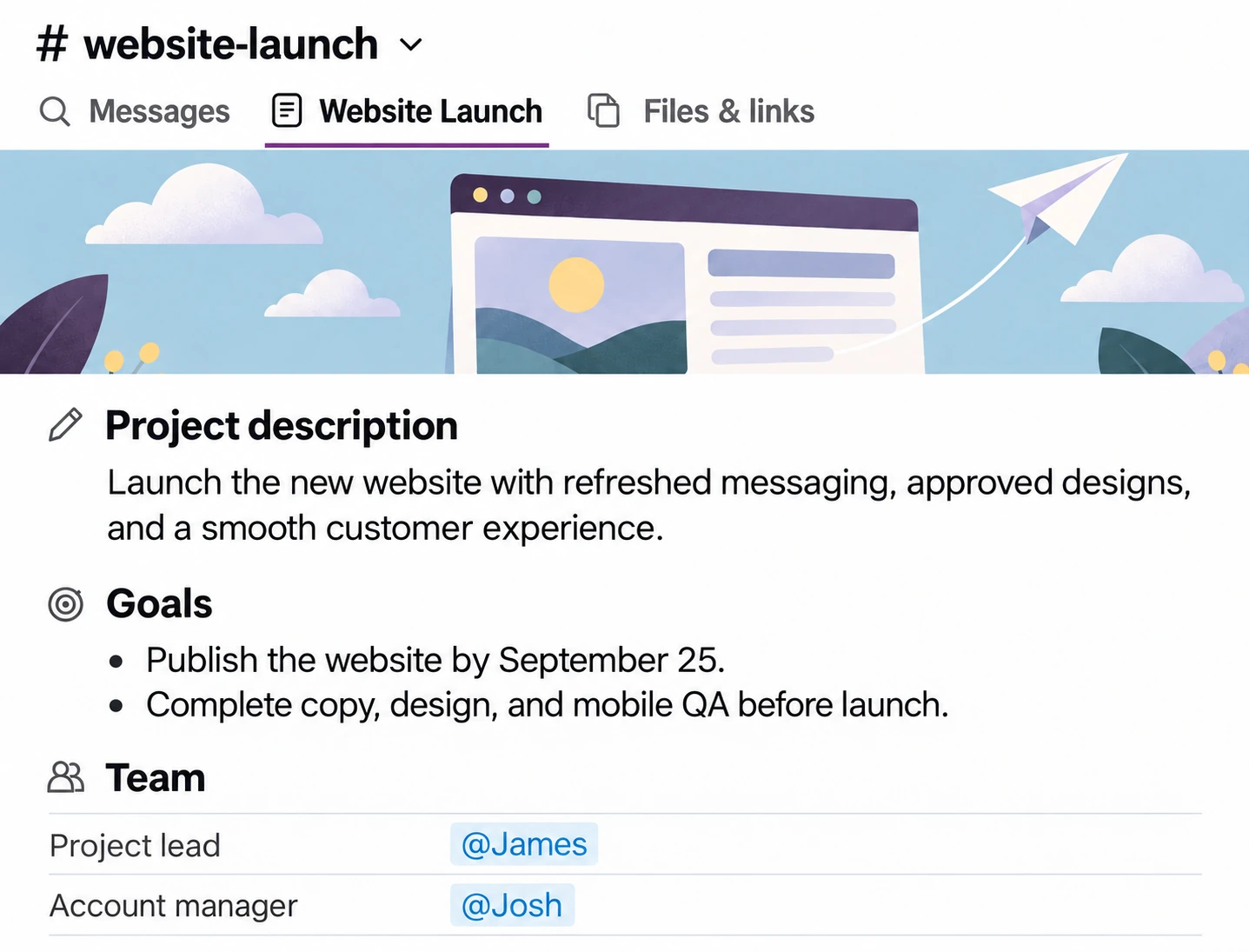
Use Canvas for information that should remain easy to find throughout the project. Keep daily updates and task discussions in messages and threads.
As decisions change the scope or schedule, update the brief and link to the relevant discussions. That way, anyone joining the project can check the plan and see where things stand.
Turn Slack messages into project tasks
The task features in this guide use Chaser, a Slack add-on you can try for free.
Hover over the message and select Convert to Task, or type /chaser to create a task from scratch. Add an assignee and due date, then post it in the project channel or thread.
/chaser @Alex prepare the client review deck by Friday
Use the task thread for questions, files and approvals. When a deliverable needs several people, give each part its own task, such as copy, design or approval. Keep them in the same thread so contributors can see the latest files and the discussion behind a decision.
Add statuses such as In progress, Waiting on client and Approved to show where each task stands and what it is waiting for.
Automatic Status Reports
Schedule a status report in the project channel. It shows overdue and unacknowledged tasks and recent updates, with links to the relevant Slack threads.
Recent updates include tasks created or completed and due dates that changed since the previous report. This gives the team a quick way to see what moved forward and what needs another look.
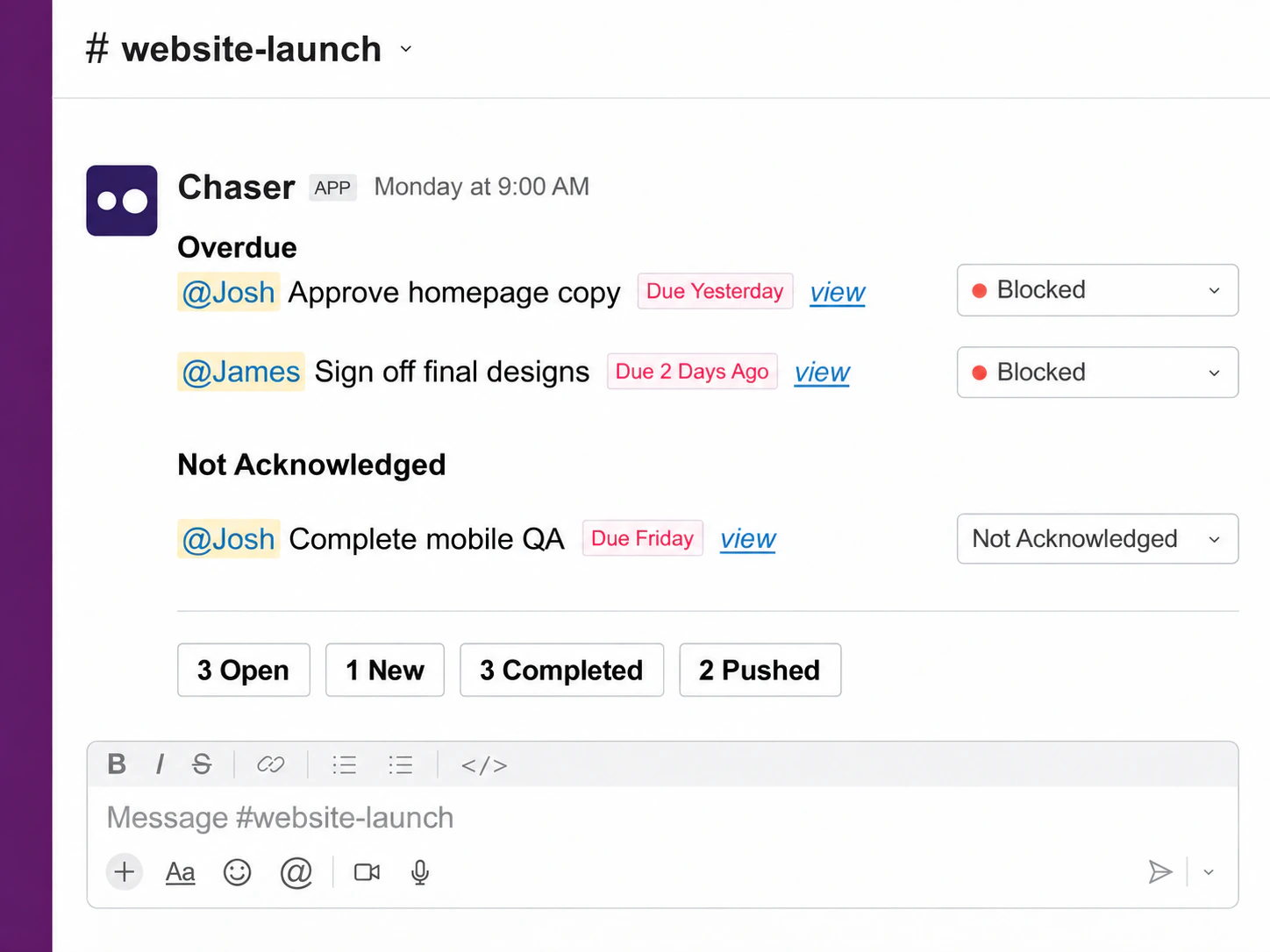
Choose the days and time, or post the report only when something is overdue. Review it with the team and record any decisions in the channel.
Get a bird’s eye view
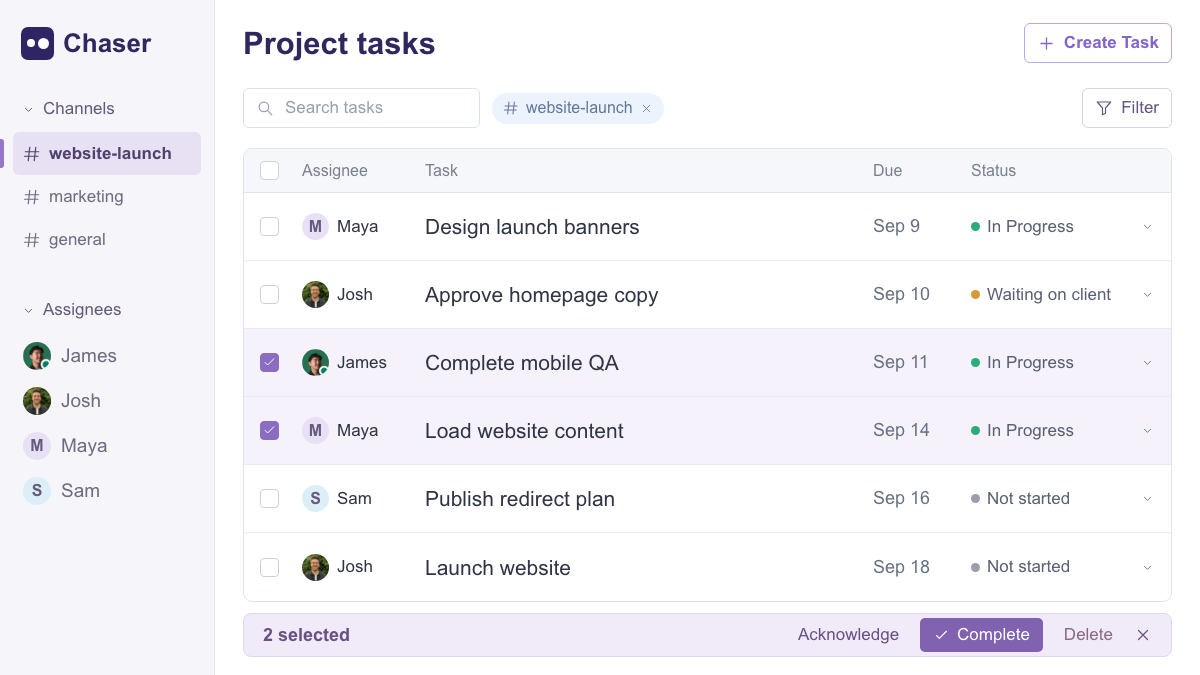
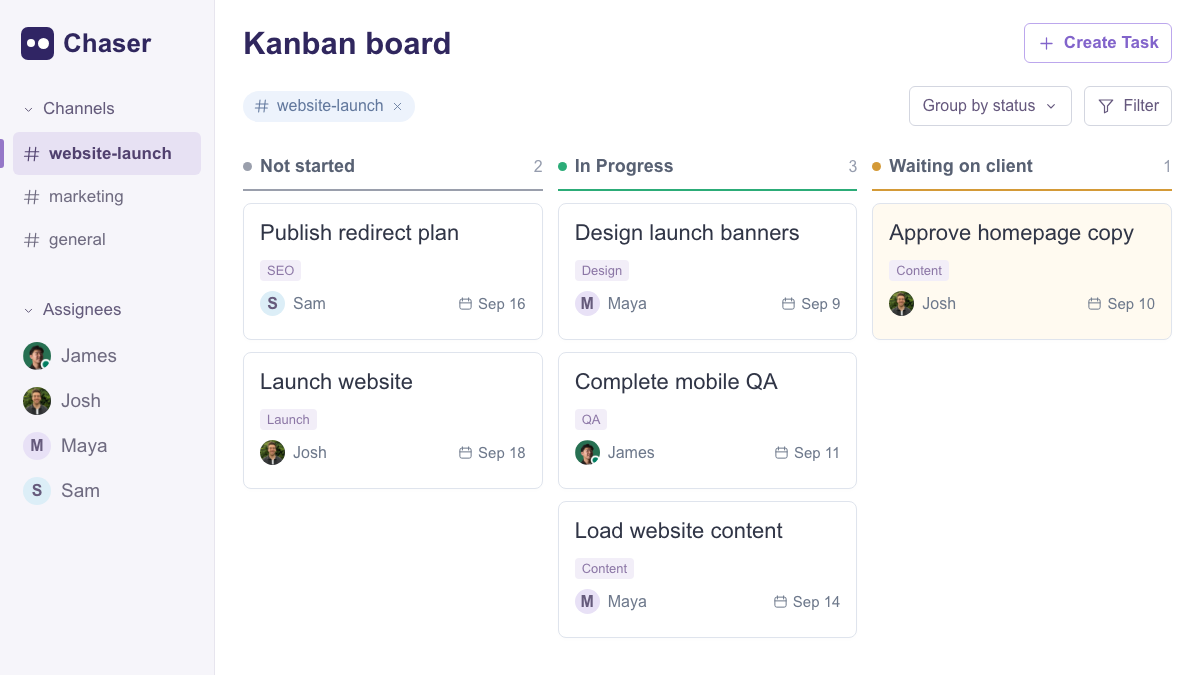
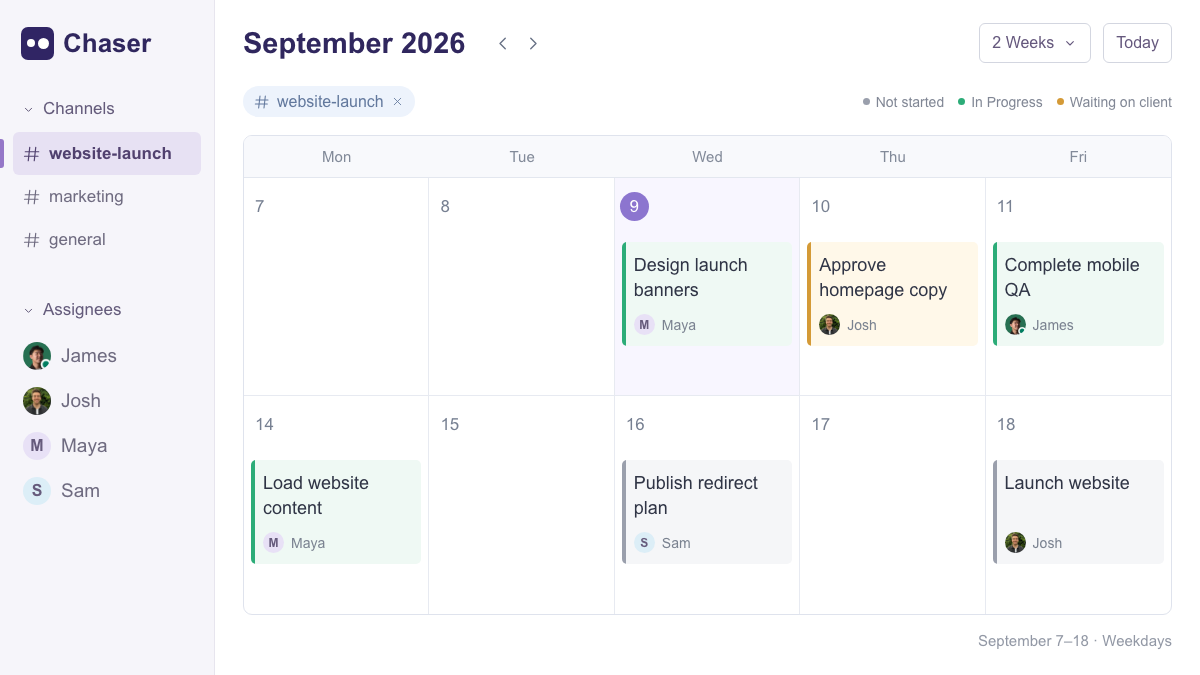
Use the dashboard to review owners and overdue tasks, the Kanban board to see work at each stage, and the calendar to compare due dates. Filter to the project channel to focus on its work.
Drag and drop tasks on the Kanban board to move them between statuses, or on the calendar to adjust due dates. This helps you spread work across the upcoming sprint to fit the team’s capacity.
A queue of tasks waiting for approval can reveal what is holding up the project, even when plenty of other tasks are complete.
Reporting
Built-in reports show task activity and whether work is completed on time. If the team logs time on tasks, you can also see how much work went into a project.
For example, compare the hours spent on two similar projects to help estimate the next one.
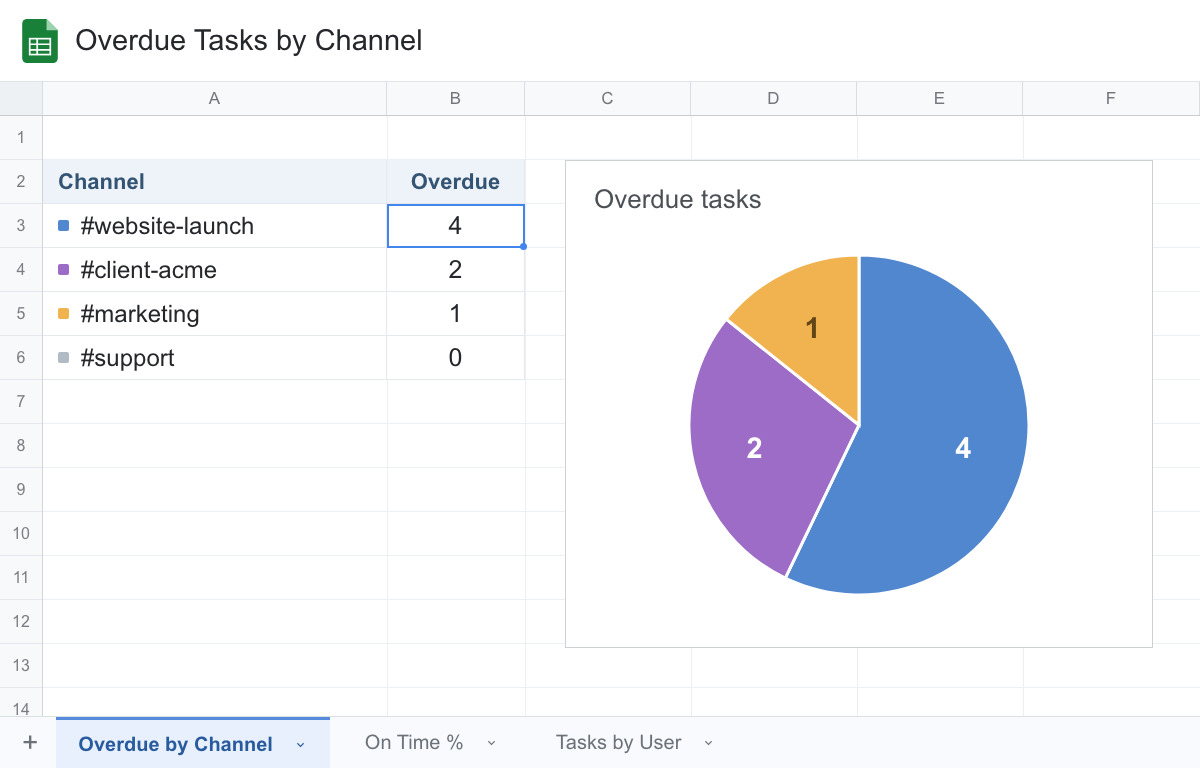
For custom reporting, connect Google Sheets to build advanced views such as completion-time trends by assignee, overdue work by project and time logged by client.
Finish and archive
- Close remaining tasks
Use the dashboard to complete or delete leftover tasks in bulk. Reassign any work that continues. - Archive the project channel
Post a final summary, then archive the channel so the project stays searchable.
Project Templates
Use a Chaser Checklist to save a reusable set of tasks for client onboarding, a website launch or monthly reporting. Set the tasks, assignees and relative due dates once, then create a new set of tasks in Slack:
/chaser [checklist name]
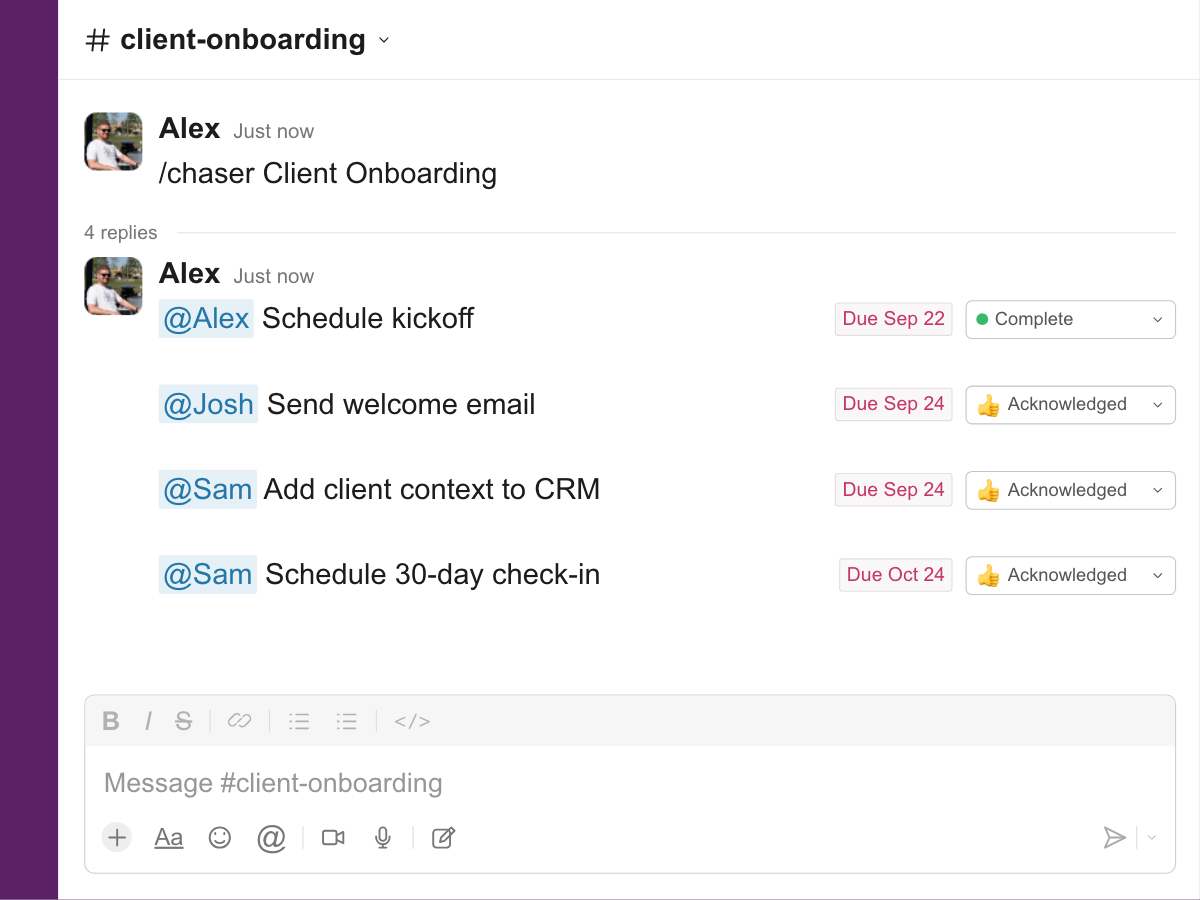
Use variables for details that change between projects, such as the project name or milestone date.
For a website launch, set the first draft due two weeks before launch and approval three days before. Enter the new launch date when you reuse the checklist, and those deadlines are calculated from it.
For recurring work, schedule the checklist to run daily, weekly, monthly or quarterly.
Project management in Slack FAQ
Can I manage several projects in Slack?
Yes. Give each project its own channel and Canvas. Use the task view in Slack or the web dashboard to review work across project channels.
Do project contributors need to install Chaser?
No. Once Chaser is added to your Slack workspace, it is available to everyone there.
Can vendors or clients take part through Slack Connect?
Yes. In a shared Slack Connect channel, vendors and clients can receive reminders and acknowledge or complete tasks. They see only the conversations and tasks they can access in Slack.
Should I connect Asana, ClickUp, or Monday to Slack?
With those tools, your tasks live in a separate project management app. Chaser lets you create and manage tasks directly in Slack conversations, keeping the work alongside the discussion.
How is Chaser different from Slack Lists?
Slack Lists supports task tracking in a separate list view, similar to third-party work management software. Chaser supports managing tasks directly in your messages and conversations.