Why Slack Lists Isn’t Great for Project Management


When you search for a project management tool that works inside Slack, Slack Lists will likely come up. It seems like the obvious choice: it’s built into Slack and included in Slack’s paid plans. At first glance, it offers functionality similar to other project management tools.
In practice, Slack Lists falls short in two important ways:
- It keeps task updates separate from your conversations. Comments on a list item don’t sync with the original Slack thread, so you have another place to check and maintain.
- It lacks common project management tools. There’s no calendar or timeline view, and reporting is limited compared with a dedicated project management tool.
Teams end up maintaining a separate task tracker without getting the project management features that would make the extra work worthwhile.
The task and the original message have separate threads
Imagine you’re launching a campaign, and someone asks a teammate to review the launch copy by Friday. To track the task, open the message menu and choose Organize → Add to list. Then choose a list or create one. Simple enough.
Except that, when starting a new list this way, teams need to add “Task tracking fields” before they can assign the work. Instead of simply logging a task from a conversation, your team needs to figure out which fields to add.
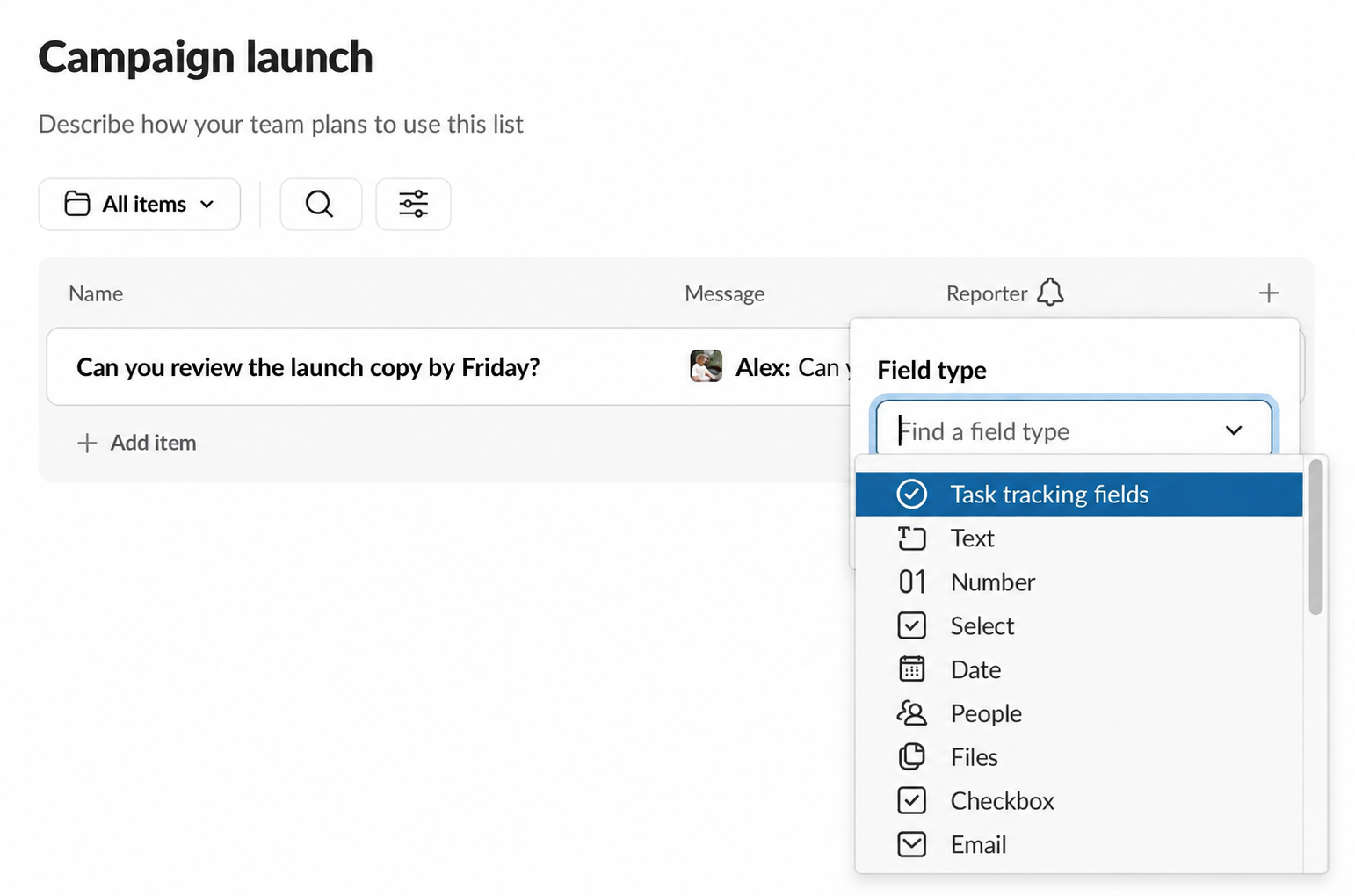
But the bigger problem is what happens to the discussion.
If the teammate shares an update on the task, their message doesn’t appear in the original Slack thread. The reverse is also true: replies in the original thread don’t appear in the item’s comments.
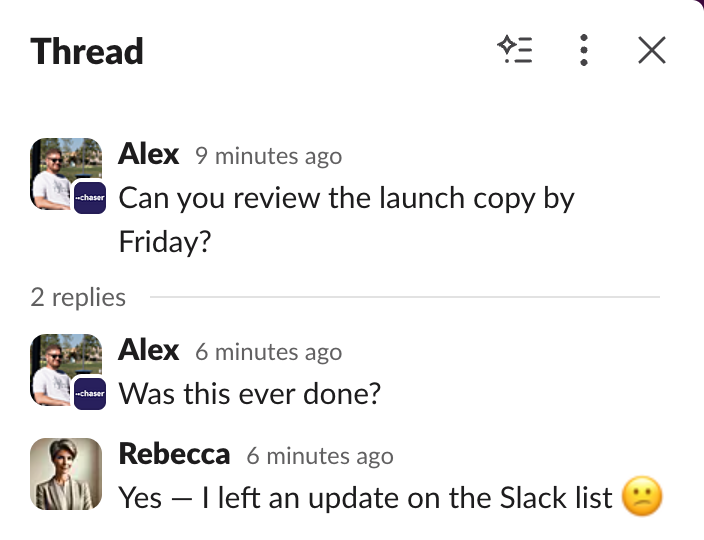
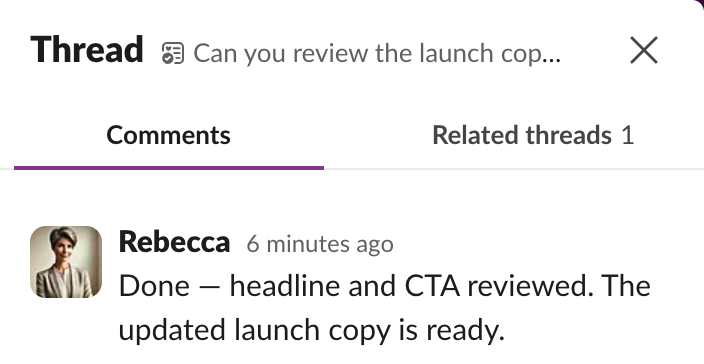
Slack keeps a link to the source message and offers a “Related threads” tab. This means that, to get all the context around a task, your team now needs to check two places. On fast-moving teams, this can cause confusion.
Access and reminders need to be set up for each list
New lists are private by default, so you need to share each one with the right people. If you forget this step and assign a task to someone labelled “Not in list”, they won’t be notified that a task was assigned to them. Work can go unnoticed until the person who assigned it realizes it’s overdue.
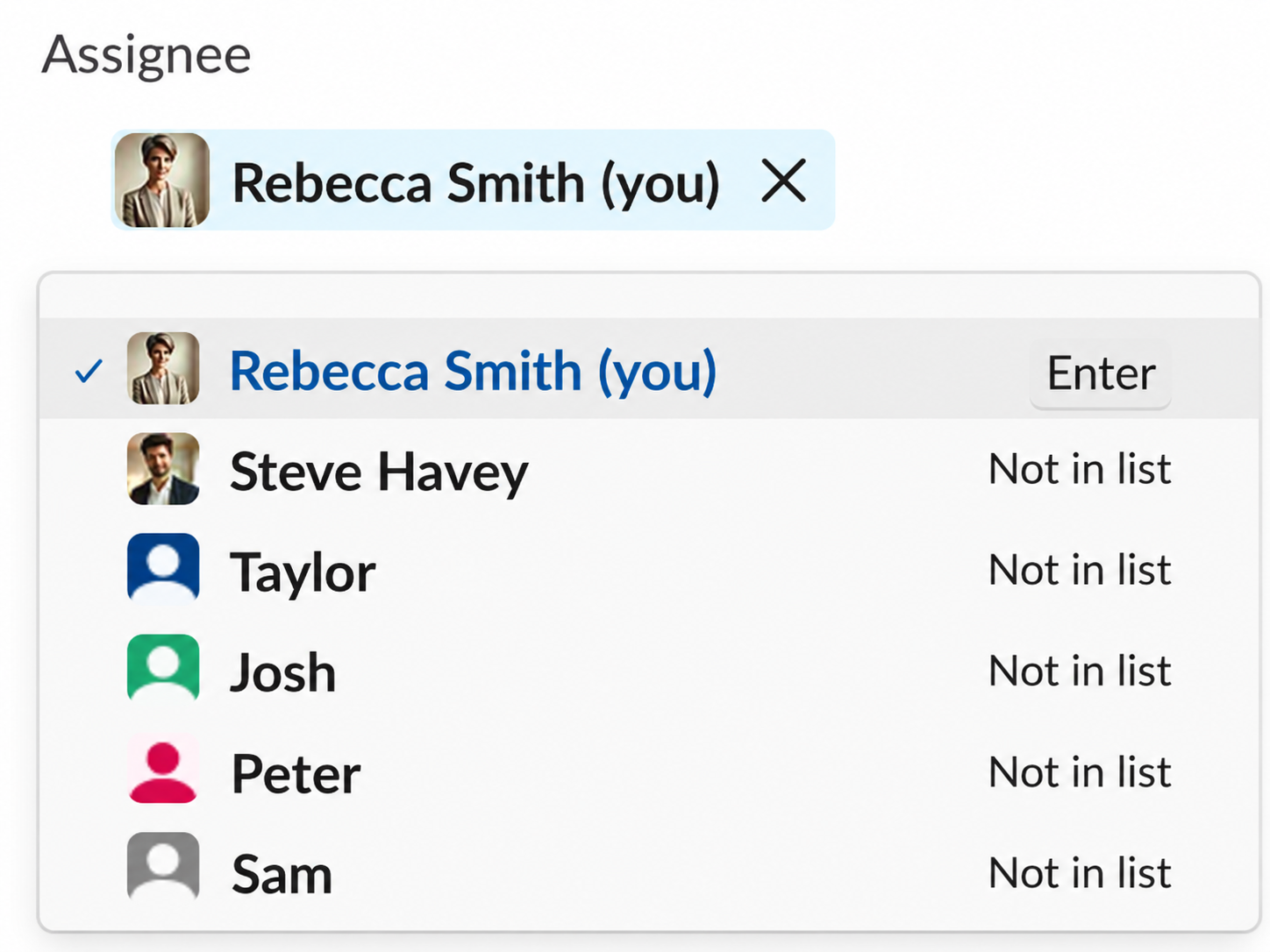
Once you’ve given assignees access, you’ll also need to check the sharing settings for each list to make sure everyone else who needs visibility can see it.
Deadline reminders require setup too. The Workflows menu lets you configure notifications for upcoming or overdue items. Adding a due date and setting up those reminders are separate steps.
Without those reminders, work can sit in a list without a notification bringing an approaching or missed deadline to someone’s attention, even if they have access to the list.
Basic project management tools are missing
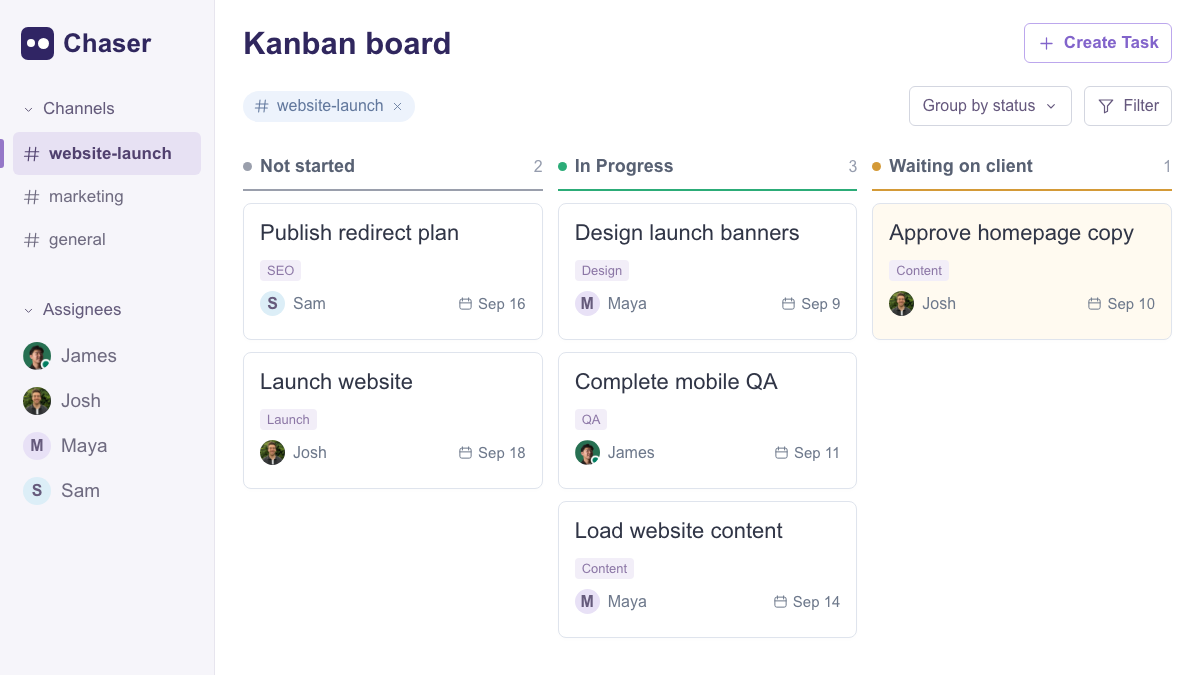
Lists has assignees, due dates, subtasks, custom fields and filters. Its board layout lets you organize cards by status. Beyond the list and board, planning options are limited.
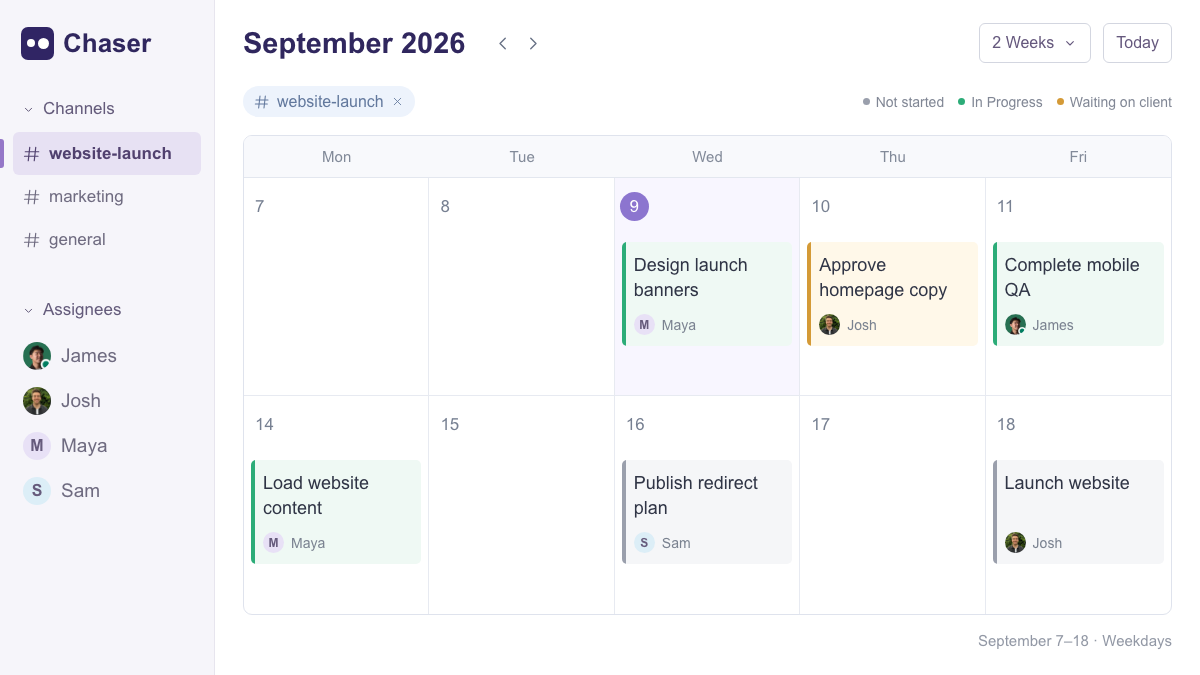
There’s no calendar view to see deadlines across a month, or timeline view to plan a sequence of work. Sorting a date column doesn’t give teams the same picture. There isn’t a dashboard to get a bird’s-eye view across all your lists, so you need to jump between them to understand who is working on what and what’s outstanding.
Reporting is limited too. Slack’s own guidance on project management says more complex projects that need reporting or analytics may require a dedicated tool. As you add projects and teammates, checking individual lists makes it harder to spot missed deadlines, balance workloads and see what needs attention.
Recurring work means setting up workflows
Want to set up a task to repeat every Friday, or at the start of each month? Lists handles this through Workflow Builder, so you’ll need to set up an automation.
In Workflow Builder, choose a repeating schedule, add the “Add an item to a list” step, select the destination list, then fill in the task fields. If you want multiple tasks with different owners and changing deadlines, you’ll need to configure those steps and maintain the workflows as the work changes.
A June 2025 Reddit post about recurring tasks describes exactly that frustration: the author wanted a shared view of recurring work and found their attempted workflow “too complicated/messy.”
A better way to manage projects in Slack
Chaser is a Slack add-on that lets you create tasks directly in your conversations, with the project management features your team needs and reporting when you want a bird’s-eye view.
Create a task in a channel or convert a message to a task. Add an owner and deadline. Tasks are automatically organized by channel, so there’s no extra setup to keep them organized.
The request, replies, files, reminders and task updates stay together in the Slack thread. Your teammates can respond and complete the work without leaving the conversation.
When you need to plan, open the calendar or Kanban board to see work across channels. Built-in reports cover task activity, on-time completion and tracked hours. You can also generate custom reports using Chaser’s AI.
Your team can keep working in Slack while you get the project management tools you need.
Repeatable work stays simple too:
- A weekly task: write “Sam, share a traffic update every Monday” when creating the task. Chaser’s AI understands the schedule and sets your task to repeat on Mondays.
- A reusable process: save a client onboarding checklist with tasks, owners and relative due dates. Run Client Onboarding with the Chaser slash command for the next client, or schedule the checklist to run automatically.
Slack Lists can seem like the natural choice when your team already works in Slack. But when task updates live apart from the conversation, your team still has two places to check. As your team and workload grow, you also need a clear view of deadlines, ownership and progress across projects.
If you want something simple and don’t mind leaving Slack, use a spreadsheet.
If you want a simple way to manage work inside Slack, with a powerful dashboard, different views, repeating tasks, templates and reporting when you need them, use Chaser.
Learn more about managing work in Slack in our Slack Task Management Guide and Slack Project Management Guide.