Using Slack Lists & Checklists: How To Use & Powerful Alternatives in Slack


You’ve probably been in this situation with your team: You’re discussing a project in a Slack channel, and decisions are made. From there, tasks are discussed and assigned through the back-and-forth conversations.
Three days later, you’re scrolling through hundreds of messages trying to figure out who was supposed to do what and when it was due. If your team lives in Slack, you know the struggle is real.
To help you overcome this all-too-familiar scenario, we’ll dive deep into how to use Slack Lists and checklists effectively, explore where they fall short, and introduce a powerful alternative that is the ultimate Slack productivity hack for your team. Let’s jump in.
What are Slack Lists and Slack Checklists?
Before we dive into the "how-to," it’s important to clarify exactly what these tools are within the Slack ecosystem.
In short, Slack lists and checklists are basic features within the Slack platform to assist with task organization, track progress, and share updates with team members (although there are many challenges with this feature). These features are mainly used to jot down action items and collaborate on priorities.
Slack Lists
Slack Lists are a way to track basic text-based items directly within Slack. You can define fields (like assignee, due date, status, and priority), sort and filter items, and view tasks as a list or a board.
Slack Checklists
Slack Checklists, on the other hand, can refer to two things. First, the simple formatting option within a message or Canvas where you create a bulleted list with checkboxes.
Both features aim to keep project data alongside project conversations. But if you’ve ever managed a project before, you know that proximity doesn't always equal productivity.
Recommended Resource: Slack Ticketing & Issues Tracking: Guide for Teams
Using Slack Lists
Now that you understand some of the basics, here is how to set up native Slack Lists to give them a try.
Pro Tip: Skip to the easy way for managing projects and tasks in Slack
Step 1: Create a New List
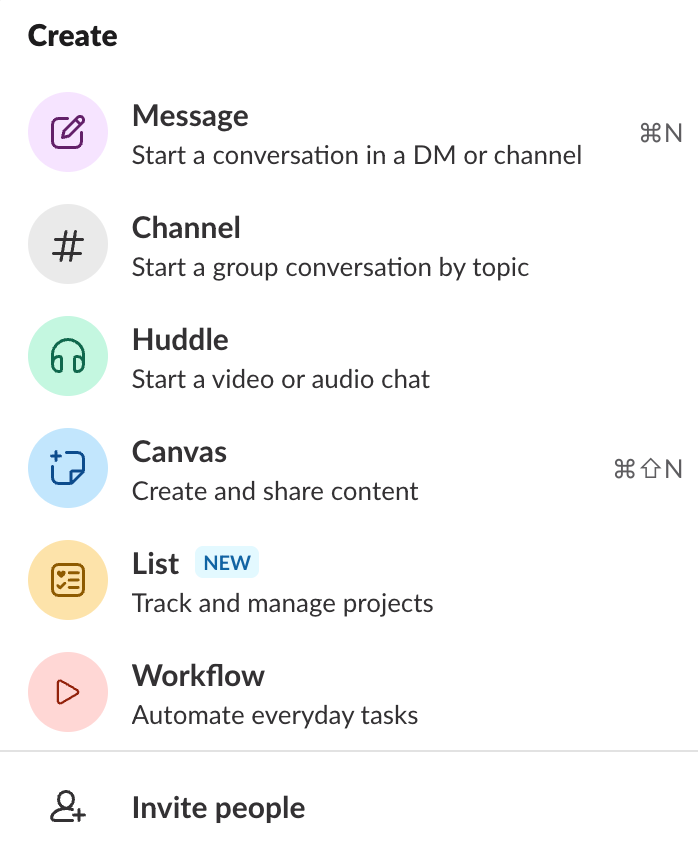
To begin, you’ll want to navigate to the "Lists" in your Slack sidebar (you may need to click "More" if it’s not pinned). Click on it, then select New List.
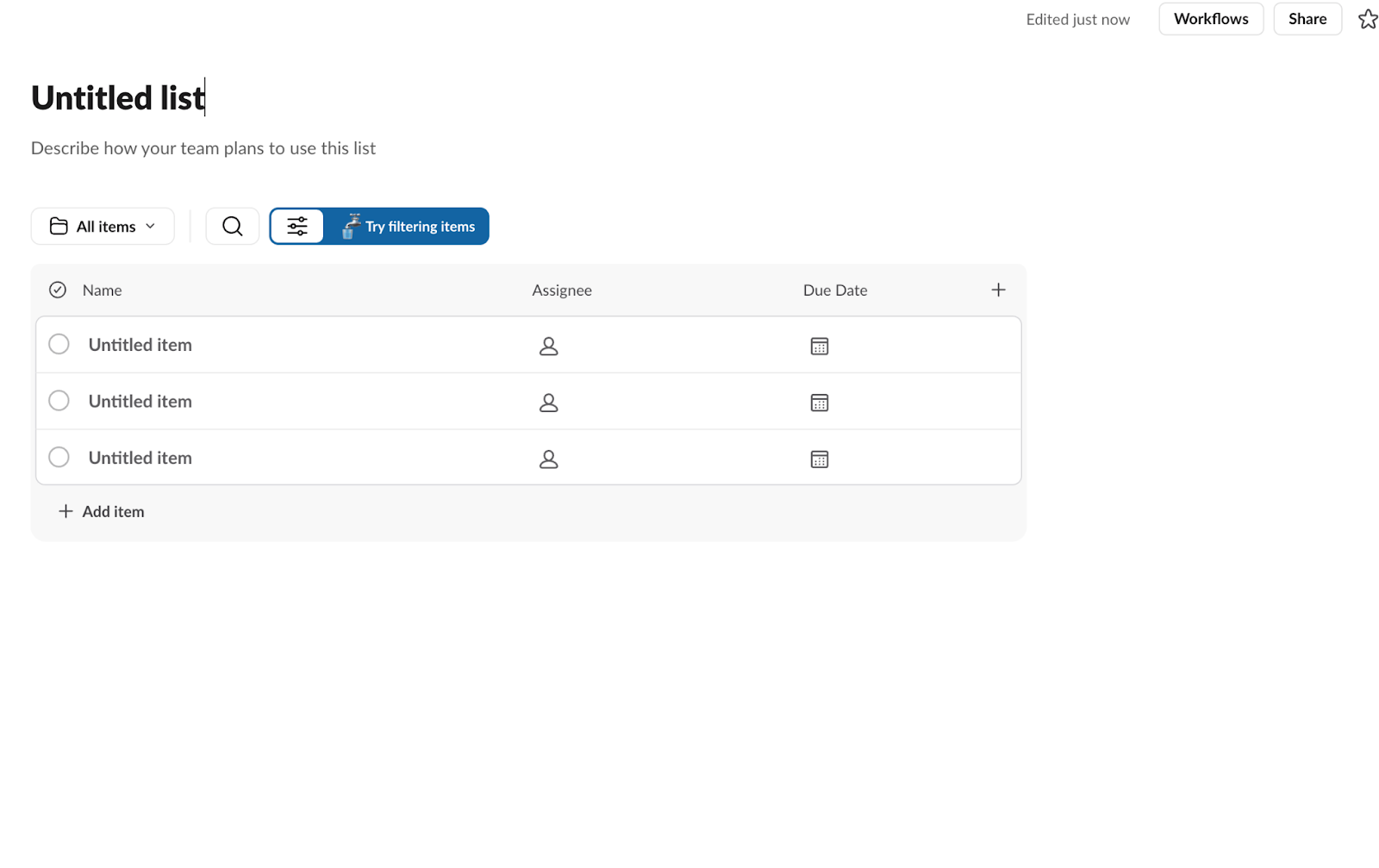
A new window will open, and you’ll be able to begin filling in your list or start from a template. As a sub-step, you may need to create a general template that you can use for tracking tasks 1-1 with people or for a general project template.
Step 2: Customize Your Fields
Next, it’s time to customize fields with potential urgency levels, secondary assignees for visibility, and other important tracking for a specific task.
Add Fields
If you need to add fields, click the plus icon at the end of your table headers. A few other common columns include:
- Secondary assignee (used for visibility).
- Files (to put complete documents).
- Checkbox (used for check-ins).
- Urgency rating.
- Impact rating.
- Etc.
Edit Existing Fields
If the default "Status" options (To Do, In Progress, Done) don't match your workflow, you can edit them to include steps like "In Review" or "Blocked."
Keep in mind that these lists will require manual follow-ups and tracking for tasks and priorities. It’s not a set-it-and-forget-it tool.
Step 3: Add Your Tasks
Now, it’s time to actually add in your tasks that you’ve been waiting to track. Click Add item, then type the task description.
Assign Owners
Most importantly, you’ll need to assign owners by clicking the assignee cell and selecting a team member. They will receive a notification that they’ve been assigned a task. We recommend that you double-check that the right person is selected.
Set Due Dates
Confirm a due date with the respective individual and select a date from the date selection option.
Step 4: Share and Collaborate
A list is useless if only you can see it. You need to share the list with the relevant channel.
- Click Share in the top right corner.
- Type in the channel name (e.g., #project-alpha).
- Decide on permissions: Can everyone edit, or is it view-only for most?
Once shared, you can click on any specific item in the list to open a thread. This allows you to have a focused conversation about that specific task without cluttering the main channel feed.
Challenges and Problems with Slack Lists
While Slack Lists is a great improvement over using pinned messages or sticky notes, it's not a fully functional Slack project management tool. As you begin to use Slack Lists or Checklists, you’ll typically run into some major problems that cause projects to stall and tasks to fall through the cracks.
Hidden Outside of Chats Where Task Discussion Happens
While it all sounds great to have your Slack Lists within Slack, where you work, it paradoxically lives in a separate tab or window. This almost silos out the project planning as it’s not embedded directly in the flow of conversation, where projects and tasks are actually discussed.
This creates the "out of sight, out of mind" problem. Your team members have to proactively remember to click on the "Lists" tab or the specific list link to check their to-dos.
There are no follow-up features, and ultimately, that follow-up responsibility will land in your lap. It’s common that these lists get forgotten by accident, tasks get ignored, and the deadline gets pushed after the next meeting.
No Time Tracking Features
For agencies, software teams, or global teams, knowing who did the task is only half the battle. If there are any recurring projects, task tracking with contractors, or a requirement for general visibility, you won’t be able to track this with Lists.
Slack Lists currently has no native time-tracking capability. You cannot log hours against a task or see a report of resource allocation.
So, if you need to bill a client based on hours worked or analyze team efficiency, you will still need to force your team to use a third-party tool. This totally defeats the purpose of staying agile and keeping your task tracking in Slack.
Manual Follow-Ups Required
This is the Achilles' heel of many manual task management systems. Assigning a task in a Slack List notifies the person once. But what happens if they forget? What happens if the due date is approaching and they haven't started? Slack Lists does not support you or your team in this area. Everyone's busy, so this is important to get right.
Siloed Visibility
Another major downfall to Slack Lists that we’re trying to solve for with this feature is high-level visibility. If you are managing three different projects across three different channels, you’ll often end up with three different Lists. Complete chaos.
Additionally, it can be hard for other team members, whether senior or junior, to have visibility into the entire project or task-tracking setup. This can create problems by bogging down the organization, especially if there are external collaborators across several time zones.
You’ll find yourself tab-switching between lists to get a sense of the department or company's overall pulse.
Tedious Review and Setup
Setting up a Slack List requires administrative effort. You have to define columns, create options, and manage views. If you want a recurring checklist for a weekly process, you often have to manually recreate items or reset statuses — there is no way to make the list truly reusable.
Furthermore, reviewing work is tedious. You have to open the list, click into the item, read the thread, and update the status manually. There isn't a quick command to "mark complete" right from the chat window where you are already working.
Recommended Resource: Why Context Switching Is Killing Your Team’s Productivity
How to Create a Reusable Checklist in Slack
A reusable checklist is a checklist you set up once and run again every time the process repeats: the steps stay the same, while each run gets its own owners, due dates, and progress. Client onboarding, product launches, weekly reports, and compliance reviews are all natural fits.
Slack gives you two native options, and neither is truly reusable:
- Checkboxes in a message or Canvas: fine for a one-off, but there is no way to reset and rerun them. Next time, you copy the whole thing and untick every box by hand.
- Slack Lists: you can start a list from a template, but every new run still means recreating items, reassigning owners, and setting fresh due dates manually, and nobody gets followed up automatically.
To make a checklist genuinely reusable in Slack, you need a template that generates real tasks with assignees, due dates, and automatic follow-ups every time you run it. That is exactly what Chaser’s checklist templates do, as covered below. And if you want ready-made starting points, browse our sample checklists you can run in Slack.
The Better Way: Managing Projects & Tasks in Slack With Chaser
The good news is that there is a better way to continue to manage projects and tasks within Slack, without the challenges and problems that Slack Lists create.
Enter Chaser.
Chaser is a dedicated Slack project management software that’s built specifically for Slack-first teams. It takes the concept of "Slack lists", along with other project management tools, and supercharges it with the right features to make sure nothing slips through the cracks. While also avoiding tool bloat.
Setting Up Chaser
Chaser is so much easier to set up than Slack Lists, simply:
- Create Tasks Instantly Within Messages: Use simple Slack commands or messages to create tasks directly within your Slack channels.
- Automate Task Tracking: Chaser automatically follows up on open tasks and provides reminders without manual intervention.
- Stay Highly Organized: View and manage all tasks in a centralized, AI-powered dashboard right inside Slack.
Once it's set up, here is how Chaser transforms task management from a manual chore into an automated workflow.
1. Instantly Create Tasks & Checklists
With Chaser, you don’t need to navigate to a separate "Lists" tab to create work. You can simply do it right from the message input bar using slash commands.
Simple Tasks
Type /chaser @John please review the Q3 report by Friday. Chaser will instantly create the task, assigns it, and set the due date.

Reusable Checklist Templates
You can create reusable checklist templates for recurring processes like "New Customer Onboarding" or "Product Launch."
Once set up, you just type /chaser product launch in any channel. Chaser asks you for a few variables (like the product name or launch date) and then automatically generates and assigns all the sub-tasks to the right people.
Reusable Checklist Example: Marketing Campaign
Let’s say you run a marketing agency and want to set up a reusable checklist in Chaser to automate a specific campaign plan. For example, you could create a "Marketing Campaign" template with all the standard tasks, assignees, and relative due dates.
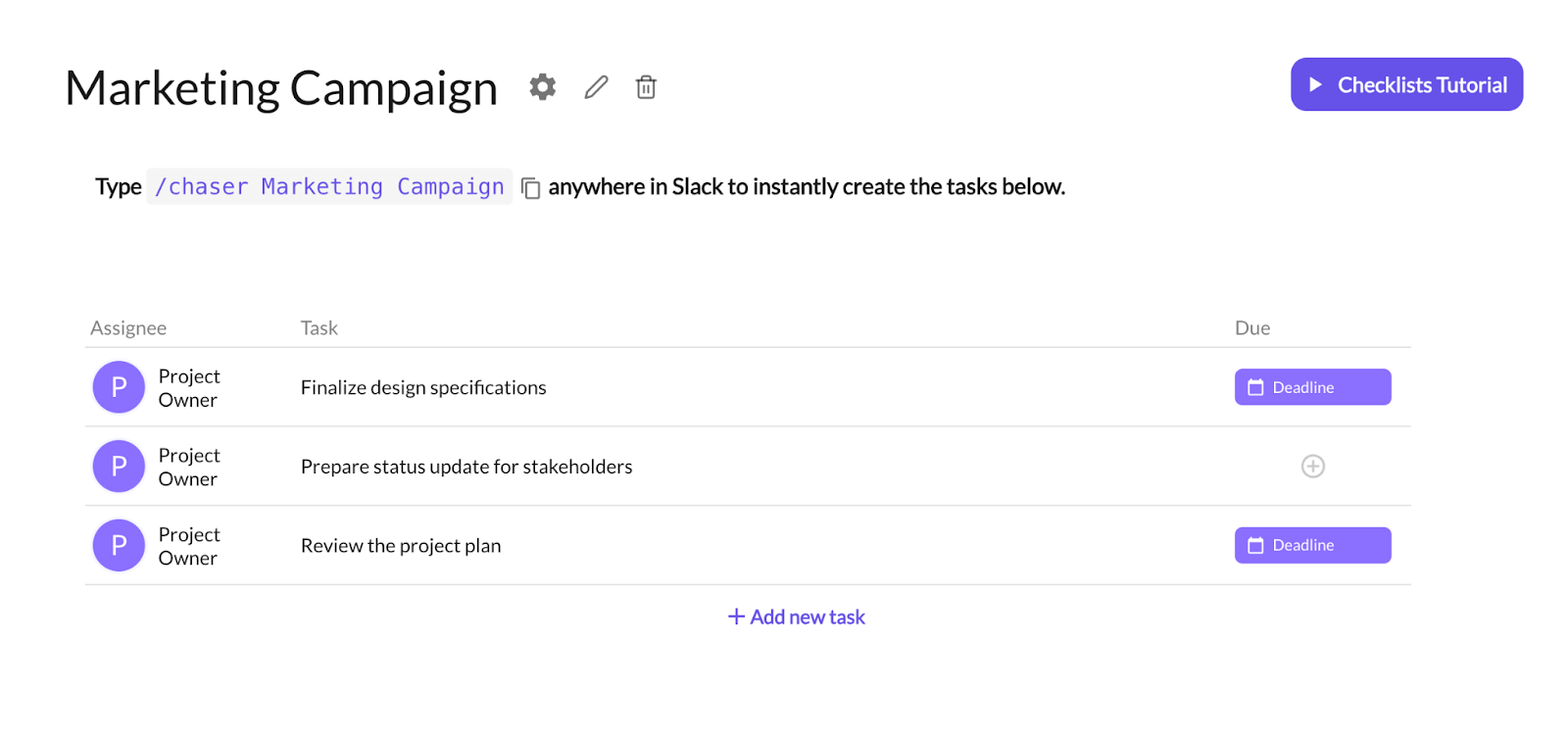
Then, to kick off a new campaign, they just type /chaser marketing campaign in Slack. Chaser will ask for key details like the campaign name and launch date. Based on that input, it will automatically generate all the necessary tasks, assign them to the right people (set from your template logic), and set the correct due dates.
It basically syncs your checklists to due dates for a seamless project launch every time.
2. Automated Accountability (The Auto Follow-Up)
Accountability is the name of the game when it comes to task and project management. Not only does it help you properly delegate, but it also empowers your team to take ownership and get things done. Again, that’s where Chaser comes in, unlike native Slack Lists, Chaser handles the follow-up for you.
Once the task is assigned, Chaser takes care of the rest with:
Acknowledgement
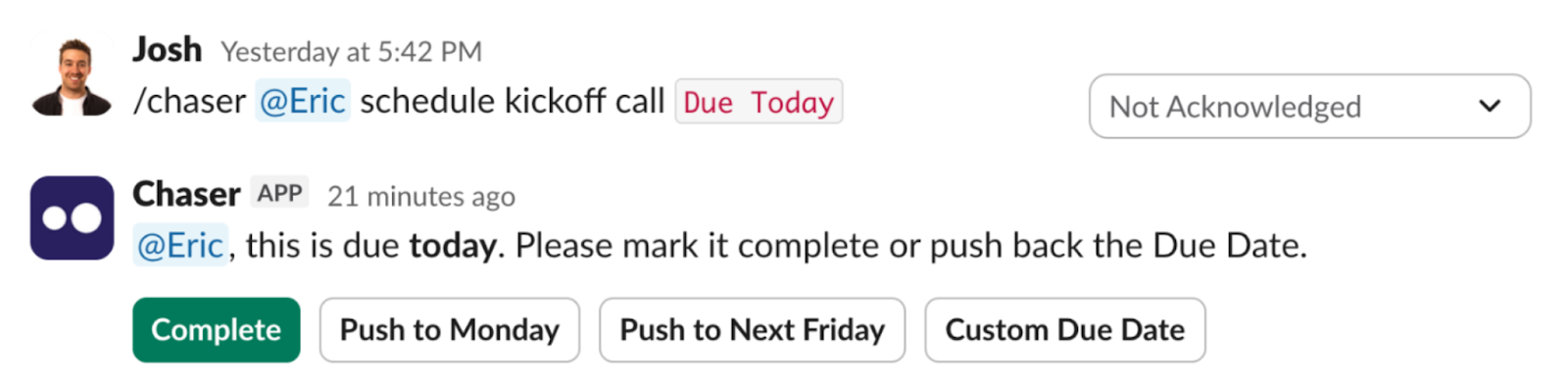
When a task is assigned, Chaser asks the assignee to "Acknowledge" it. If they don't, Chaser follows up with them automatically to ensure they saw it. This helps with initial check-ins after a discussion in Slack or over an external video platform like Zoom.
Reminders
Next, Chaser sends automatic reminders to the assignee 2 days before the due date and on the day it is due. No more combing through Slack messages and threads to provide a respective check-in; avoiding the micromanagement pitfall.
Overdue Alerts
With Chaser, you don’t need to chase your team around anymore. If a deadline is missed, Chaser notifies both the assignee and the project owner.

This "set it and forget it" system allows you, as a manager, to be fully present in your day-to-day, meetings, and overall resource allocation.
3. Built-in Time Tracking
Chaser solves the resource management gap by including native time tracking.
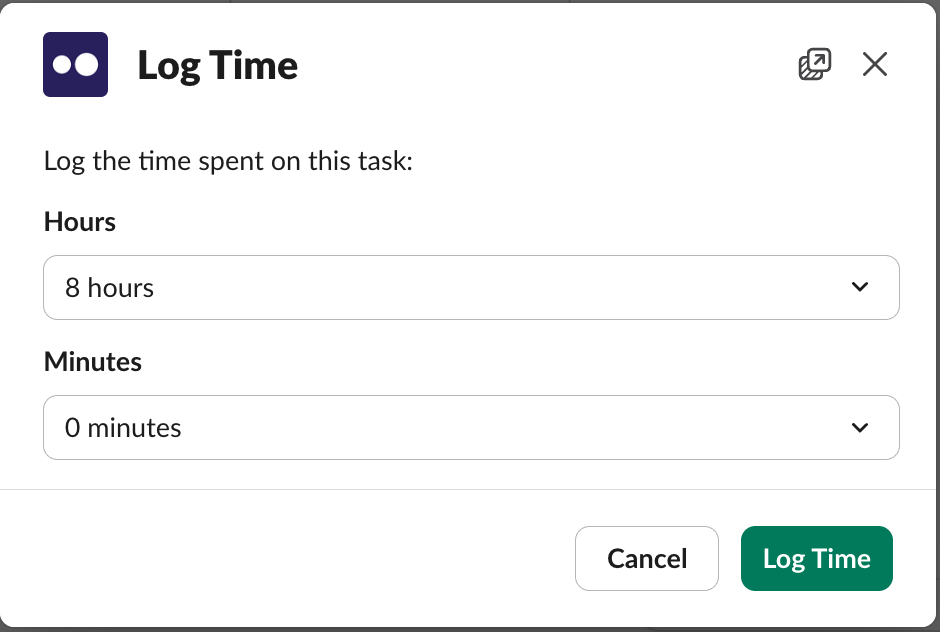
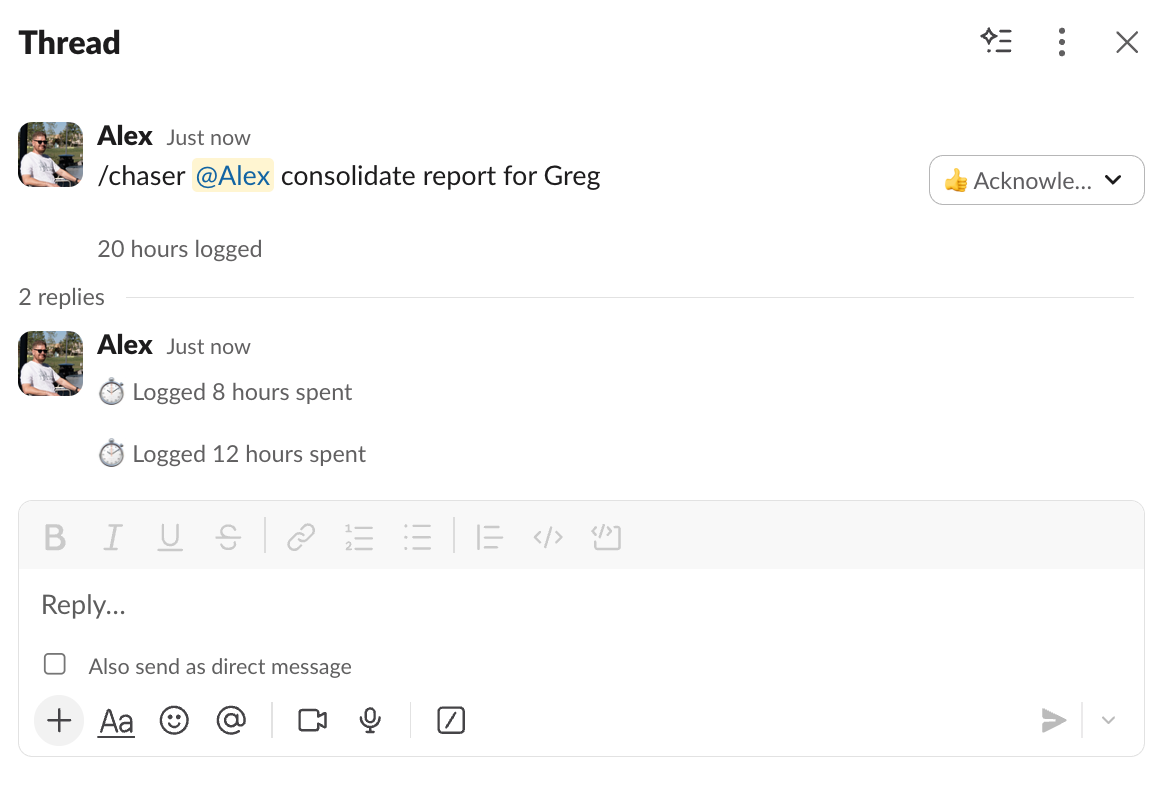
Your team members can log time directly on a task in Slack by clicking "Log Time" or editing the task details. They can enter "30 minutes," and it is recorded in the task thread. To make this useful for resource allocation, project time tracking, or just general time tracking, you can view reports broken down by task, user, or channel. It's incredibly easy to track billable hours or assess how long specific projects actually take.
4. Superior Visibility with Dashboards & Reports
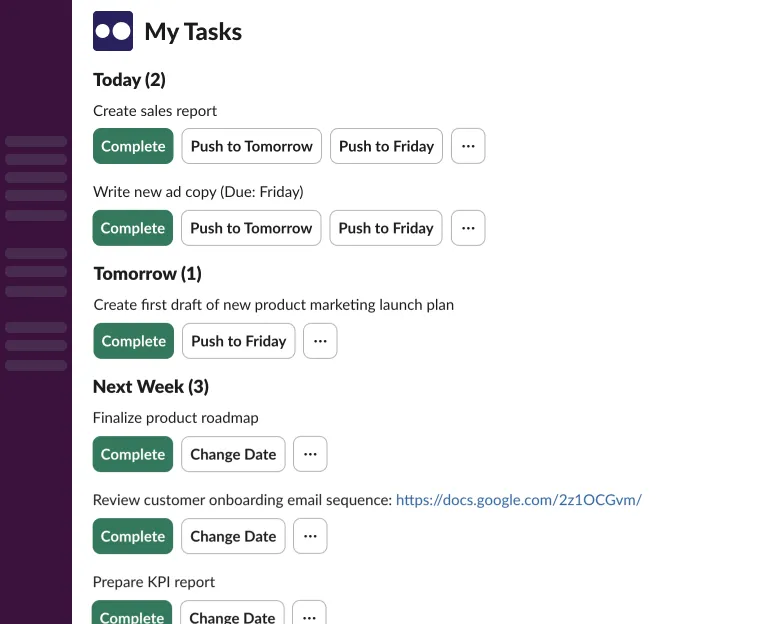
Chaser provides the high-level view that Slack Lists lack.
The Dashboard
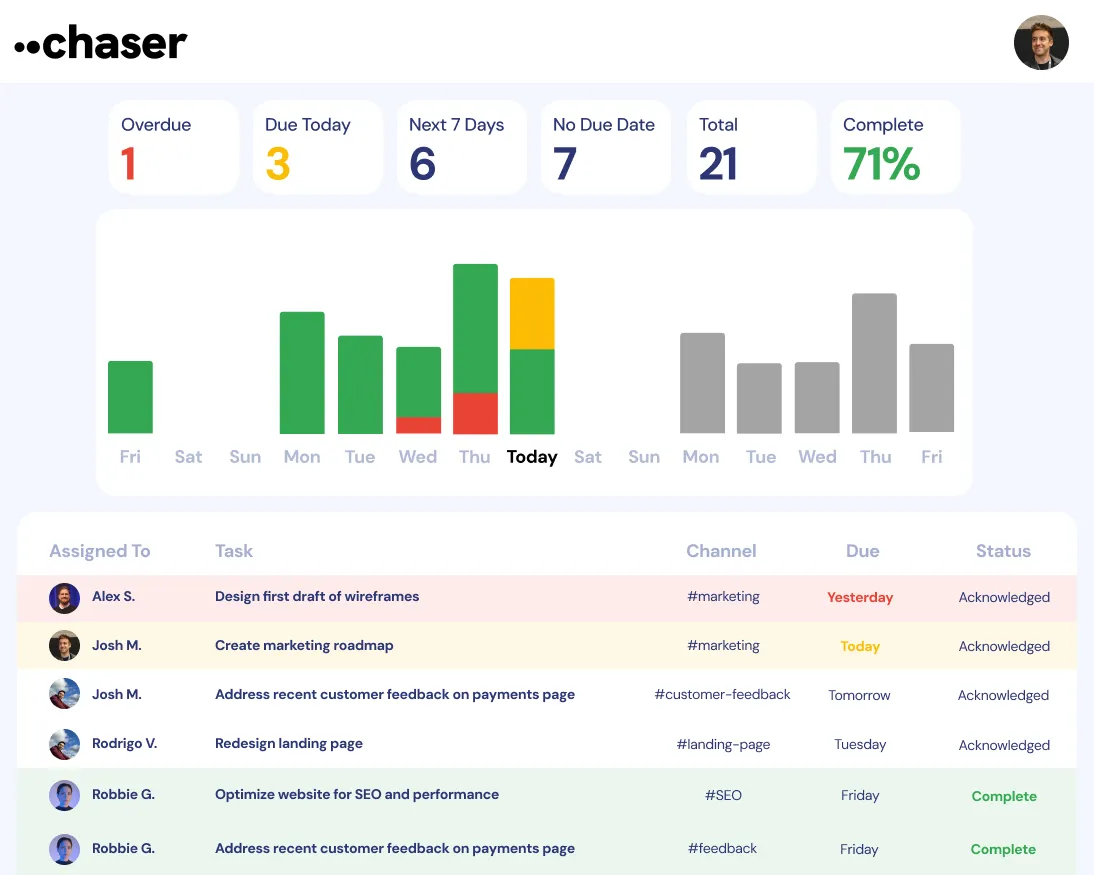
Chaser offers a full Slack reporting dashboard where you can see every task across the company, filtered by channel, person, or status. You can instantly spot overdue items highlighted in red.
Weekly Status Reports
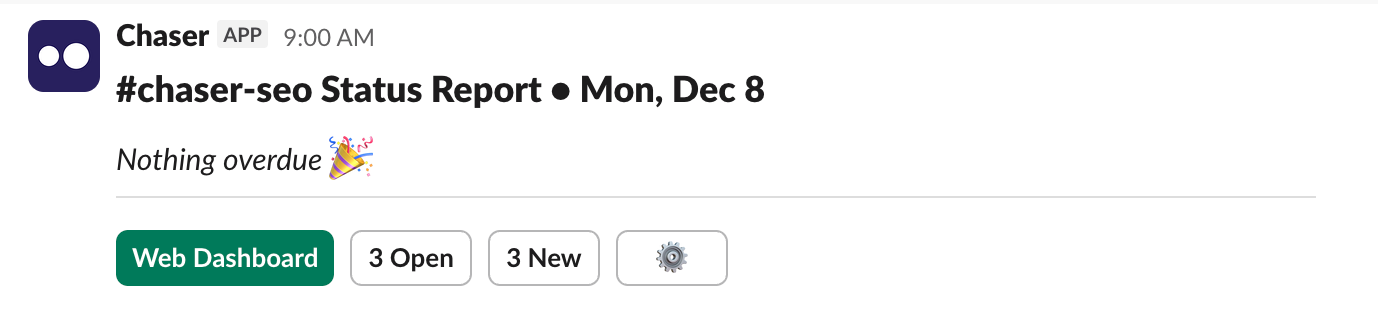
Instead of manually checking a list, Chaser can post an automated status report into your project channel (for example, every Monday at 9 AM). It summarizes what is due, what was completed, and what is overdue, keeping the whole team aligned without a meeting.
Individual Visibility
Team members get complete visibility of all the necessary tasks, the ability to provide updates, and review, all in one central place where the task communication happens. Set your team up for success by making it easy to manage projects.
5. External Collaborations Made Easy
If you work with clients or vendors in Slack Connect channels, native task management can be messy if the other party isn't on your workspace's Enterprise Grid or paid plan.
Chaser closes this gap. You can assign tasks to people outside your organization in a Slack Connect channel. The external partner doesn't need to sign up for Chaser or pay for a seat.
They receive the task notification and can mark it as complete right within the thread. This keeps client deliverables on track without forcing them to use other tracking tools.
Collaborating Across Slack Workspaces
Final Thoughts
Slack Lists work for simple lists where manual tracking is acceptable. However, for most teams that are serious about productivity, accountability, and efficiency, native Lists don’t cut it.
By integrating a specialized tool like Chaser, you get the best of both worlds. The convenience of working within Slack and the robust features of a dedicated project management tool.
You can try Chaser for free and see how it transforms your team's workflow. Get started and add Chaser to Slack, for free.


