

If your team lives in Slack and is tracking issues or managing tickets in Slack, too, things can get messy. It’s easy for important requests to get lost in conversation threads and accountability becomes a guessing game.
And the last thing you need is another software that lives somewhere else. Turning Slack into a functional Slack ticketing system or Slack issue tracking tool seems like a natural next step.
This guide will walk you through how to do just that. First, we’ll dive into a free and manual method and then how you can speed this all up, and scale issues tracking with an automated Slack project management tool to keep your tickets, issues, and projects on track. Let’s jump in.
The Problem of Decentralized Issue Tracking & Ticketing
If you’re reading this, you’re probably frustrated with the scattered mess that comes with the problems tracking issues in and out of a communication platform like Slack.
For example, a bug report might come through email, a feature request could be a line in a Google Sheet, and an important customer issue might be buried in a separate Slack message. With some of these requiring follow-ups within Slack for further context and team support. What a mess.
This lack of a single source of truth leads to duplicated efforts, missed deadlines, and a frustrating experience for everyone involved. So, without a clear system it’s easy for accountability to fade, with it being nearly impossible to get a high-level view of what’s been done and what’s still pending.
If you’re adding another tool to your team, beware of the hidden cost of tech debt. It can introduce a myriad of problems down the line, like disconnected data, fragmented workflows, and frustrated employees. So, how do you avoid this? Keep everything in Slack. Here’s how.
Why Use Slack for Ticket & Issue Tracking?
Using Slack for managing tickets and issues isn't just about convenience. It's about integrating an important business process into the natural flow of your team's communication.
Since your team is already in Slack, keeping track of tasks there reduces context switching, which is the mental effort required to shift between different tools and tasks.
Here are a few key benefits:
Centralized Communication
All conversations, files, and updates related to a specific issue stay in one place for a complete and easily searchable record.
Increased Visibility
When tasks are created and tracked in public channels, everyone on the team has visibility into what’s being worked on, who’s responsible, and what the current status is. That way, no one team member becomes a major bottleneck.
Faster Response Times
Notifications happen in real-time. This means issues can be acknowledged and assigned faster than if they were sitting in an email inbox or a separate ticketing platform.
Higher Adoption
The biggest hurdle for any new tool is getting the team to actually use it. Since everyone is already on Slack, there's no learning curve for a new platform which leads to much higher adoption rates.
Transitioning to a Slack ticketing system can streamline your workflow, but it’s important to set it up correctly to avoid creating more noise.
How To Manually Track Issues & Tickets With Slack
Here’s how you can use slack manually to track issues within Slack. It requires discipline and organization, but it can work for smaller teams or straightforward projects by following these steps.
(Skip to the easy way of tracking issues and tickets in Slack)
Step 1: Organize Participants
First, identify everyone who will be involved in the issue tracking process. This includes the people who report issues, the team members who will resolve them, and any managers or stakeholders who need to stay informed.
The key to success here’s to make sure everyone understands their role and the process you're about to create.
Step 2: Make Sure All Members Are Invited to Slack
Next, make sure that every participant from Step 1 has access to your Slack workspace. This might seem obvious, but it's an important step that’ll cause disjointed tracking efforts if not set up correctly.
If you're working with external partners or clients, you might need to use Slack Connect to bring them into the appropriate channels.
If the external partner is using an external tracking software, skip to the automated section in this article to find out how to easily collaborate with external Slack members.
Step 3: Create a Dedicated Channel
After member review is done, create a dedicated public or private channel for the different purposes, like #bug-reports, #it-tickets, or #feature-requests.
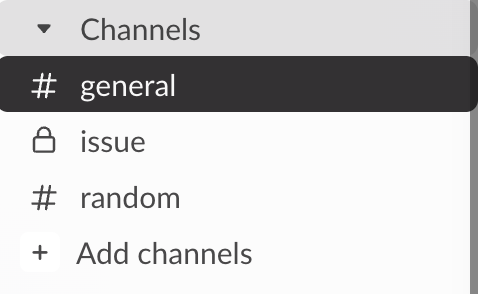
This will centralize all related communication and make it easy for team members to find what they need without sifting through unrelated conversations.
Make sure your team has notification preferences set up properly, by following:
- Click your profile picture in the sidebar.
- Static image of a cursor clicking the profile picture menu in the Slack app
- Select Preferences from the menu to open your notification preferences.
- Under Notify me about, choose your notification triggers.
- To use different triggers for your mobile notifications, check the box next to Use different settings for my mobile devices, then select your preference from the drop-down menu.
- To disable notifications for threads, uncheck the box next to Notify me about replies to threads I’m following.
Step 4: Map Out Major Issues
Before you start tracking, it helps to have a high-level overview of the types of issues you'll be managing. We recommend adding a pinned post in your channel that outlines the common categories of problems, such as "UI bug," "performance issue," or "billing query." This helps in organizing and prioritizing tasks as they come in.
Step 5: Create Lists To Track Each Issue & Problem
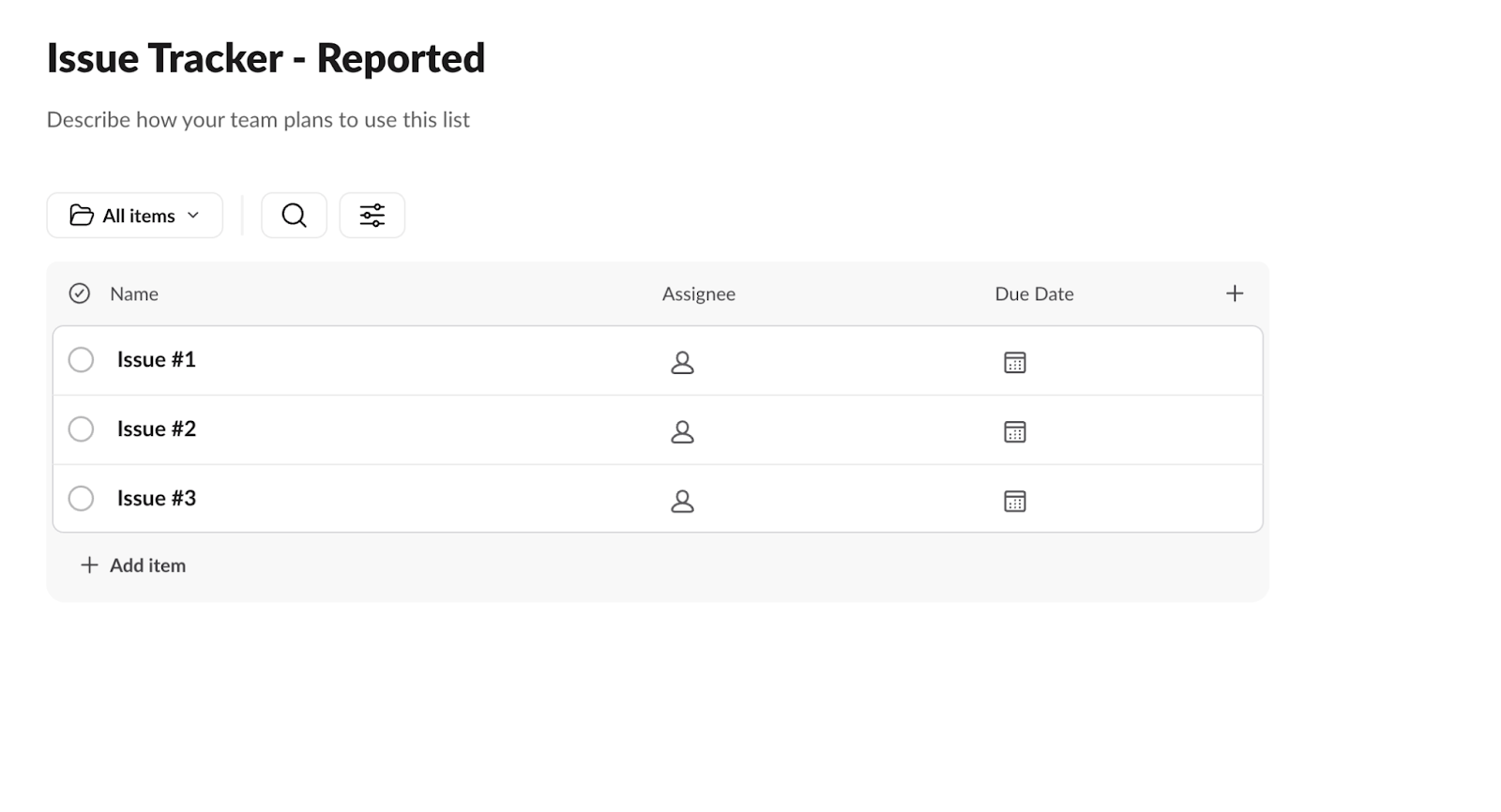
Next, when a new issue is reported or comes in, create a new post or thread for it in the respective channel that it belongs in. You can use a standardized format to make sure all team members capture the necessary information to troubleshoot or move forward.
For example, this should include:
- Issue: A brief, clear summary of the problem.
- Reported By: Who identified the issue.
- Assigned To: Who is responsible for fixing it.
- Priority: High, Medium, or Low.
- Status: Open, In Progress, or Resolved.
Step 6: Use Effective Documentation
Now, encourage team members to be thorough in their documentation. This includes adding screenshots, screen recordings, error messages, and detailed steps to reproduce the issue. Using Slack’s thread feature is essential here. All replies, updates, and related files should be kept within the thread of the original issue post to maintain a clean and organized channel.

Step 7: Add Context and Complete The List When Done
Finally, when an issue is resolved, the assigned person should update the original post to reflect the new status.
It's also helpful to add a concluding comment in the thread summarizing the fix, in case this issue comes up again and a team member wants to look back at how to quickly get that done.
You can use an emoji reaction, like a checkmark (✅), on the original message to signal at a glance that the issue is closed.
Why Manual Slack Issue Tracking Causes Problems
While a manual system is better than nothing, it often creates its own set of problems for your team that you need to be clearly aware of.
Things Get Lost
Even with dedicated channels, important tasks can get buried under new messages. Without a structured way to surface pending items, things inevitably fall through the cracks.
No Real Accountability
It’s easy to miss a notification or forget to update a thread. Manual tracking relies on everyone being perfectly diligent, and there's no automated system to follow up or remind people about pending tasks.
Difficult to Scale
As the volume of tickets increases, a manual system becomes unmanageable. It's nearly impossible to get a clear overview of all open issues, their priorities, and their statuses without a proper dashboard.
Lack of Reporting
There's no easy way to analyze your issue tracking data. How long does it take to resolve a high-priority ticket? Which team member is overloaded? These questions are almost impossible to answer with a manual Slack system.
Eventually, the time spent managing the manual system starts to outweigh its benefits, leading to the same chaos you were trying to escape.
So, if you want to skip all that setup and eventual headache, here’s how you can automate project, issue, and task tracking, all while staying in Slack. With the capabilities for external connection collaboration.
Skip The Work Automate Slack Issue Tracking in 3 Steps
Instead of wrestling with a clunky manual system, you can use a Slack tool like Chaser to automate your Slack issue tracking and build a powerful ticketing system directly within Slack.
Chaser is designed to work seamlessly where your team already collaborates. There’s no new software to learn and no complicated setup. You can turn any Slack message into a trackable task, assign it to a team member, and let Chaser handle the follow-ups.
Step 1: Add Chaser to Slack
Head over to the Slack Marketplace and get the Chaser app.
Step 2: Create a Ticket in One Prompt
With Chaser, creating a ticket is as simple as typing a message in Slack. For example:
/chaser @lucas fix login bug on mobile app due tomorrow
Chaser instantly creates the task, notifies Lucas, and logs it in a central dashboard. From there, it automatically sends reminders to Lucas before the deadline and notifies you if the task becomes overdue. This "set it and forget it" approach eliminates the mental load of manual follow-ups and ensures nothing gets missed.

Step 3: Scale Your Ticketing & Issue Tracking
When operating at scale, Chaser simplifies the complexity of Slack task management. Whether it's a small team project or a company-wide initiative, it organizes tasks efficiently and avoids the chaos of manual task management or untracked responsibilities.
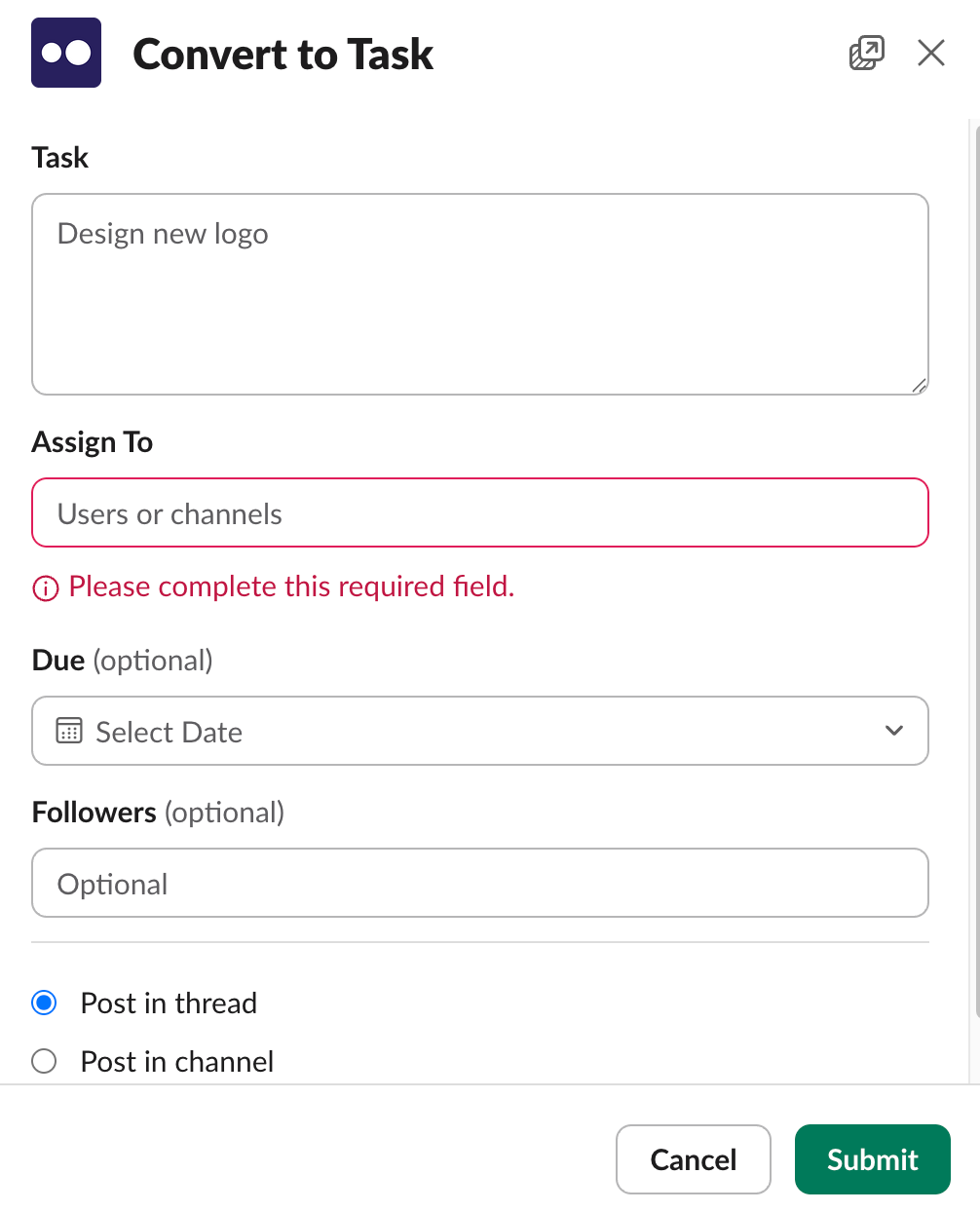
Let’s say you’re bombarded with messages from various departments throughout the day, each its own potential issue to track. You can easily begin tracking all these tickets and issues in a single click, by converting it to a task in Chaser.
Reporting Made Easy
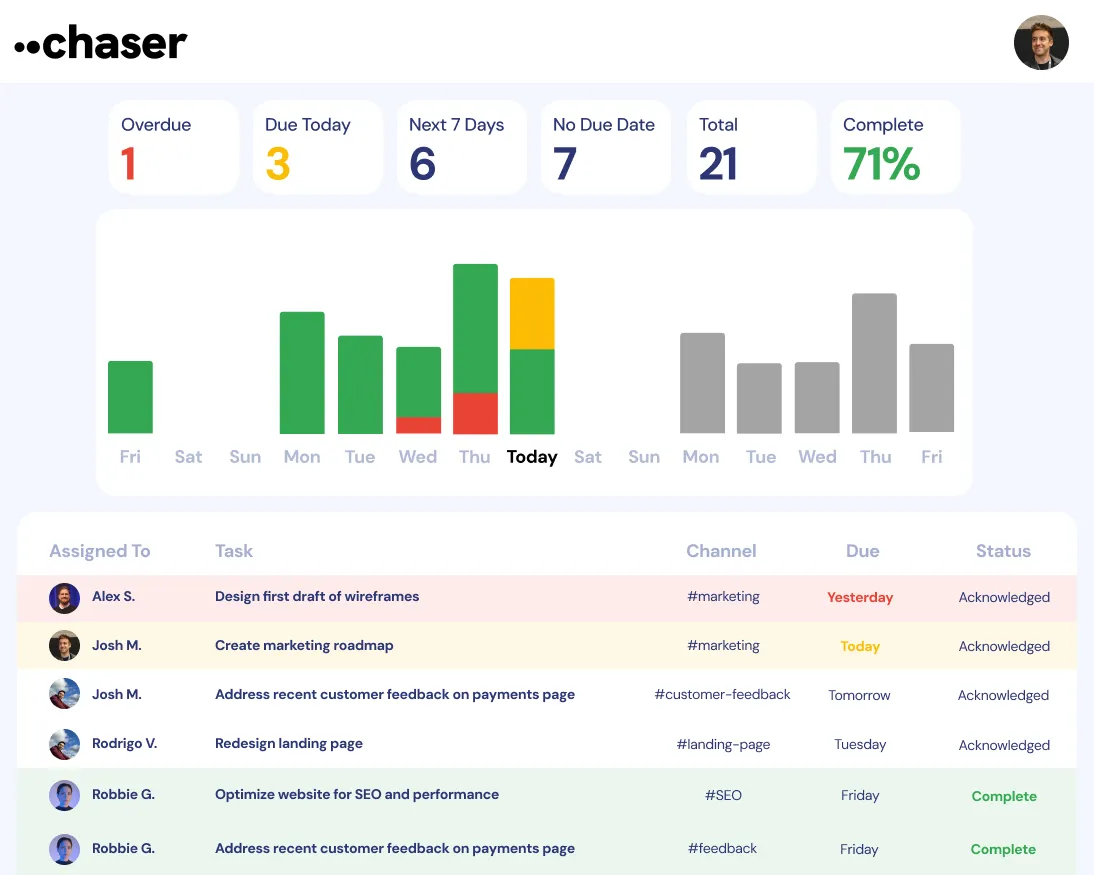
Additionally, Chaser's Slack reporting features provide actionable insights that provide data on task completion rates, overdue tasks, and team performance. Everything you need to manage a high-performing team.
With Chaser, you can trust that every detail is tracked, every task is documented, and every team member stays on the same page.
Pro Tip: Use Tags for Extra Categorization
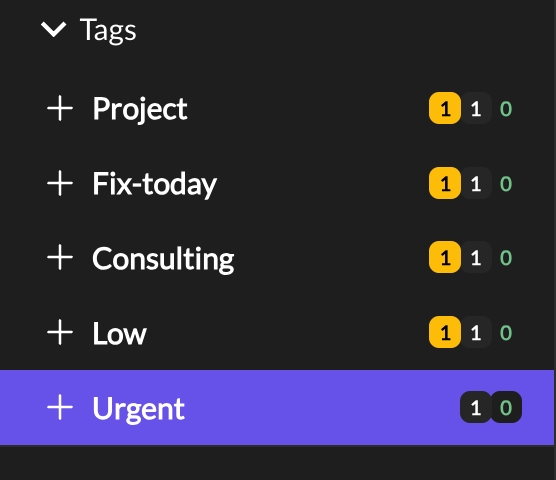
Chaser's tagging features are designed to streamline the categorization and organization of issues across the organization, promoting efficient management and tracking. Users can append custom tags to any logged issue, such as #server-downtime, #client-request, or #high-priority, helping teams to quickly identify the nature and urgency of tasks at a glance. These tags are not only searchable but also filterable within Chaser's central dashboard. So, team members can focus on specific categories of issues or identify trends over time.
For example, tagging issues with #bug and #frontend enables the engineering team to spot recurring frontend issues and allocate resources accordingly. This system ensures every project is managed with clarity, aligning efforts across departments and providing valuable insights into operational bottlenecks.
Example
A B2B SaaS customer relationship management (CRM) faces challenges in tracking both IT-related and product-specific issues across various teams.
Using Chaser, the operations manager can streamline issue tracking by typing /chaser @team track all ongoing issues for Q4 launch in their main operations channel.
Following this, the product lead adds a specific task by typing /chaser @dev-team investigate user-reported bug in contact import feature by Friday.
A developer on the team then discovers a related server issue and adds /chaser @it-support high server latency on EU-2 server, blocking bug fix. +urgent
The best part? Research backs this community-led approach to help set your organization up for success, when it comes to transparency and better decision making practices.
Benefits to Having a Proper Integration like Chaser
Integrating a purpose-built tool like Chaser transforms Slack from a simple communication app into a robust Slack project management app and ticketing hub.
Track Anything, Easily in Slack
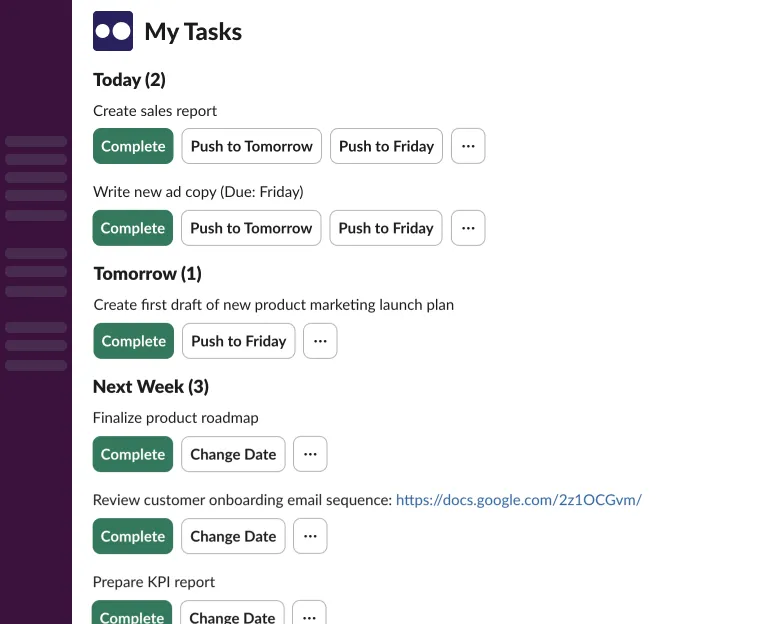
With Chaser, you aren't limited to a rigid ticketing format. You can create tasks for bug fixes, feature requests, IT support tickets, or even simple to-dos like "review this document." Assign tasks to individuals or entire groups (@channel), set due dates with natural language ("next Friday"), and even create repeating tasks for routine items.
Find Bottlenecks Before They're a Problem
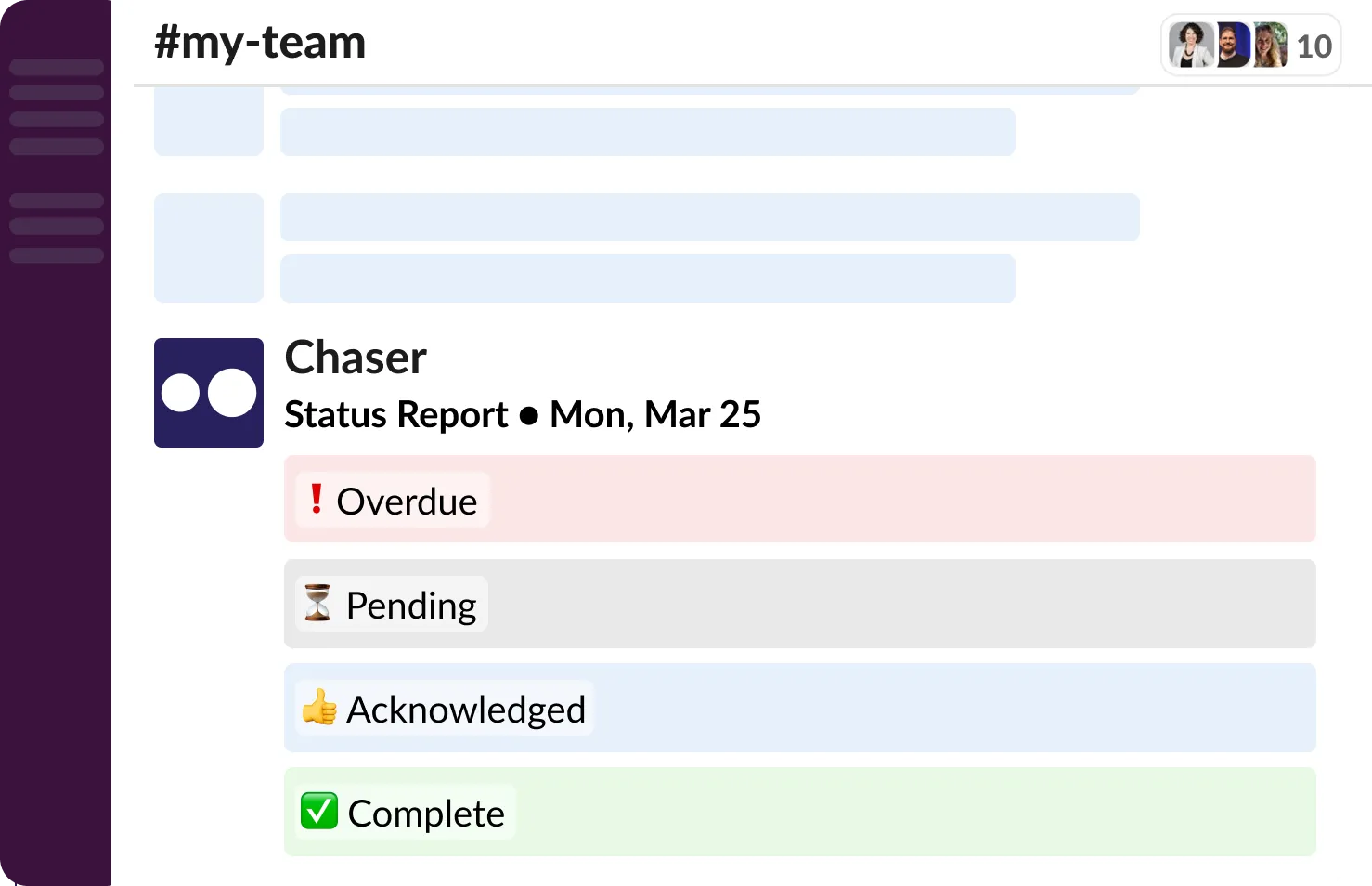
Chaser's dashboard gives you a bird's-eye view of everything happening across your projects. You can see what’s on track, what's overdue, and who's responsible, all in one place. Overdue tasks are highlighted in red, making it easy to spot potential bottlenecks before they derail a project. This level of visibility is crucial for proactive management.
Each task is tied to an individual, complete with deadlines and status updates, so there’s no ambiguity around ownership. Its tracking capabilities allow managers to monitor progress in real-time without needing constant check-ins, making it easier to identify and address bottlenecks.
Track Issues For Any Project or Task
You can organize your work by channel, which functions as a project board. This allows you to track all the issues related to a specific project, like a website rebrand or a new feature launch. Chaser also provides automatic status reports in each channel, keeping the entire team aligned without needing extra meetings.
Automate Follow-Ups
One of the biggest benefits of Chaser is its automated reminder system. It gently nudges team members about upcoming deadlines and overdue tasks, so you don’t have to. Gone are the follow-ups that you manually schedule and removes the need for micromanagement. Ultimately, freeing up time to focus on more strategic work. It also fosters a culture of accountability as everyone has clear visibility into their responsibilities.
Avoid Tool Fatigue with Seamless Integration
One significant benefit of adopting Chaser is the ability to avoid tool fatigue. Instead of introducing yet another tracking tool to learn and manage, Chaser integrates directly into Slack. By keeping everything in one place, Chaser simplifies workflows and enhances productivity for everyone.
Final Thoughts
Slack is the heart of your team's communication, so it's the logical place for your issue tracking and ticketing system to live. While a manual approach can work for a while, it quickly becomes unwieldy and inefficient.
By leveraging an automation tool like Chaser, you can build a powerful and scalable Slack ticketing system that enhances productivity, improves visibility, and ensures nothing ever slips through the cracks again. You get all the benefits of a dedicated project management tool without ever having to ask your team to leave Slack.
Ready to stop chasing updates and start making progress? You can try Chaser for free and see how it transforms your team's workflow. Get started and add Chaser to Slack, for free.


