- Export your Asana projectsSave each project as a CSV file.
- Connect Claude, ChatGPT, or any AI Agent to Chaser(Setup instructions)
- Migrate your tasksAsk your AI assistant to create Chaser tasks from the CSV files.
You can map assignees, keep due dates, and carry descriptions and tags into the new tasks. Each imported Chaser task becomes a Slack message: decide where each project's work belongs before creating anything.
This walkthrough uses two small projects, Website launch and Client onboarding, with six open tasks assigned to two people.
Map Asana projects to Slack channels
Choose a Slack channel for each project. You can use an existing channel or create a new one when the work needs its own place.
| Asana project | Slack channel |
|---|---|
| Website launch | #website-launch |
| Client onboarding | #client-onboarding |
Match users in Asana and Slack. If their accounts in both systems have matching emails, you can use those addresses directly.
If someone uses different email addresses in the two systems, give Claude an explicit source-to-destination mapping in your prompt. This demo deliberately uses different emails in Asana and Slack. The prompt below shows how the matching works.
We recommend connecting your AI agent to Slack MCP as well. That gives Claude access to the user and channel information it may need.
Export each Asana project as a CSV
For each project you're exporting, use the dropdown beside its name in Asana. In the interface shown here, choose Export or sync → Project tasks CSV/XLSX.
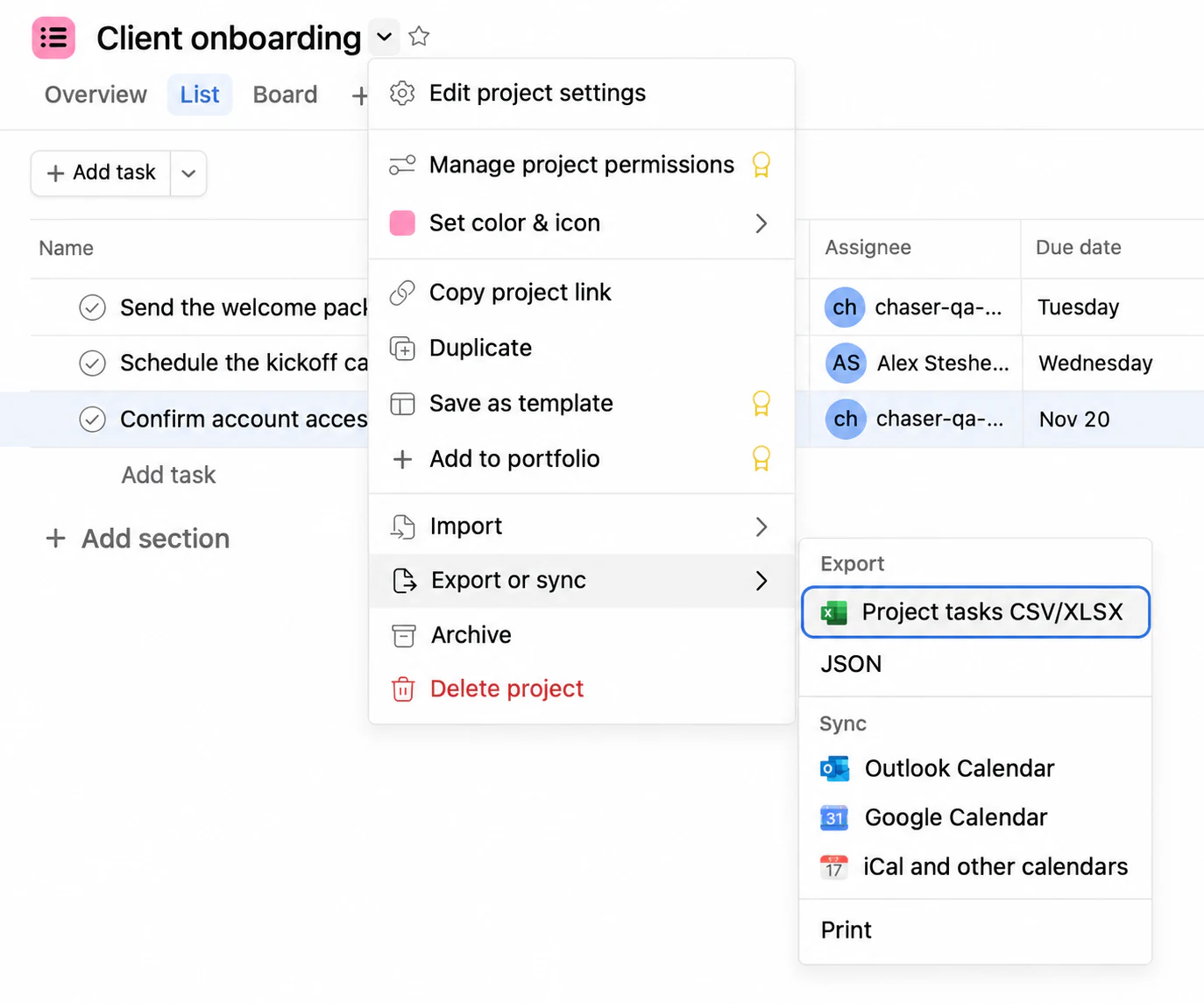
Select CSV, then Export. Asana also documents project importing and exporting if your version looks different.
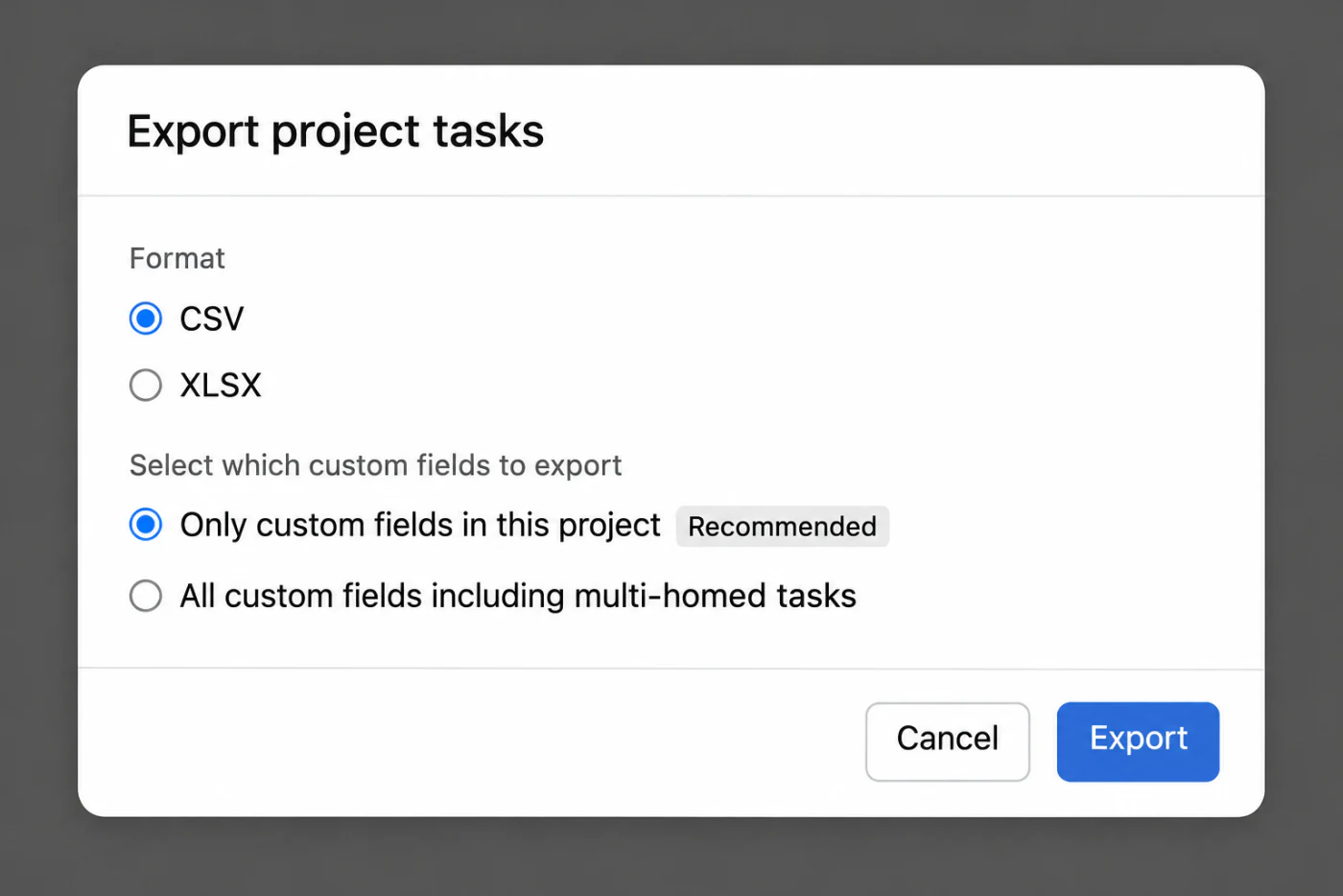
In our case, the export produced two files: Website_launch.csv and Client_onboarding.csv.
Connect Claude to Chaser
Open Chaser's AI connection page, choose Connect to Claude, and follow the steps.
Preview the Asana to Chaser import
Start a new Claude chat and attach both CSV files. Use the prompt below to provide your project and assignee mappings and ask for a preview before it creates anything.
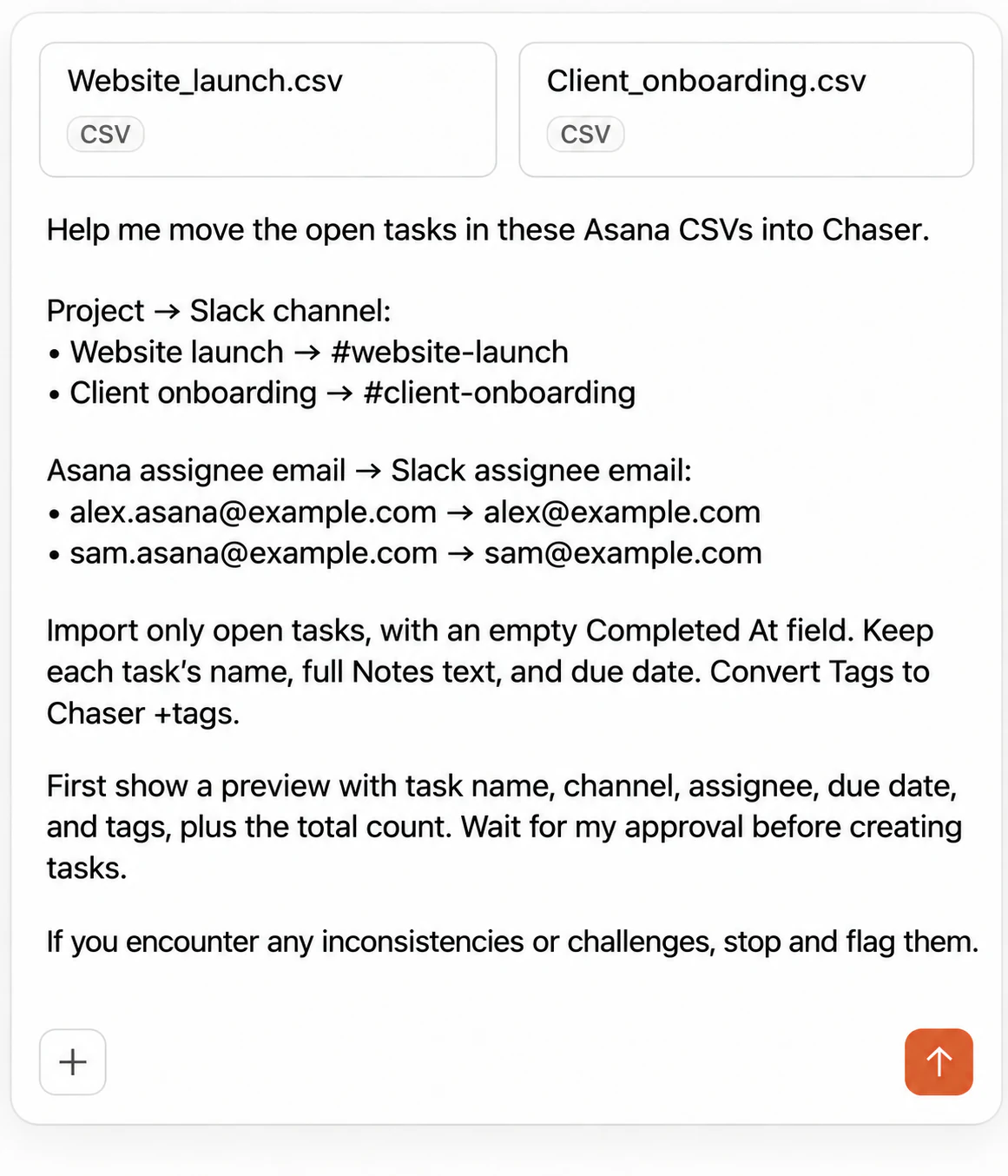
Help me move the open tasks in these Asana CSVs into Chaser.
Project → Slack channel:
- Website launch → #website-launch
- Client onboarding → #client-onboarding
Asana assignee email → Slack assignee email:
Import only open tasks, with an empty Completed At field. Keep each task's name, full Notes text, and due date. Convert Tags to Chaser +tags.
First show a preview with task name, channel, assignee, due date, and tags, plus the total count. Wait for my approval before creating tasks.
If you encounter any inconsistencies or challenges, stop and flag them.
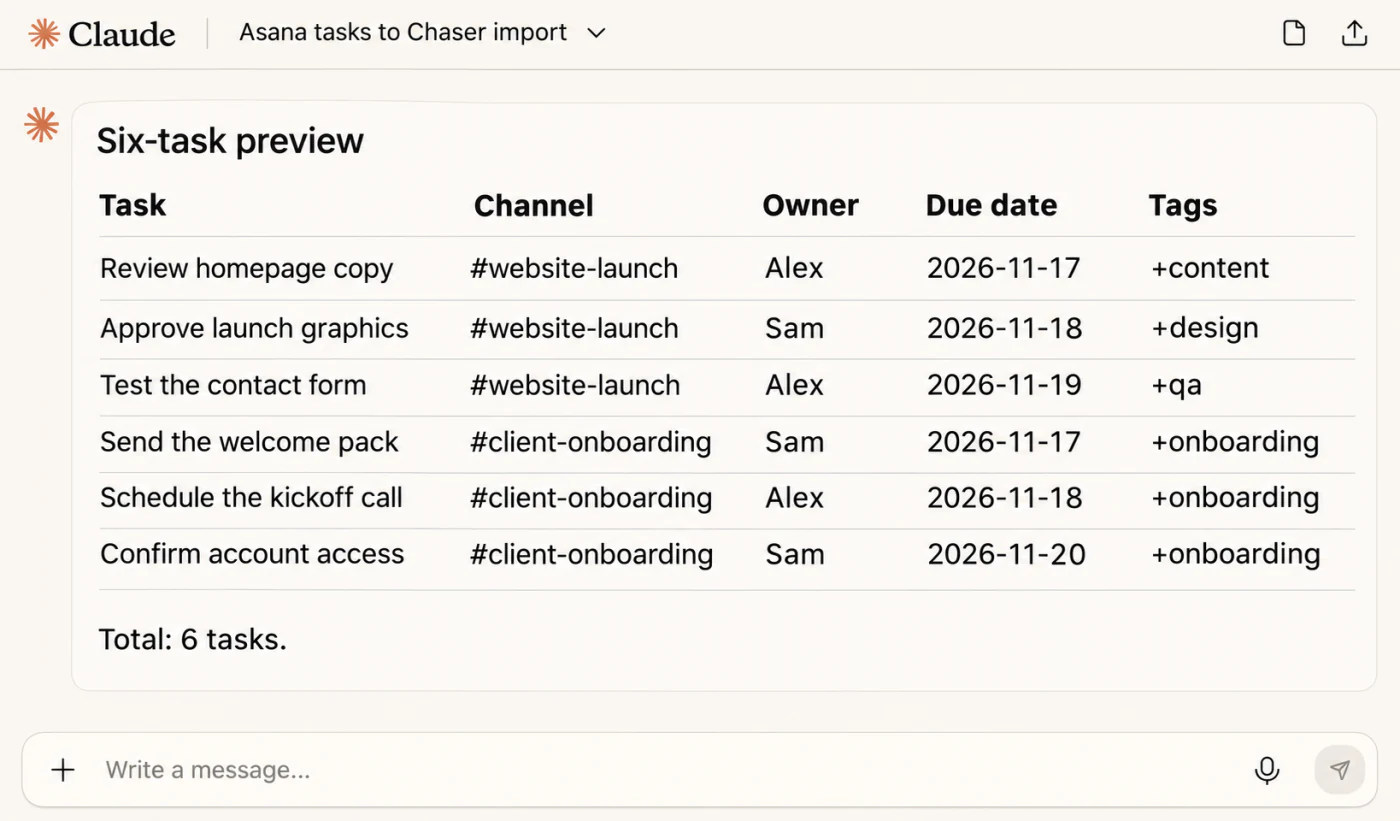
Check the preview against your projects. In this example, it showed six tasks across two channels, split equally between Alex and Sam, with due dates from November 17 to November 20, 2026.
Import a small sample, then the rest
Start with one task for each destination channel and assignee. That gives you something concrete to inspect in Slack before importing the rest.
Create only “Review homepage copy” in #website-launch for Alex and “Send the welcome pack” in #client-onboarding for Sam. Return their Slack links.
Open the returned links in Slack. Check the channel and assignee, then compare the description, due date, and tags with Asana. Each task should appear as its own message with the correct status.
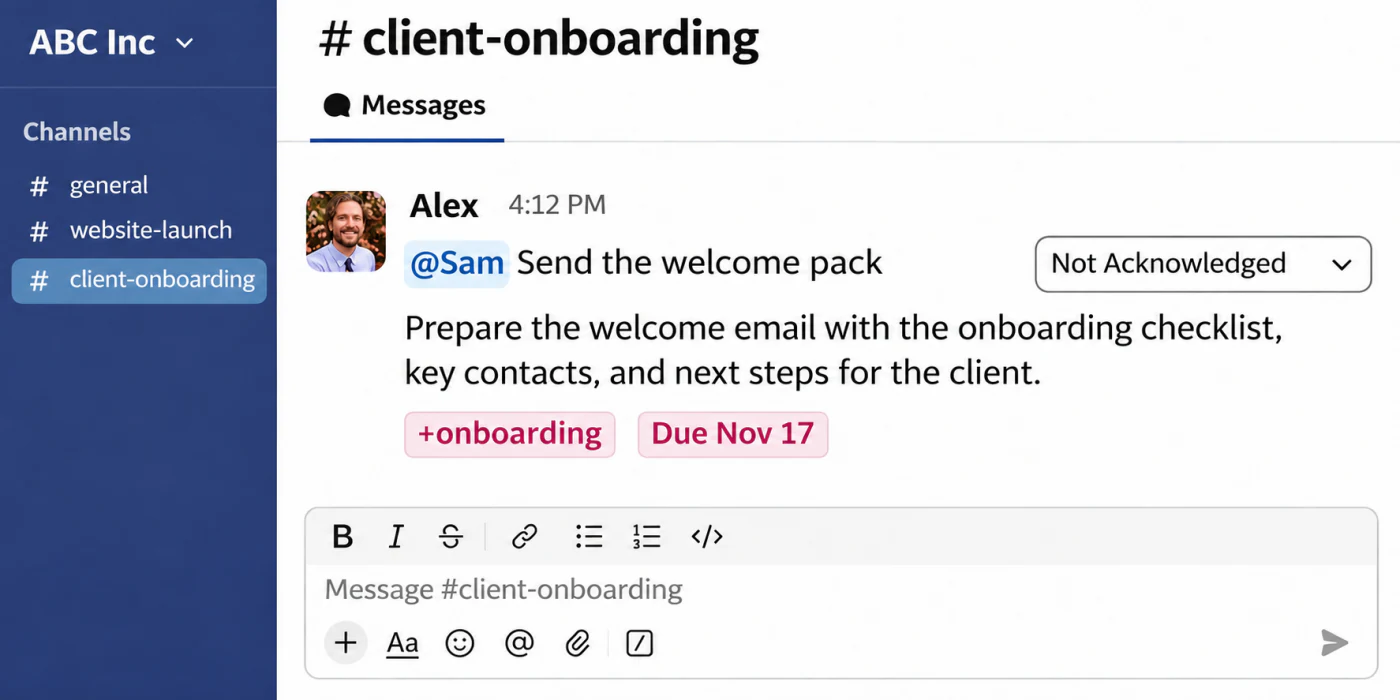
If the sample looks good, approve the import of the remaining tasks:
The sample looks good. Import the remaining four tasks.
Check the finished tasks in Slack
This demo has three tasks in #website-launch and three in #client-onboarding. Alex owns three and Sam owns three as well. All tasks retain their descriptions, due dates, and tags.
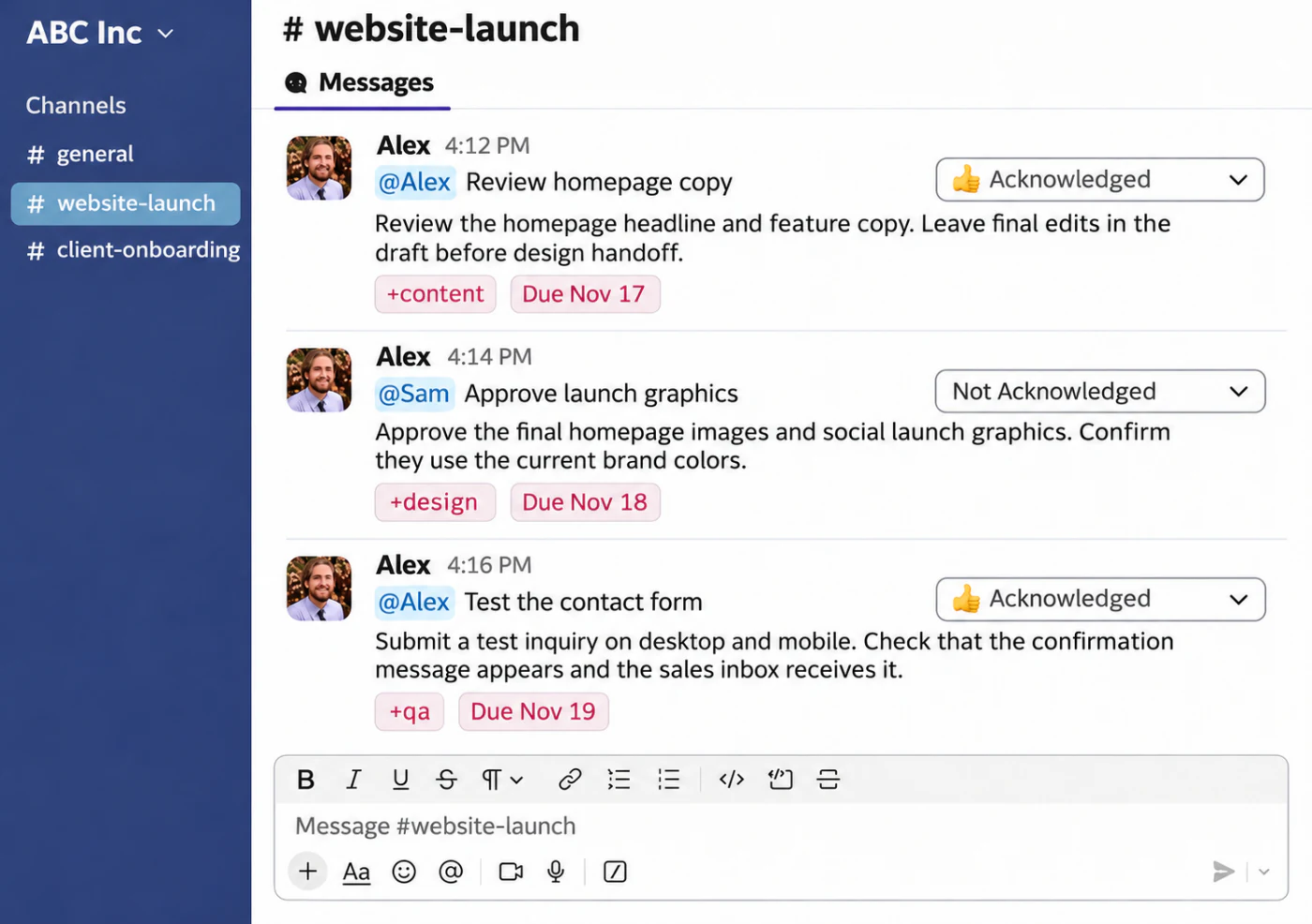
The imported tasks are live Chaser tasks, so plan the import with the people receiving them. They can use the task message to acknowledge work and update its status. See the Slack Task Management Guide for the day-to-day workflow.
Moving tasks from Monday.com, Jira, or other tools
The benefit of using an AI agent is that it can handle different data formats. You can follow the same export, mapping, preview, and import steps with Monday.com, Jira, or another project management tool.
You can also use ChatGPT, Gemini CLI, or another AI agent that can read your export and connect to Chaser MCP. The workflow stays the same!

Alex Steshenko is the co-founder and CTO of Chaser. Drawing on his experience building products and leading teams, he writes about task management, workflow automation, and helping growing businesses get more out of Slack. His focus is practical: making ownership clear, reducing manual follow-ups, and helping teams turn everyday conversations into completed work. More articles by Alex Steshenko
Send this article to someone who’d like it.